Open a book.
Tap the book you want to read. If you don’t see it in on the bookshelf, swipe left
or right to see other collections.
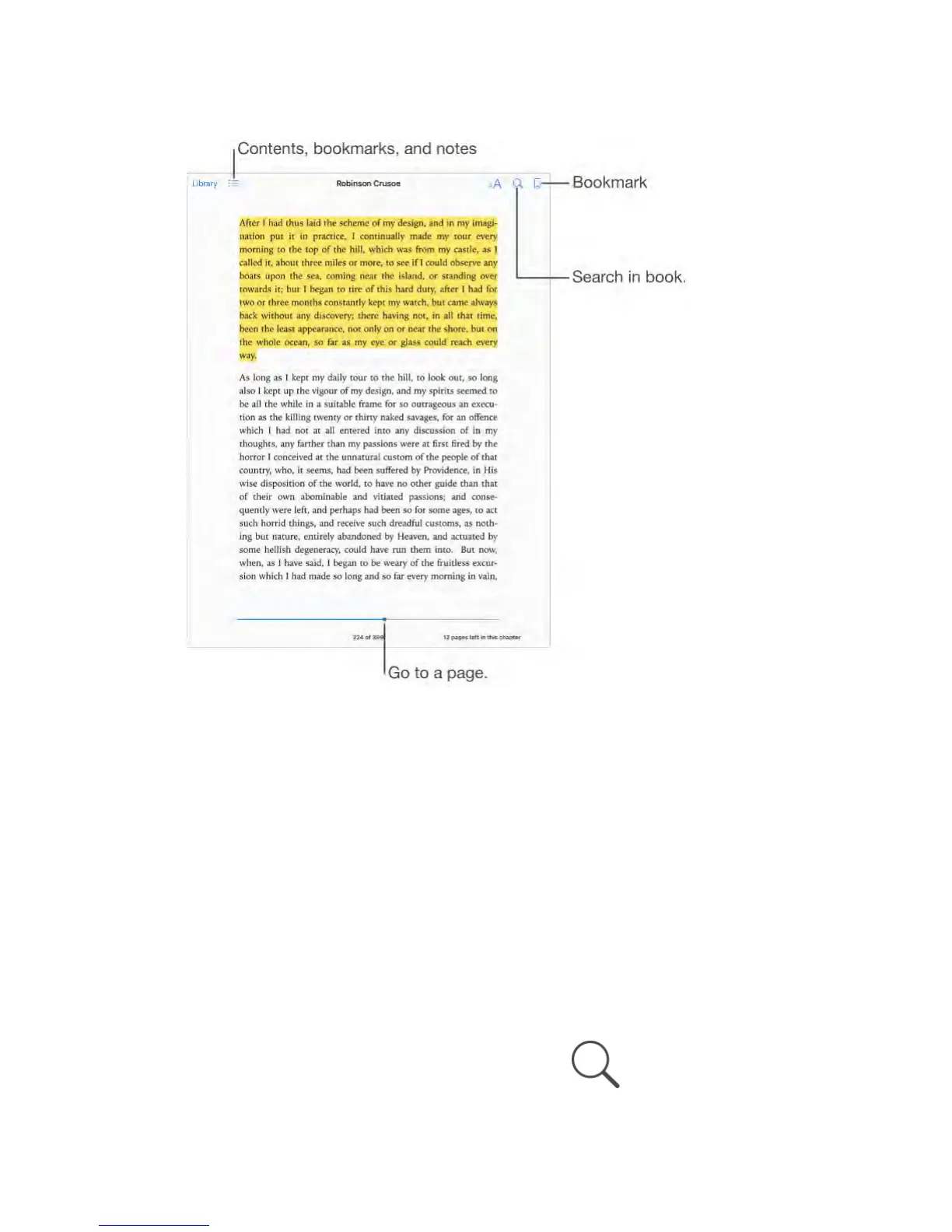
Show the controls.
Tap near the center of a page. Not all books have the same controls, but some
of the things you can do include searching, viewing the table of contents, and
sharing what you’re reading.
Close a book.
Tap Library, or pinch the page.
Enlarge an image.
Tap, or with some books double-tap, the image.
Read by columns.
In books that support it, double-tap a column of text to zoom in, then swipe up
or to the left to move to the next column.
Go to a specific page.
Use the page navigation controls at the bottom of the screen. Or tap



 To Next Page