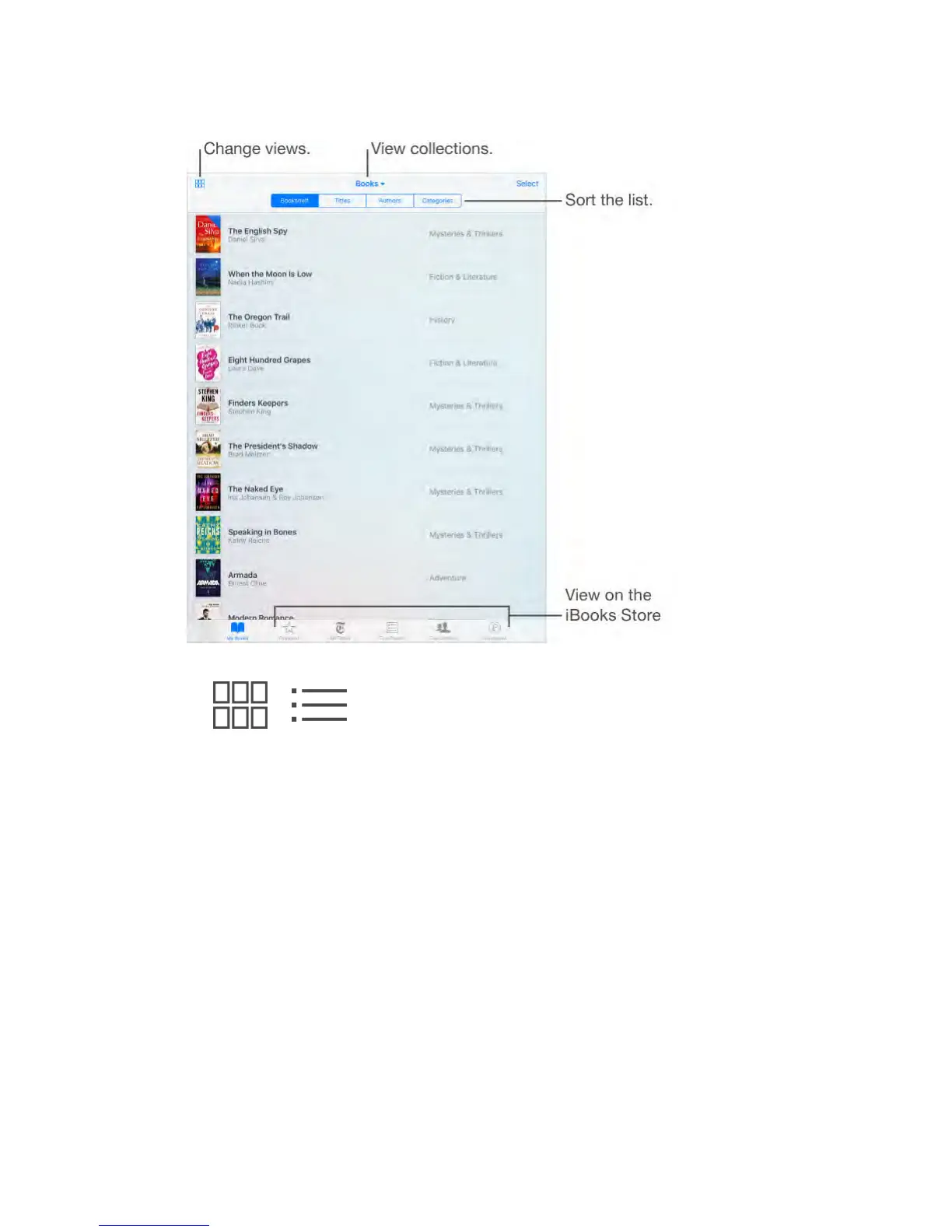
View books by title or cover.
Tap or .
View only audiobooks or PDFs.
Tap the name of the current collection (at the top of the screen) then choose
PDFs or Audiobooks.
Organize your books with collections.
Tap Select, then select some books to add them into a collection. To edit or
create collections, tap the name of the current collection (at the top of the
screen). Some built-in collections, such as PDFs, can’t be renamed or deleted.
Rearrange books.
While viewing books by cover, touch and hold a cover then drag it to a new
location. While viewing books by title, sort the list using the buttons at the top of
the screen. The All Books collection is automatically arranged for you; switch to
another collection if you want to manually arrange your books.
Search for a book.
Pull down to reveal the Search field at the top of the screen. Searching looks for
the title and the author’s name.
Hide purchased books you haven’t downloaded.



 To Next Page