Three-finger triple-tap: Turn the screen curtain on or off.
Use the VoiceOver rotor
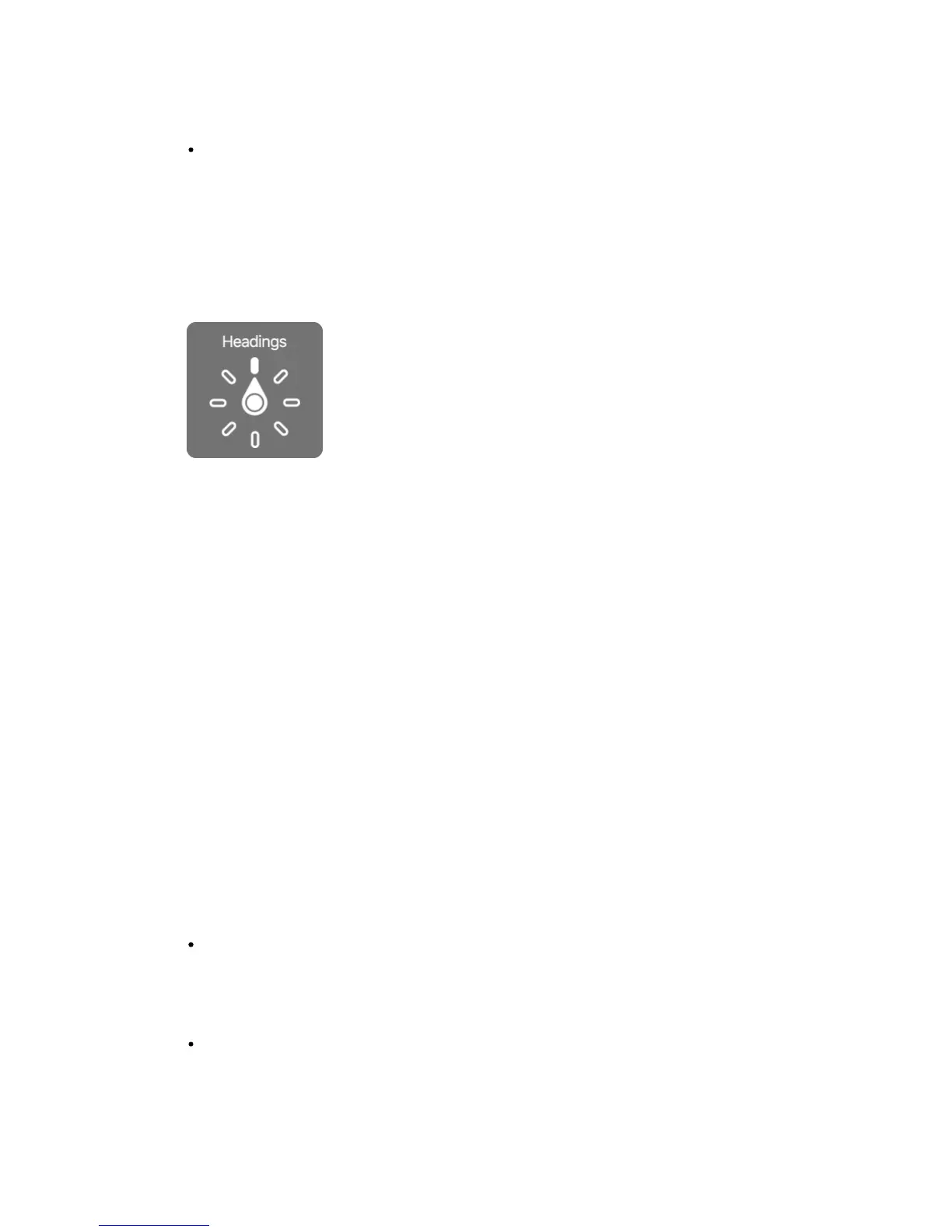
Use the rotor to choose what happens when you swipe up or down with
VoiceOver turned on, or to select special input methods such as Braille Screen
Input or Handwriting.
Operate the rotor.
Rotate two fingers on the screen around a point between them.
Choose your rotor options.
Go to Settings > General > Accessibility > VoiceOver > Rotor, then select the
options you want to include in the rotor.
The available rotor options and their effects depend on what you’re doing. For
example, if you’re reading an email, you can use the rotor to switch between
hearing text spoken word-by-word or character-by-character when you swipe
up or down. If you’re browsing a webpage, you can set the rotor to speak all the
text (either word-by-word or character-by-character), or to jump from one item
to another of a certain type, such as headers or links.
When you use an Apple Wireless Keyboard to control VoiceOver, the rotor lets
you adjust settings such as volume, speech rate, use of pitch or phonetics,
typing echo, and reading of punctuation. See Use VoiceOver with an Apple
Wireless Keyboard.
Use the onscreen keyboard
When you activate an editable text field, the onscreen keyboard appears (unless
you have an Apple Wireless Keyboard attached).
Activate a text field.
Select the text field, then double-tap. The insertion point and the onscreen
keyboard appear.
Enter text.
Type characters using the onscreen keyboard:
Standard typing: Select a key on the keyboard by swiping left or right, then
double-tap to enter the character. Or move your finger around the keyboard
to select a key and, while continuing to touch the key with one finger, tap the
screen with another finger. VoiceOver speaks the key when it’s selected, and
again when the character is entered.
Touch typing: Touch a key on the keyboard to select it, then lift your finger to
enter the character. If you touch the wrong key, slide your finger to the key
you want. VoiceOver speaks the character for each key as you touch it, but



 To Next Page