Customize iPad
Arrange your apps
Arrange apps.
Touch and hold any app on the Home screen until you see the app icons jiggle,
then drag apps around. Drag an app to the edge of the screen to move it to a
different Home screen, or to the Dock at the bottom of the screen (you may
need to remove another app first). Press the Home button to save your
arrangement.
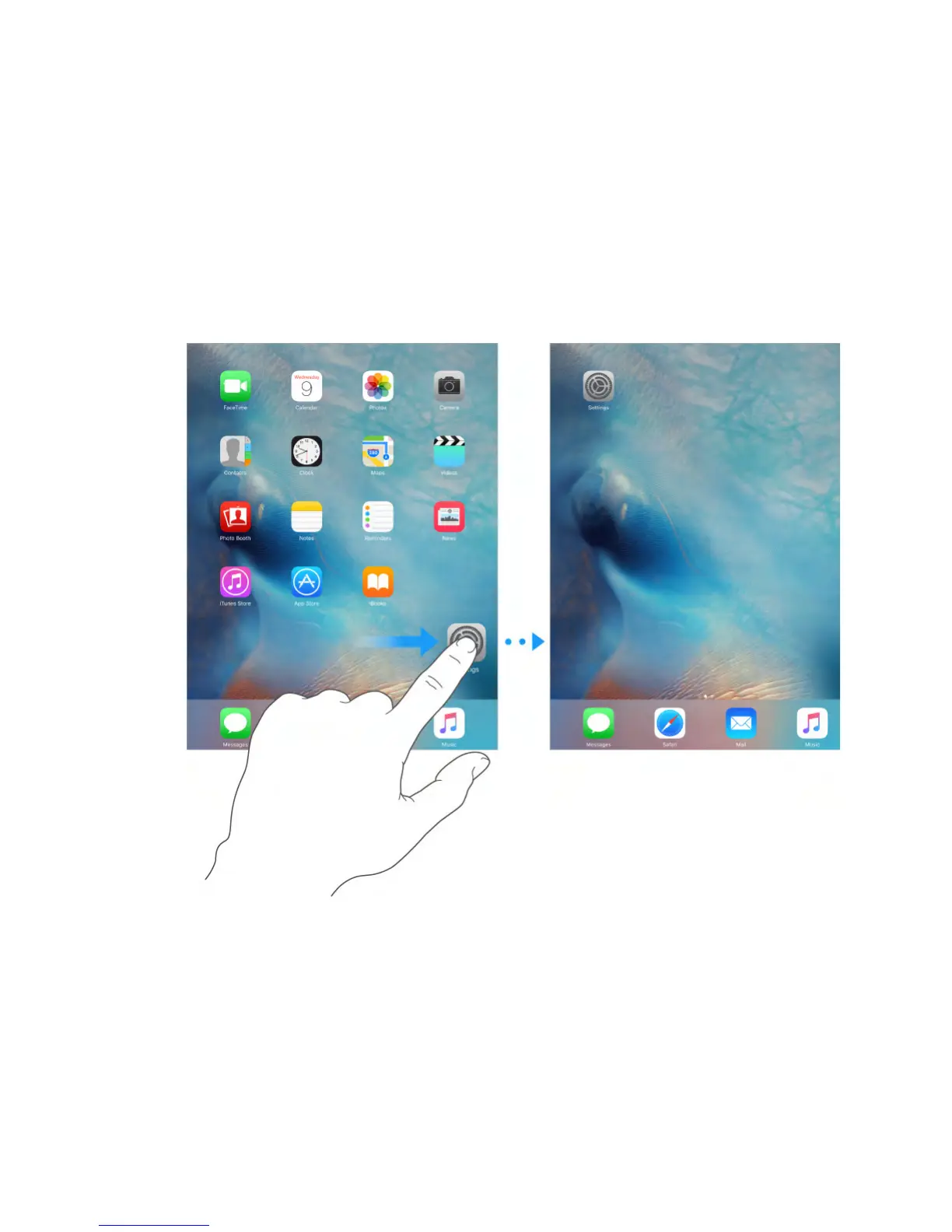
Create a new Home screen.
While arranging apps, drag an app to the right edge of the last Home screen.
The dots above the Dock show which of your Home screens you’re viewing.
When iPad is connected to your computer, you can customize the Home screen
using iTunes. In iTunes, select iPad, then click Apps.
Start over.
Go to Settings > General > Reset, then tap Reset Home Screen Layout to return
the Home screen and apps to their original layout. Folders are removed and the



 To Next Page