location, or tap Other to create a new location for the notification.
Charge and monitor the battery
iPad has an internal, lithium-ion rechargeable battery. For more information
about the battery—including tips for maximizing battery life—see
www.apple.com/batteries/.
WARNING: For important safety information about the battery and charging
iPad, see Important safety information (on page) .
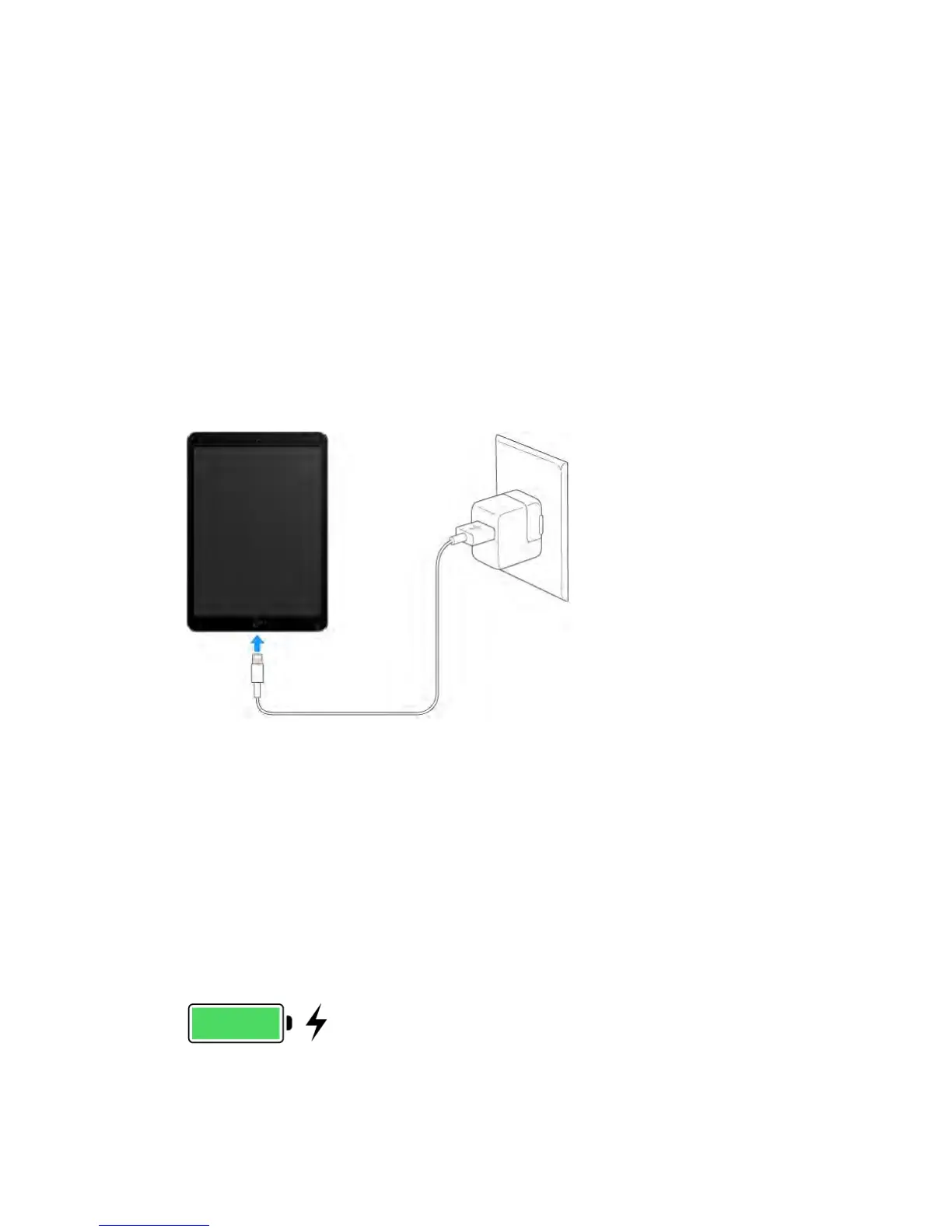
Charge the battery.
The best way to charge the iPad battery is to connect iPad to a power outlet
using the included cable and USB power adapter.
Note: Connecting iPad to a power outlet can start an iCloud backup or wireless
iTunes syncing. See Back up iPad (on page) and Sync with iTunes (on page) .
iPad may also charge slowly when you connect it to a USB 2.0 port on your
computer. If your Mac or PC doesn’t provide enough power to charge iPad, a
“Not Charging” message appears in the status bar.
Important: The iPad battery may drain instead of charge if iPad is connected to
a computer that’s turned off or is in sleep or standby mode, to a USB hub, or to
the USB port on a keyboard.
See proportion of battery used by each app.
Go to Settings > Battery > Usage, then tap Battery Usage.
The battery icon in the upper-right corner of the status bar shows the battery
level or charging status.
Display the percentage of battery charge.



 To Next Page