Assign a photo to a contact:
1 Tap Contacts, then choose a contact.
2 Tap Edit and tap Add Photo, or tap the existing photo.
3 Tap Take Photo and take a photo with the camera. Or tap Choose Existing Photo and
choose a photo.
4 Drag and scale the photo as desired.
5 Tap Use Photo (new photo) or Choose (existing photo).
Using Contact Information
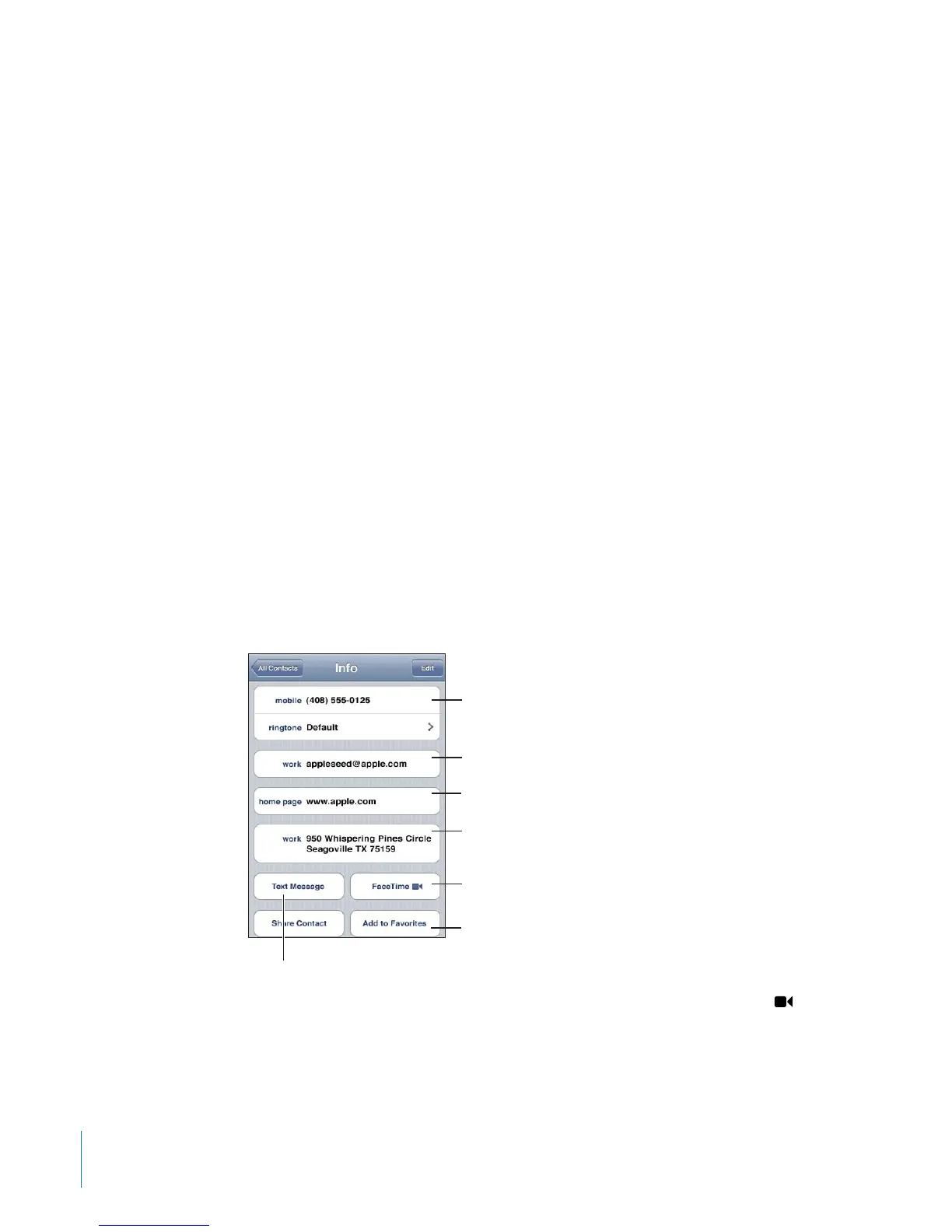
You can use the information on a contact’s Info screen to:
Call the contact Â
Create an email message in Mail, addressed to the contact Â
Open the contact’s home page in Safari Â
Find the location of the contact’s address in Maps, and get directions Â
Send a text message to the contact Â
Share the contact information with others Â
Add a phone number for the contact to your favorites list Â
Make a FaceTime video call Â
Use a contact’s info screen: Tap Contacts and choose a contact. Then tap an item.
A star next to a phone number means the number is in your favorites list. appears
on the FaceTime button if you’ve ever had a FaceTime call with the contact.
See your own phone number: Tap Contacts and scroll to the top of the list. (Not
available in all countries or regions.)
216
Chapter 26 Contacts



 To Next Page