receipts.
When using Apple Pay at some locations, you may receive a notification that allows you to
easily add a rewards card for that merchant.
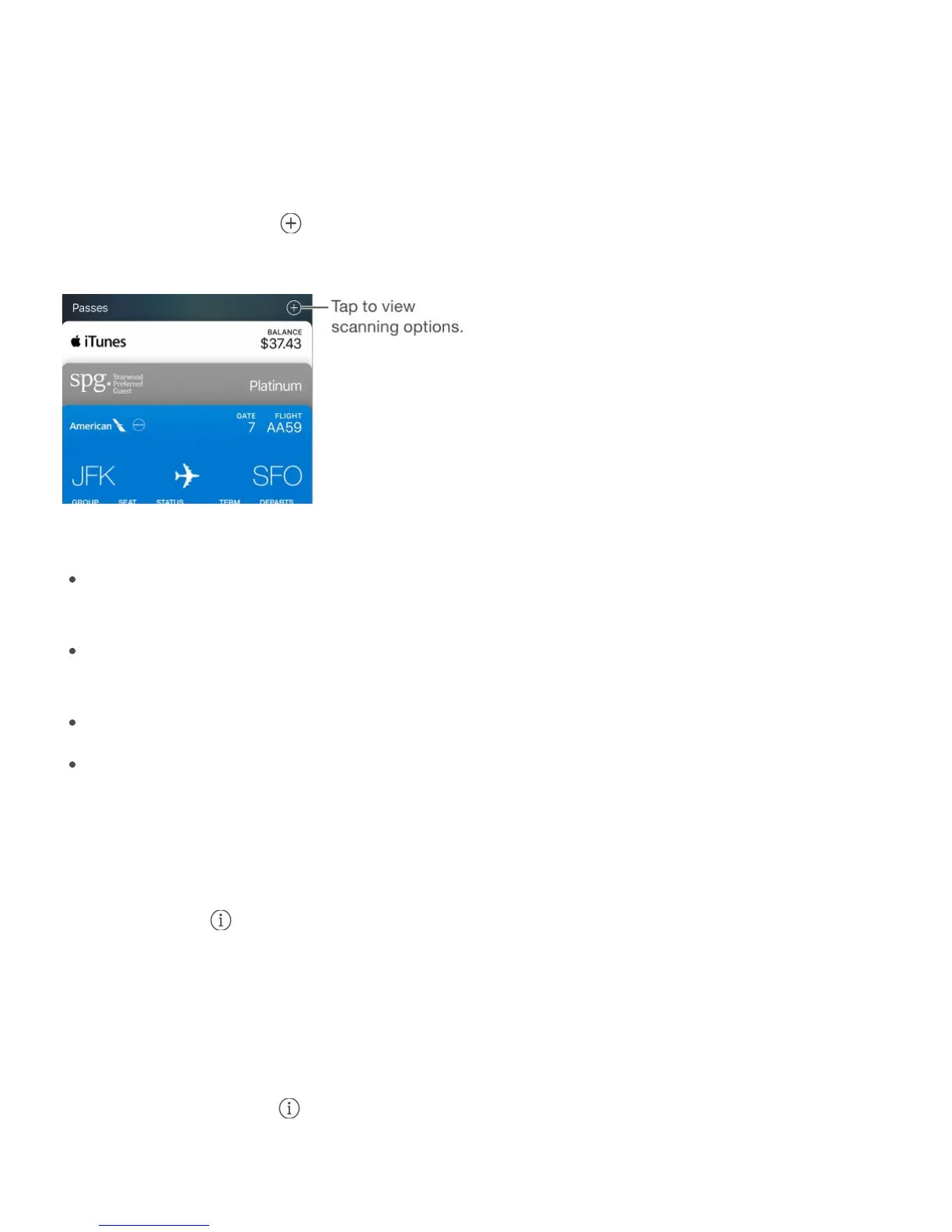
Scan a code. If you have no passes in Wallet, tap Scan Code on the Welcome pass. (If you
have added a pass, tap , then tap Scan Code to Add a Pass.) Point your iPhone at the
code and frame it to add the pass.
Use a pass. Wallet lets you use passes in a variety of ways. They include:
If a pass notification appears on the Lock screen, slide up to open Wallet and display the
pass.
If you added a card to use with Apple Pay, double-click the Home button when iPhone is
locked to quickly access a relevant pass in Wallet.
Hold iPhone near the reader to display the appropriate rewards pass at supported stores.
Open Wallet, then tap a pass.
To pay, present the barcode to the reader. Or, when using supported passes with Apple
Pay, place your finger on Touch ID and hold iPhone near the reader.
Share a pass. You can share a pass using Mail, Messages, or AirDrop (iPhone 5 and later).
Tap a pass, tap , then tap Share Pass. See .
Receive and redeem rewards. At supported stores, hold iPhone near the reader to display
the appropriate rewards pass. To receive or redeem rewards using Apple Pay, place your
finger on Touch ID.
Note: To prevent a rewards pass from being automatically selected when at a supported
store, tap the pass, tap , then turn off Automatic Selection.
Display a pass based on location. A pass can appear on the Lock screen when you wake



 To Next Page