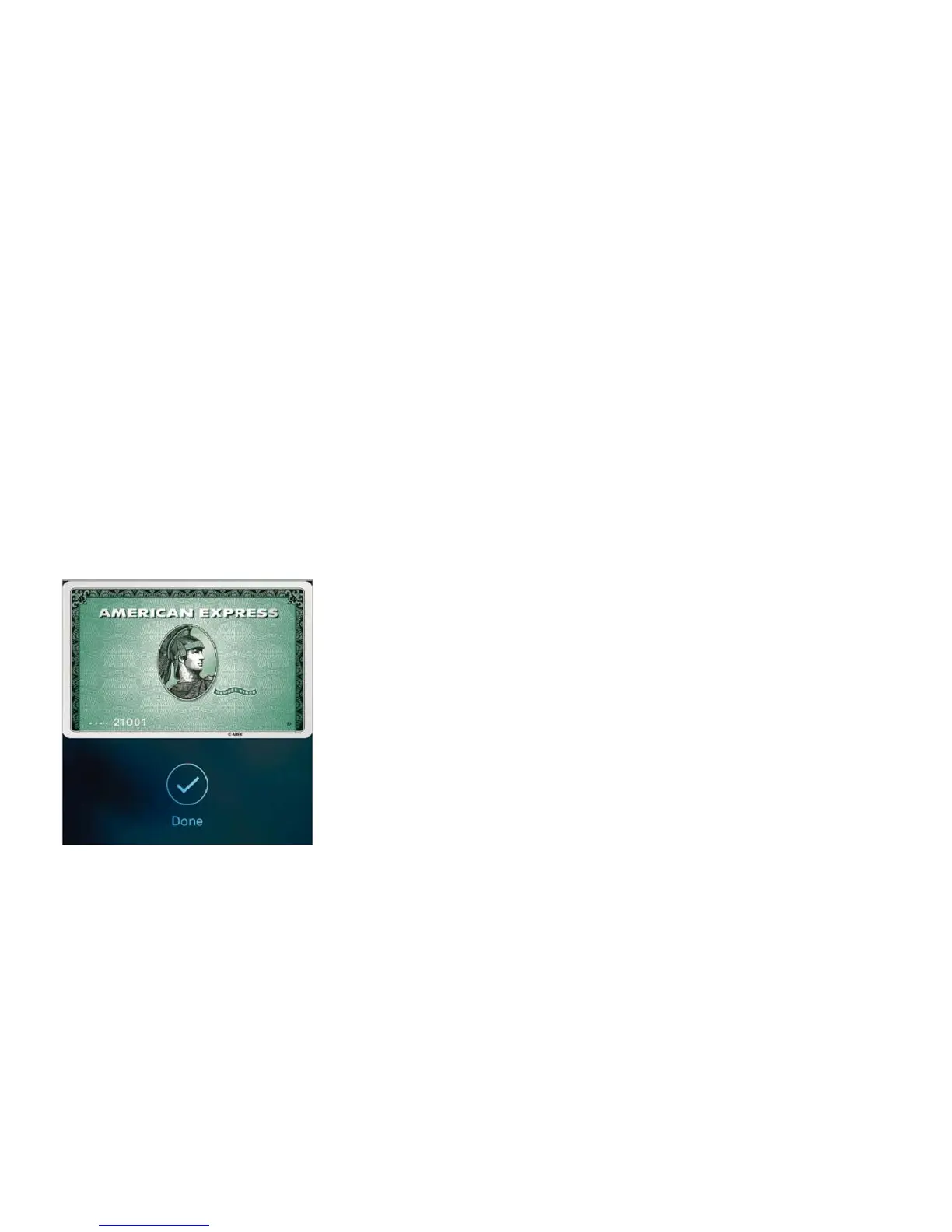
the card onscreen with a Done checkmark when the card information has been transmitted
to the merchant. Or double-click the Home button and keep your finger lightly on the Home
button when iPhone is locked to access Wallet and authorize an upcoming payment. Then
hold iPhone near the contactless reader until iPhone vibrates, you see Done, and hear a
beep.
When you add a store credit or debit card to Wallet, and set it up for Automatic Selection, it
will be used with the associated merchant rather than the default card.
Note: If you have Location Services turned on, the location of your iPhone at the time you
make a purchase may be sent to Apple. See .
Use another card. Hold iPhone near the reader until your default card appears. Tap the card
to reveal all your cards in Wallet, tap the card you want to use, then place your finger on
Touch ID and hold iPhone near the reader until you feel iPhone vibrate and see the Done
checkmark, indicating that the card information has been transmitted to the merchant. On
iPhone 6s and iPhone 6s Plus, you can press the Wallet icon on the Home screen to quickly
access your default card.
Pay within an app. Make your selections for goods or services within an app. When
checking out, look for the Apple Pay payment option. Tap the Apple Pay button or app
checkout button, then review the information that appears (for example, the card you’re
using for the payment, your email, and the shipping method). Make any changes before
using Touch ID or your passcode to complete the payment.
Activity details appear on the front of the credit card used for the purchase. In addition, you
may receive a notification with the merchant name, and the amount authorized for the
purchase.



 To Next Page