New Notes Start With.
Add an attachment. When you’re in another app and find something (like a location in Maps
or a webpage in Safari) that you want to add to one of your notes, tap Share or , then tap
Add to Notes. You can create a new note, or add the attachment to an existing one.
Change the preview size of attachments. Touch and hold an image, sketch, or PDF
attachment in a note, then choose Small Images or Large Images (depending on your
current preview size).
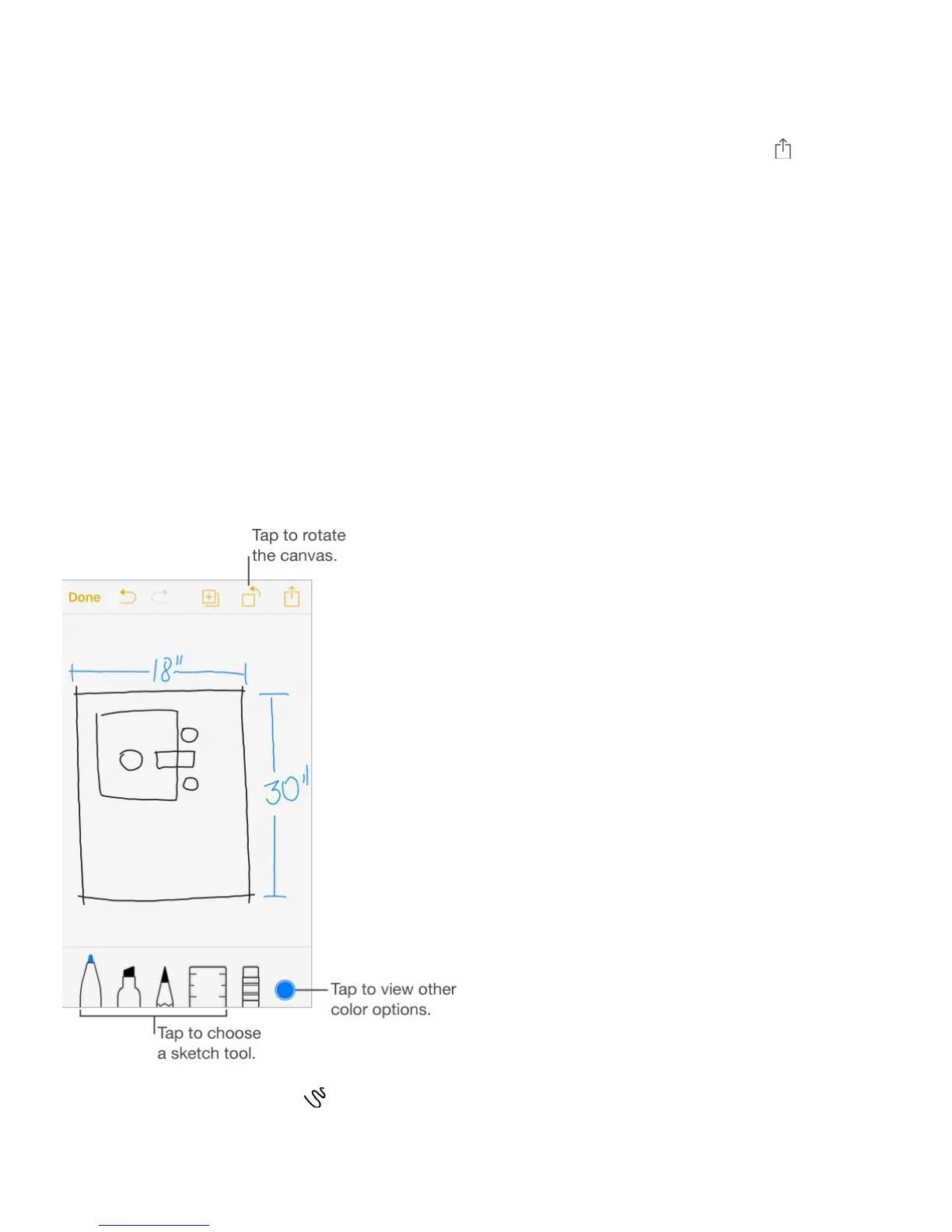
Create a sketch
Sometimes you may want a sketch to help you capture an idea or plan. Start a sketch using
the pencil, marker, or pen tool. Switch to the eraser if you make a mistake.
Note: The sketching feature is available with upgraded notes on iPhone 5 and later.
Sketch in your note. Tap , use your finger to sketch, then tap Done. Your sketch
appears in your note. Tap the sketch to edit it.



 To Next Page