See the latest. Tap next to the address in the search field to update the page.
See a tab’s history. Touch and hold or .
View the desktop version of a site. If you want to see the full desktop version of a site
instead of the mobile version, tap , then tap Request Desktop Site.
Keep bookmarks
Bookmark the current page. Tap (or touch and hold ), then tap Add Bookmark.
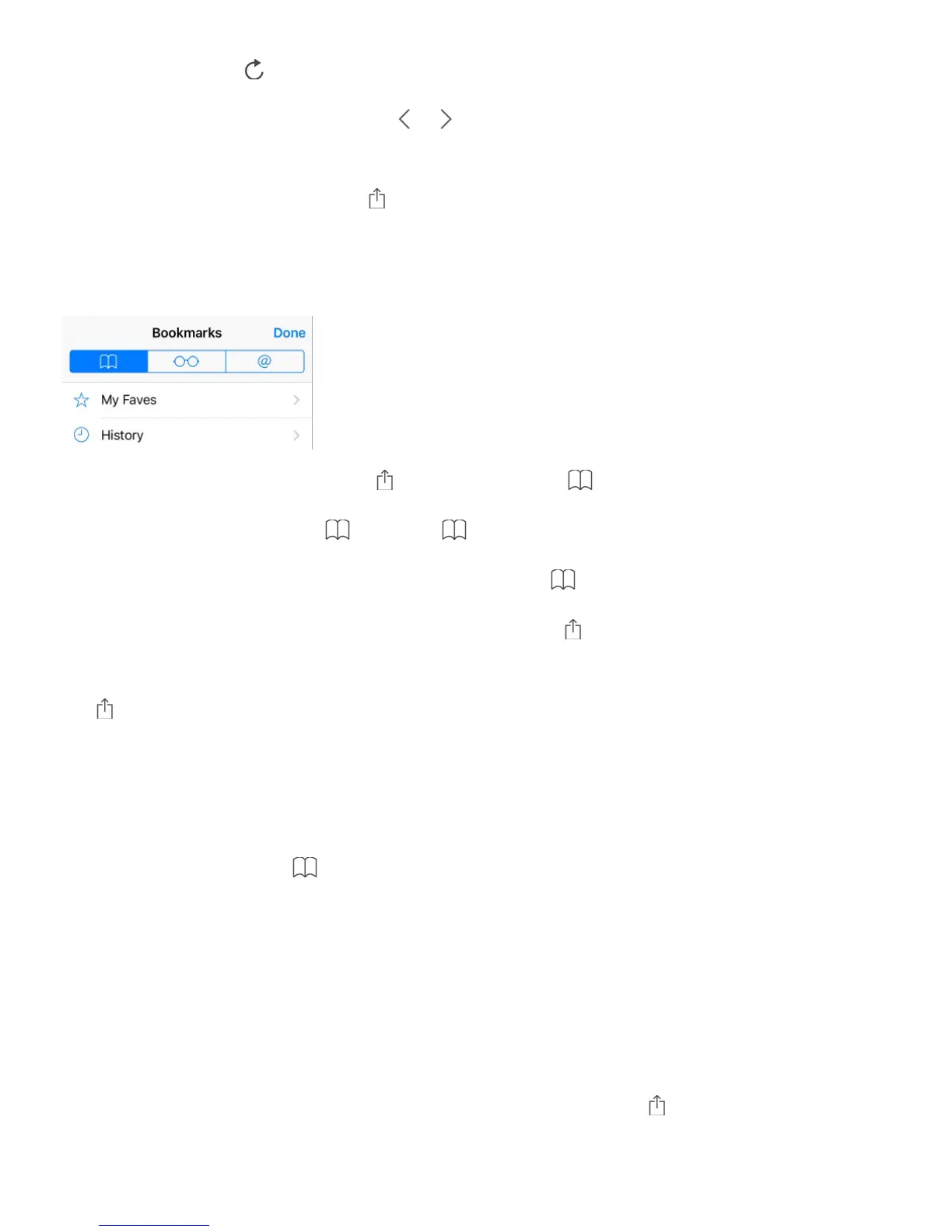
View your bookmarks. Tap , then tap .
Get organized. To create a folder for bookmarks, tap , then tap Edit.
Add a webpage to your favorites. Open the page, tap , then tap Add to Favorites.
Add a site to your News favorites. On a website that offers an RSS feed, open the page,
tap , then tap Add to News.
Quickly see your favorite and frequently visited sites. Tap the search field to see your
favorites. Scroll down to see frequently visited sites. (To avoid seeing a list of such sites,
go to Settings > Safari, then turn off Frequently Visited Sites.)
Edit your favorites. Tap , tap Favorites, then tap Edit to delete, rename, or change the
order of favorites.
Choose which favorites appear when you tap the search field. Go to Settings > Safari >
Favorites.
Bookmarks bar on your Mac? Go to Settings > iCloud, then turn on Safari if you want
items from the bookmarks bar in Safari on your Mac to appear in Favorites on iPhone.
Save an icon for the current page on your Home screen. Tap , then tap Add to Home
Screen. The icon appears only on the device where you create it.



 To Next Page