Chapter 24 iBooks 11 8
available for all languages.
Remember your place. Tap to add a bookmark, or tap again to remove it. You can have
multiple bookmarks—to see them all, tap , then tap Bookmarks. You don’t need to add a
Remember the good parts. Some books let you add highlights and notes. To add a highlight,
a word to select it, move the grab points to adjust the selection, then tap Note in the menu that
appears. To see all the highlights and notes you’ve made, tap , then tap Notes.
Share the good parts. Tap some highlighted text, then, in the menu that appears, tap . If the
book is from the iBooks Store, a link to the book is included automatically. (Sharing may not be
available in all regions.)
Share a link to a book. Tap near the center of a page to display the controls, then tap . Next,
tap , then tap Share Book.
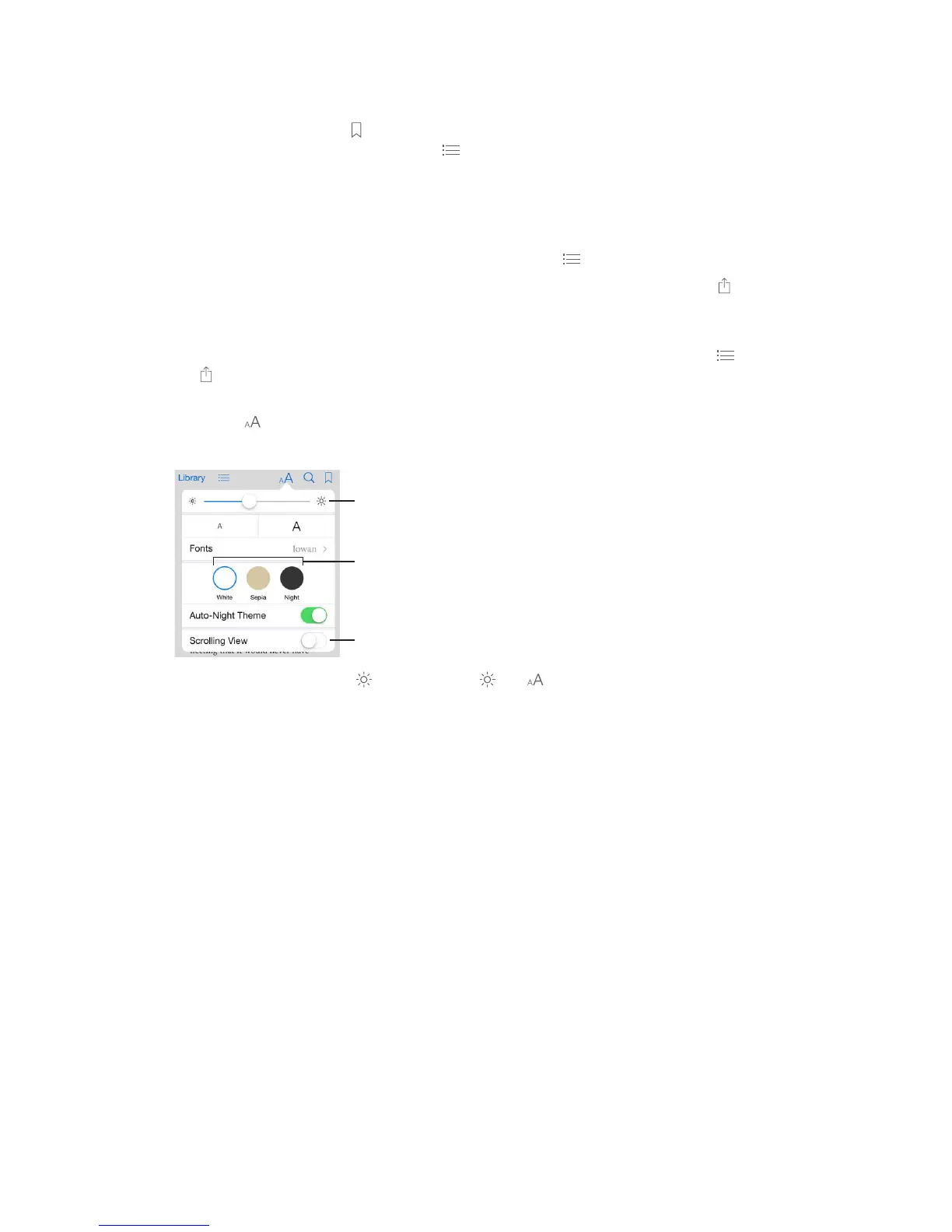
Change the way a book looks. Some books let you change the font, font size, and color of the
page. (Tap
settings apply to all books that support them.
Turn off pagination.
Change the brightness. Tap . If you don’t see , tap
Dim the screen when it’s dark. Turn on Auto-Night Theme to automatically change the
bookshelf, page color, and brightness when using iBooks in low-light conditions. (Not all books
support Auto-Night Theme.)



 To Next Page