26
122
Passbook
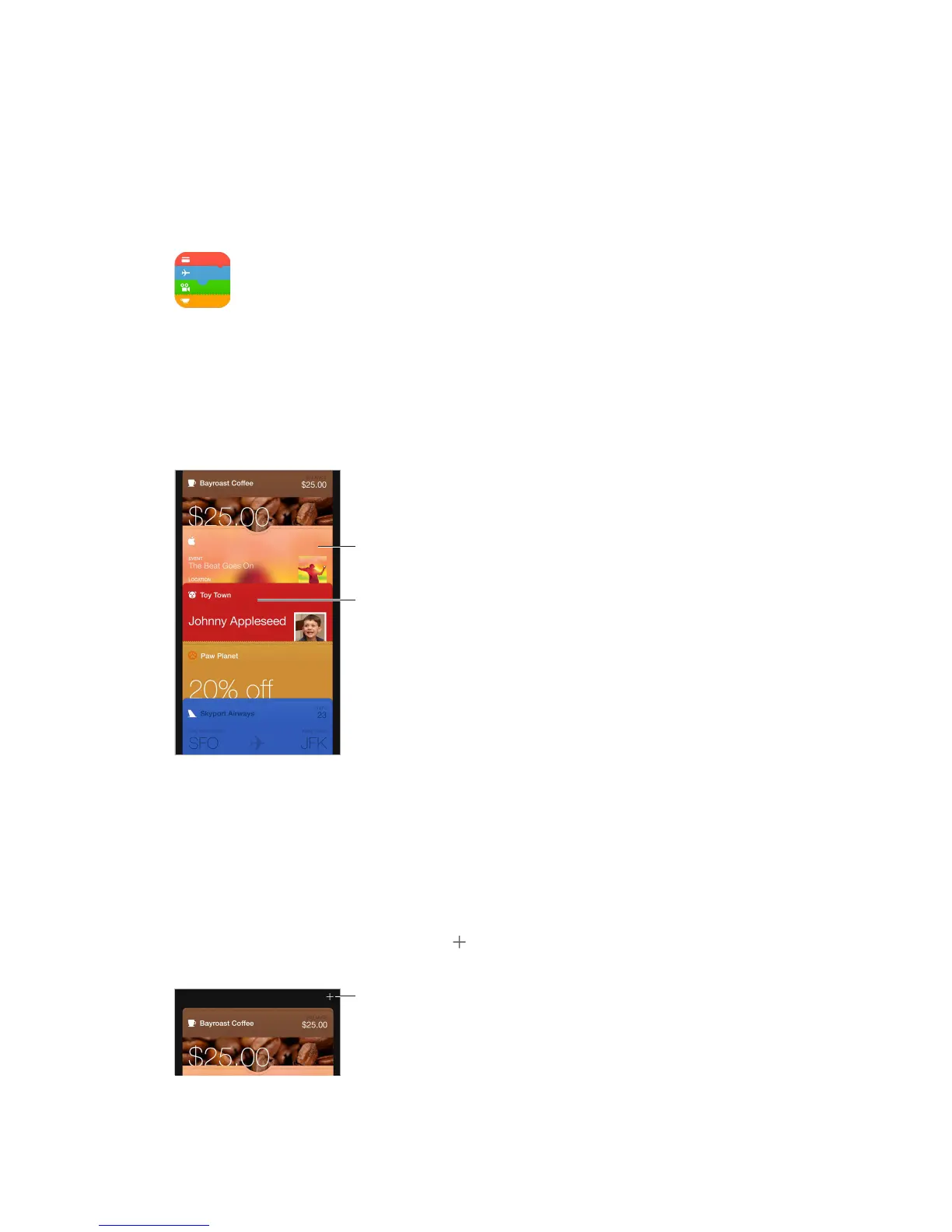
Passbook at a glance
Use Passbook to keep your boarding passes, movie tickets, coupons, loyalty cards, and more, all in
expiration date, or your seat number for a concert.
Pull down to add
a pass.
Passbook on the go
Find apps that support Passbook. Tap Apps for Passbook on the Welcome pass. Or, on your
computer, go to www.itunes.com/passbookapps. You can add a pass from an app, an email or a
Messages message, or a website when you make a purchase or receive a coupon or gift. Usually,
you tap or click the pass or the link to a pass to add it to Passbook. You can also scan codes,
which are then downloaded to Passbook, from merchants’ ads or receipts.
Scan a code. Pull down your pass stack, tap , then tap Scan Code. Point your iPhone at the
code and frame it to add the pass.



 To Next Page