Chapter 11 Photos 86
•
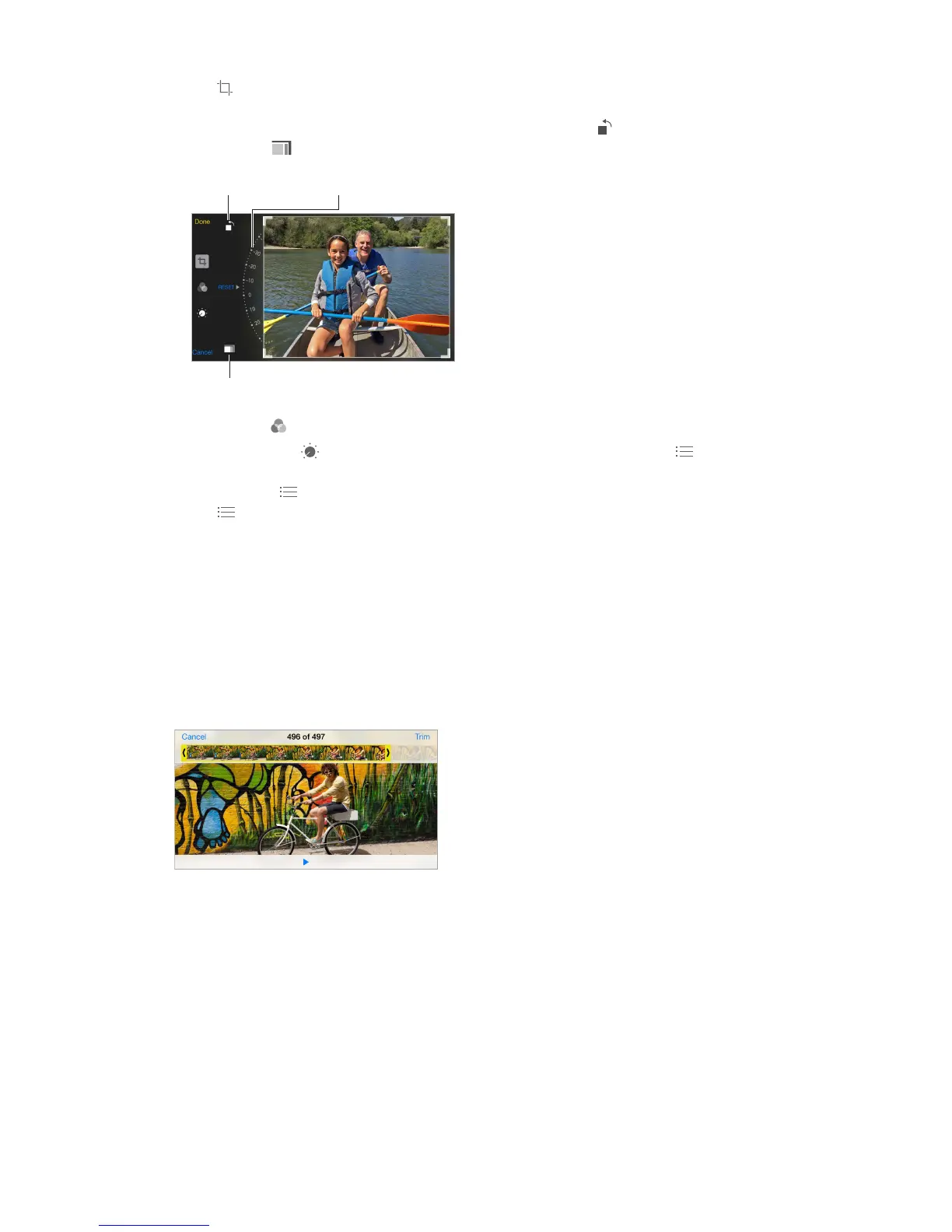
Tap , and Photos suggests an optimal crop, but you can drag the corners of the grid tool to
set your own crop. Move the wheel to tilt or straighten the photo. Tap Auto to align the photo
with the horizon, and tap Reset to undo alignment changes. Tap to rotate the photo 90
degrees. Tap to choose a standard crop ratio, such as 2:3 or Square.
Choose a standard
photo format.
•
•
Tap Adjustments to use Light, Color, and B&W (black & white) sliders. Tap next to Light
to choose the element you want to adjust: Light, Brightness, Contrast, Exposure, Highlights, or
Shadows. Tap next to Color to choose among Color, Contrast, and Vibrancy adjustments.
Tap next to B&W to choose among Intensity, Neutrals, Tone, and Grain adjustments. Move
Compare the edited version to the original. Touch and hold the photo to view the original.
Release to see your edits.
Don’t like the results? Tap Cancel, then tap Discard Changes. Tap Done to save changes.
Revert to original. After you edit a photo and save your edits, you can revert to the original
image. Tap the image, tap Edit, then tap Revert.
Trim a video. Tap the screen to display the controls, drag either end of the frame viewer, then
tap Trim.
Important: If you choose Trim Original, the trimmed frames are permanently deleted from the
original video. If you choose Save as New Clip, a new trimmed video clip is saved in your Videos
Set the Slo-Mo section of a video. (iPhone 5s or later) Use the vertical bars beneath the frame
viewer to set the section of the video you want to play in slow motion.



 To Next Page