Note: The authorized amount may be different from the amount of the payment charged to
your account. For example, a gas station may authorize $99, even though you only pump
$25 worth of gasoline. Always check your credit or debit card statement for the actual
charges.
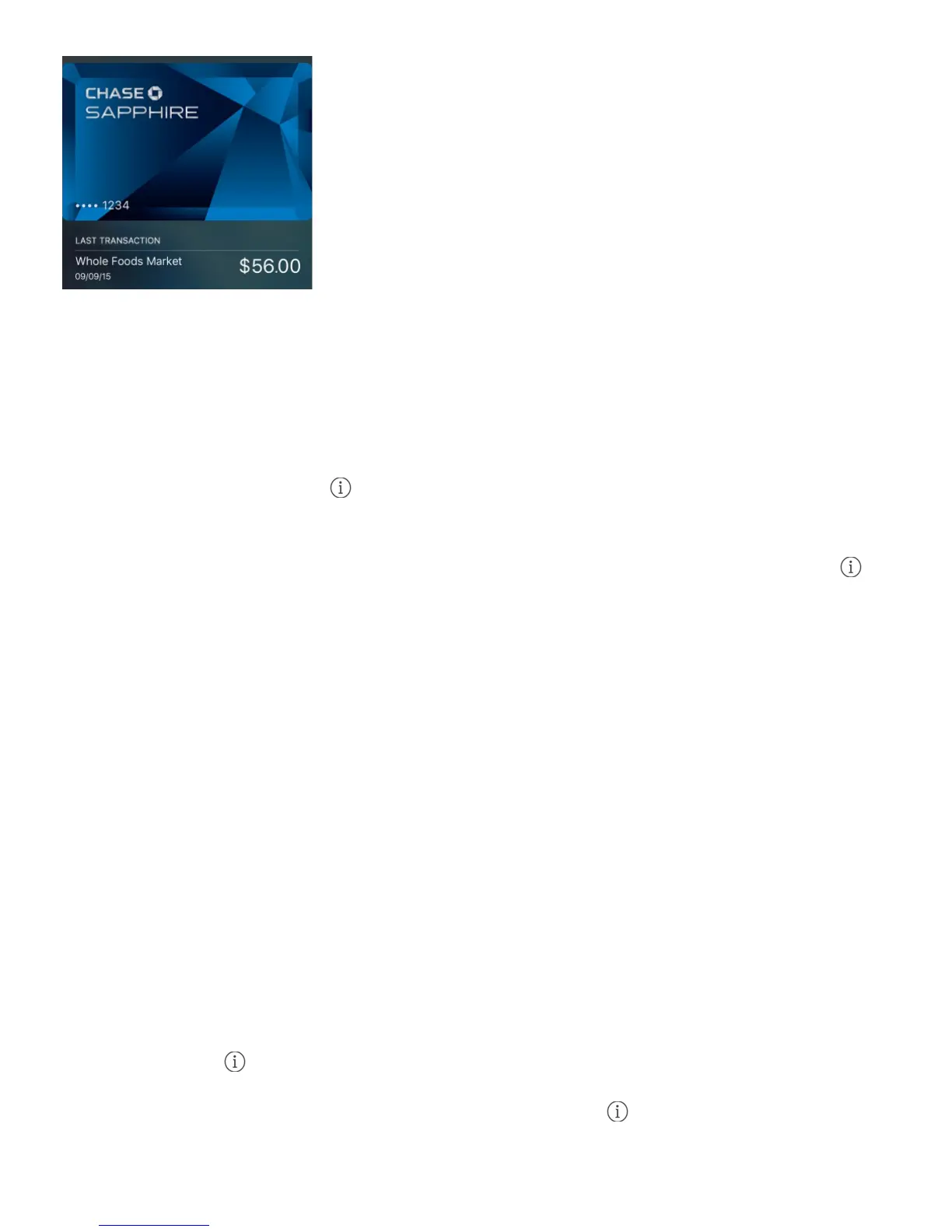
View your recent credit card activity. Tap a credit or debit card. Your most recent activity
may appear on the front. Tap to view a list of your recent activity on the back of the card.
Suspend and remove cards. You have several options for suspending or removing credit
and debit cards. To remove a credit, debit, or store card from Wallet, tap the card, tap ,
then tap Remove Card. To remove an inactive card, tap Remove on the front of the card. If
your iPhone is lost or stolen and you have enabled Find My iPhone, you can use it to help
you locate and secure your iPhone—including suspending or removing the ability to make
purchases using the cards in Wallet. See . You can log in to your account at
and remove your cards in Settings > My Devices. You can also call the issuers
of your cards.
Wallet & Apple Pay settings
Add and manage credit and debit cards. (iPhone SE, iPhone 6, iPhone 6 Plus, and later)
To add credit and debit cards (including store-issued credit and debit cards), manage
existing cards, change the default payment card, modify the shipping addresses used for
Apple Pay purchases, use a different phone number, or change contact information for
purchases, go to Settings > Wallet & Apple Pay.
Use a store card or rewards card automatically with Apple Pay. Tap a supported store or
rewards card, tap , then turn on Automatic Selection.
Change billing information. Tap a credit or debit card, tap , then tap the billing address
to make changes. Tap Enter New Billing Address to add a new one.
Find My iPhone
iCloud.com



 To Next Page