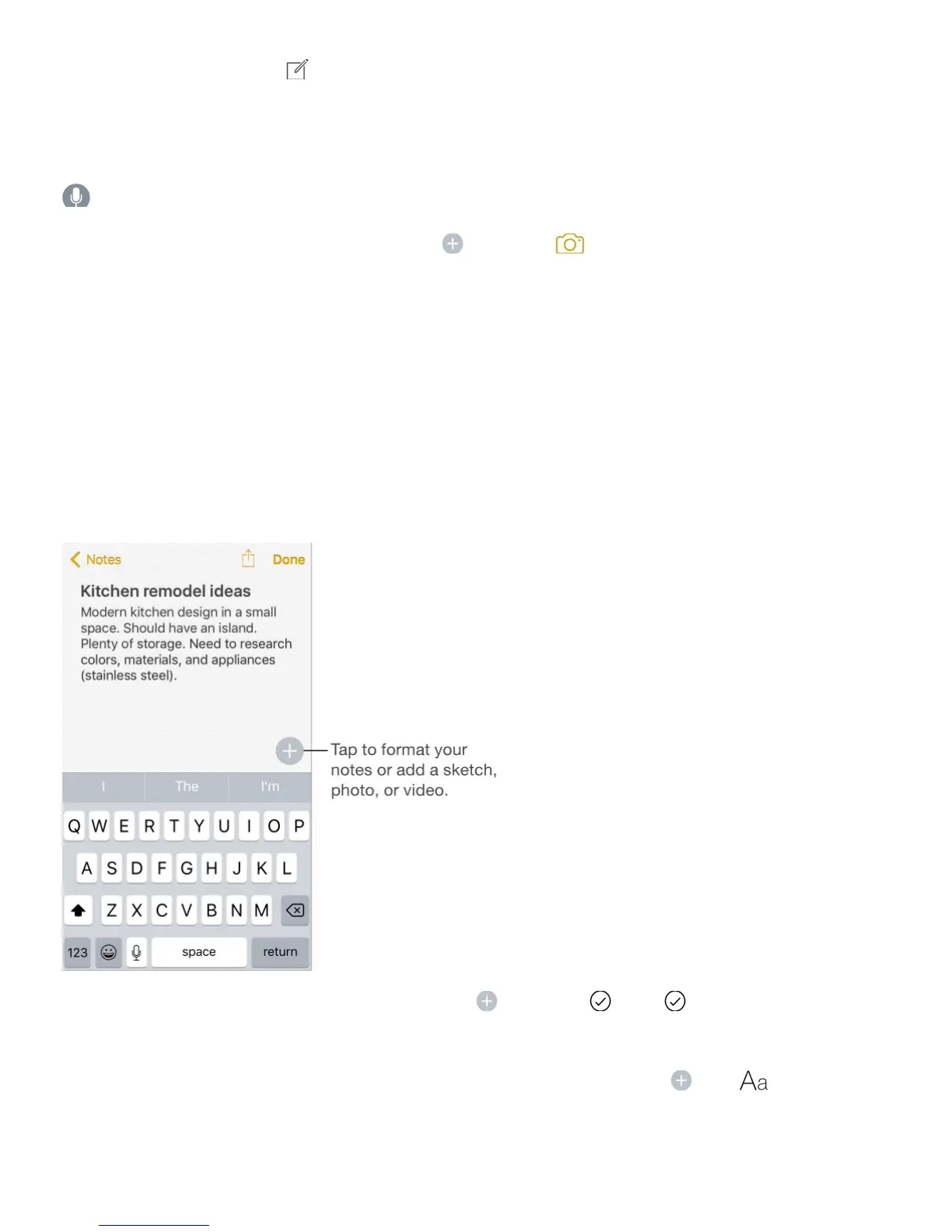
Create a new note. Tap . The first line of the note becomes the note’s title.
Start a new note from the Home screen. On iPhone 6s and iPhone 6s Plus, press Notes,
then choose a quick action. See .
Ask Siri. Say something like: “Create a new note.”
Add a photo or video to your note. Tap , then tap . Take a new photo or video, or
tap Photo Library to select and add existing photos and videos.
If you want a photo or video you take in Notes automatically added to the Photos app, go to
Settings > Notes, then turn on Save Media to Photos.
Format and edit notes
With upgraded notes, you can create checklists, change paragraph styles, and add
attachments.
Start a checklist. Tap a line in your note, tap , then tap . Tap again to remove the
checklist format. Type the task. Tap the empty checklist circle to mark your task complete.
Change the paragraph style of a line. Tap a line in your note, tap , tap , then select
the style.
Set a default formatting style for the first paragraph. Go to Settings > Notes, then tap



 To Next Page