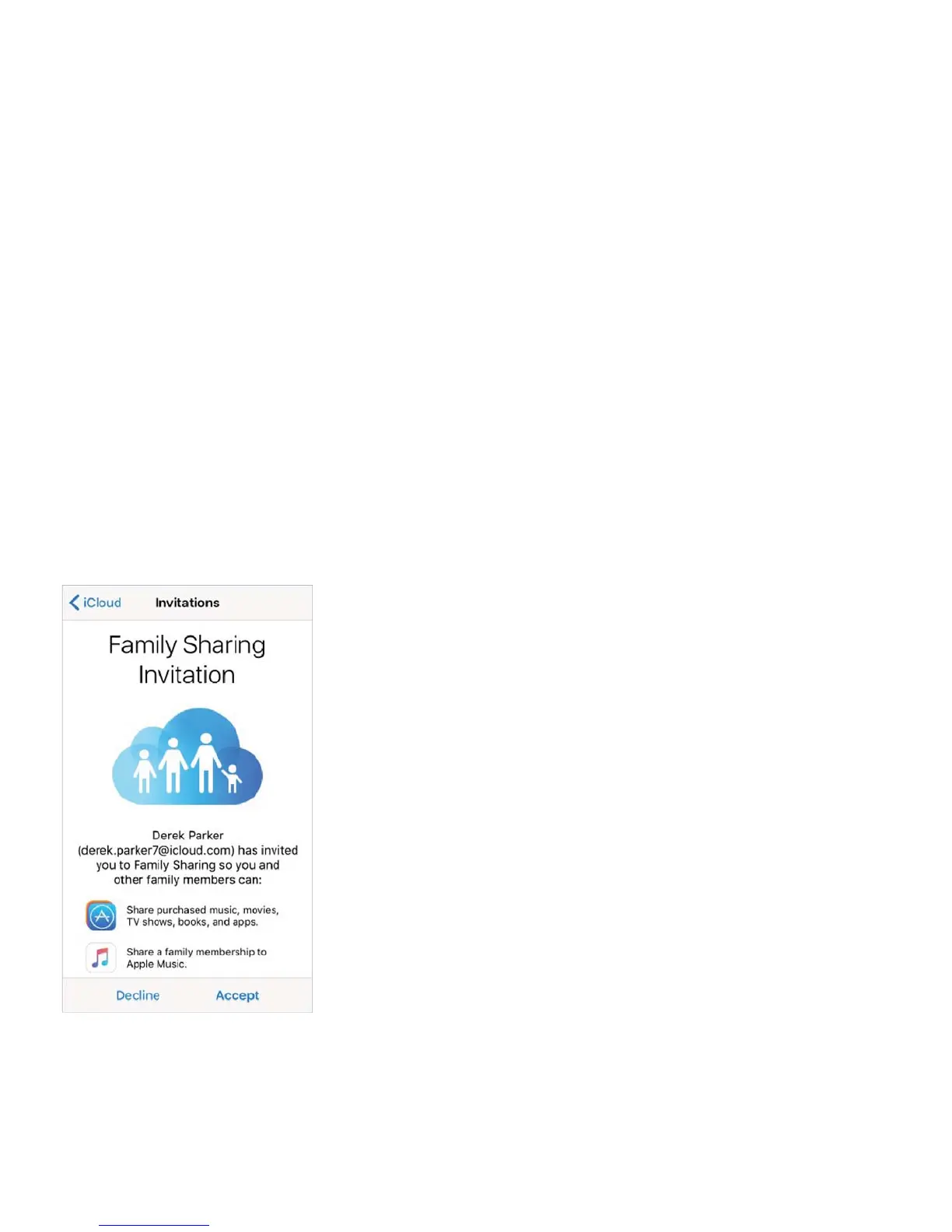
Family Sharing requires you to sign in to iCloud with your Apple ID. You will also be asked
to confirm the Apple ID you use for the iTunes Store, App Store, and iBooks Store. Family
Sharing is available on devices with iOS 8 or later, Mac computers with OS X Yosemite or
later, and PCs with iCloud for Windows 5. You can be part of only one family group at a
time.
Set up Family Sharing. Go to Settings > iCloud > Set Up Family Sharing. Follow the
onscreen instructions to set up Family Sharing as the family organizer, then invite family
members to join.
CreateanAppleIDforachild.Go to Settings > iCloud > Family, scroll to the bottom of
the screen, then tap Create an Apple ID for a child.
Accept an invitation to Family Sharing. Make sure you are signed in to iCloud, and that
you can accept a Family Sharing invitation from your iOS device (iOS 8 or later), Mac (OS X
Yosemite or later), or PC (iCloud for Windows 5 required). Or, if the organizer is nearby
during the setup process, he or she can simply ask you to enter the Apple ID and password
you use for iCloud.
Access shared purchases. Open iTunes Store, App Store, or iBooks Store, tap Purchased,
then choose a family member from the menu that appears.
When a family member initiates a purchase, it is billed directly to the family organizer’s
account. Once purchased, the item is added to the initiating family member’s account and is



 To Next Page