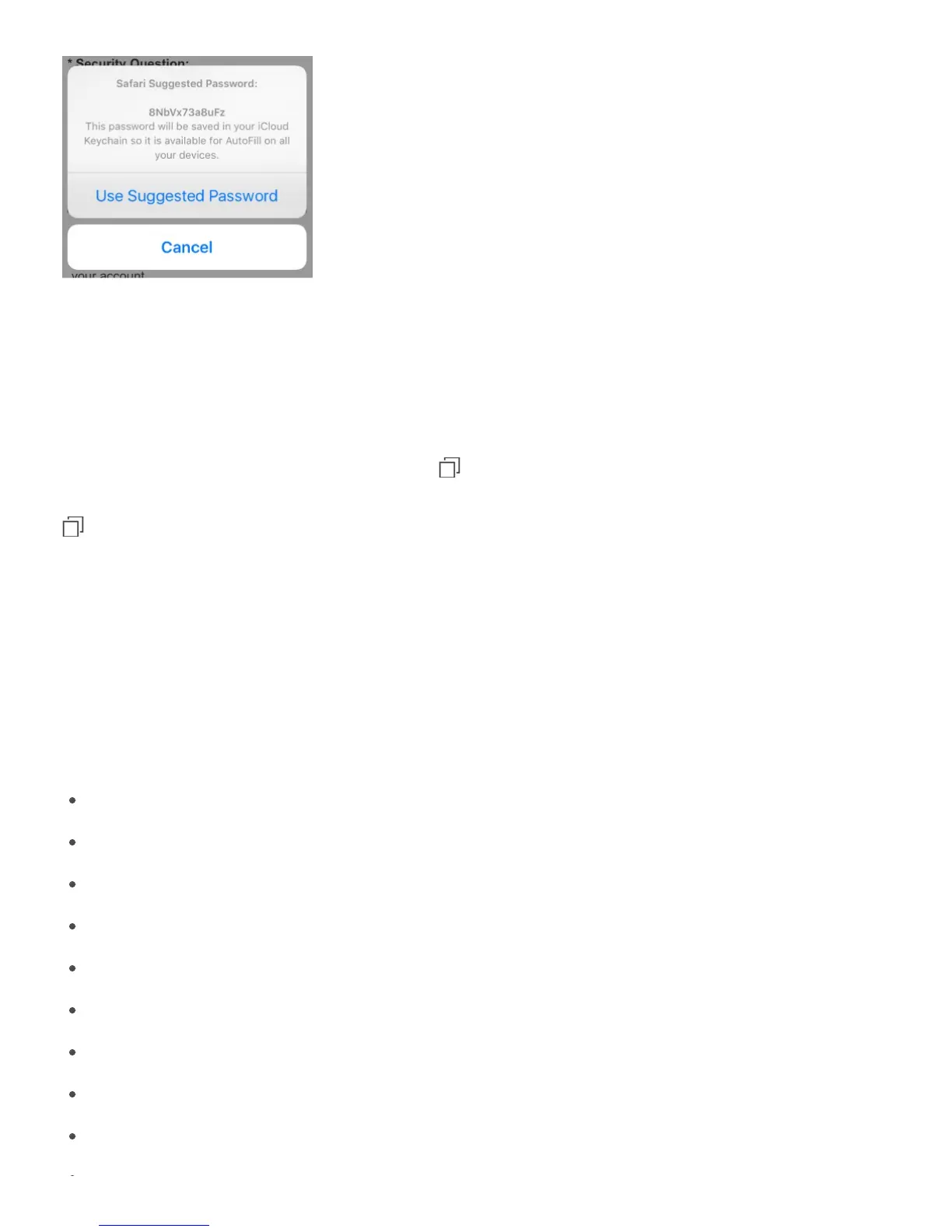
View your saved passwords. Go to Settings > Safari > Passwords, then enter your iPhone
passcode or use Touch ID.
Erase your browsing history and data from iPhone. Go to Settings > Safari > Clear
History and Website Data.
Visit sites without making history. Tap , then tap Private. Sites you visit won’t appear
in iCloud Tabs or be added to History on your iPhone. To put away your private sites, tap
, then tap Private again. You can close the pages, or keep them for viewing the next time
you use Private Browsing Mode.
Watch for suspicious websites. Go to Settings > Safari, then turn on Fraudulent Website
Warning.
Safari settings
Go to Settings > Safari, where you can:
Choose your search engine and configure search results
Provide AutoFill information
Choose which favorites are displayed when you search
Have links open in a new tab or in the background
Show or hide the Tab Bar on iPhone 6 Plus and iPhone 6s Plus
Block pop-ups
Tighten privacy and security
Clear your history and website data
Choose whether to use cellular data for Reading List items
Configure advanced settings and more



 To Next Page