Chapter 9 Clock 44
Here are some more ways to change how you view time on iPod nano:
Set the time, date, and time zone On the Home screen, tap Settings > General > Date & Time.
Show time with a 24-hour clock
On the Home screen, tap Settings > General > Date & Time, then tap
next to 24 Hour Clock to turn it on.
Show the clock face when
iPod nano wakes from sleep
Tap Settings > General > Date & Time, then tap
next to Time On
Wake to turn it on.
Using the stopwatch
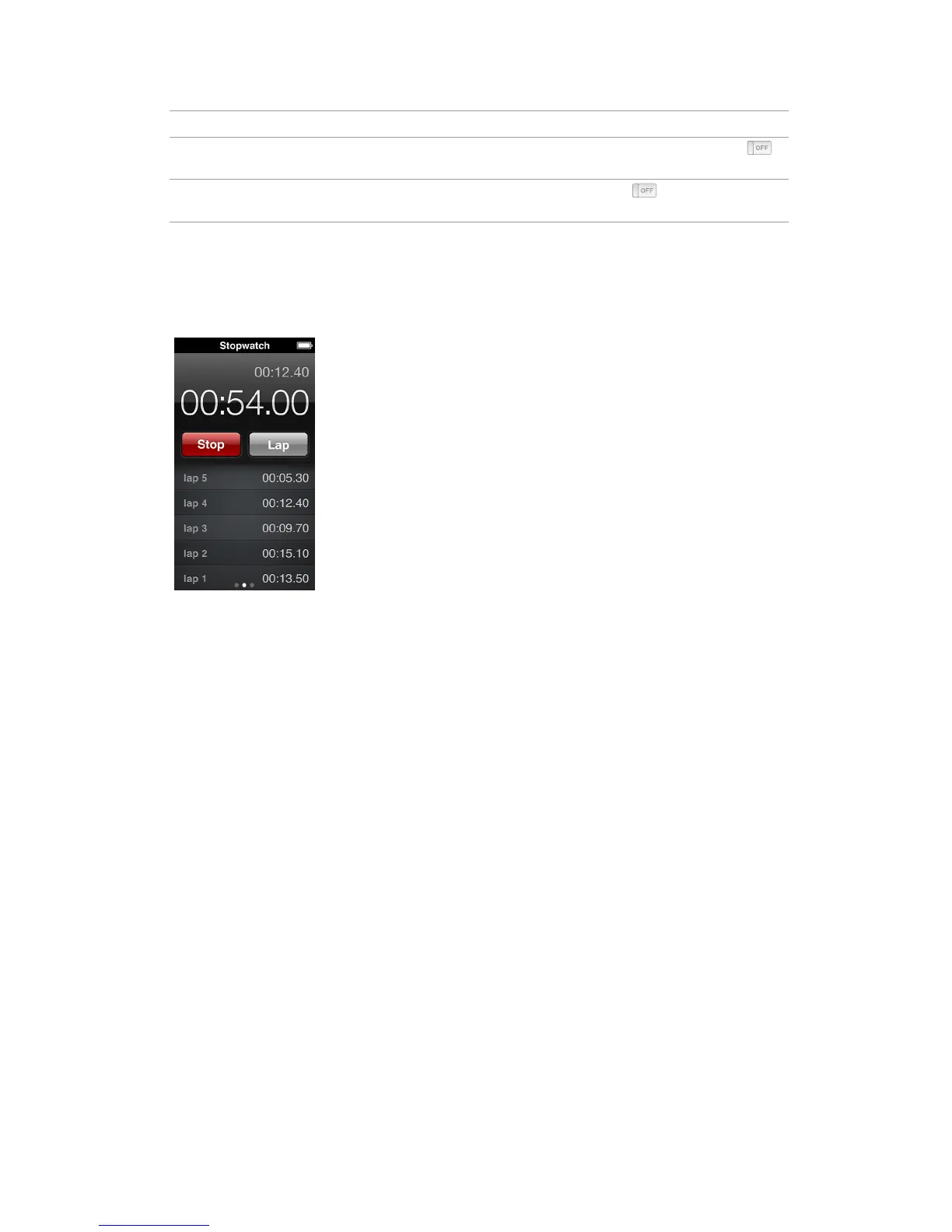
iPod nano has a stopwatch for timing events and tracking intervals, such as laps. You can play
music or other audio while you use the stopwatch.
Use the stopwatch:
1 On the Home screen, tap Clock.
2 Swipe left to see the stopwatch controls.
3 Tap Start.
•
To record laps, tap Lap after each lap.
•
To pause the stopwatch, tap Stop. Then tap Start to resume.
4 Tap Stop when you nish.
iPod nano shows the last session’s lap statistics on the screen. Be sure to note lap times before
you start a new session. Tapping Reset deletes the information.
Using the timer
Use the countdown timer on iPod nano to set an alarm, or to set a sleep timer that turns o
iPod nano automatically. The timer continues to run while iPod nano is turned o, but you won’t
hear the alarm sound.
Set the timer:
1 On the Home screen, tap Clock.
2 Swipe left twice to see the timer controls.



 To Next Page