To play a recording:
1 Tap on the Voice Memos screen.
2 Tap a recording, and then tap next to the memo.
Your saved recordings are listed by date and time, but you can label recordings to help
you identify them.
To label a recording:
1 On the Voice Memos screen, tap
.
2 Tap a recording in the list.
3 Tap Label, and then tap one of the choices.
You can choose Memo, Podcast, Interview, Lecture, Idea, or Meeting.
The recording appears in the list with the label you chose, along with the date and
time of the recording.
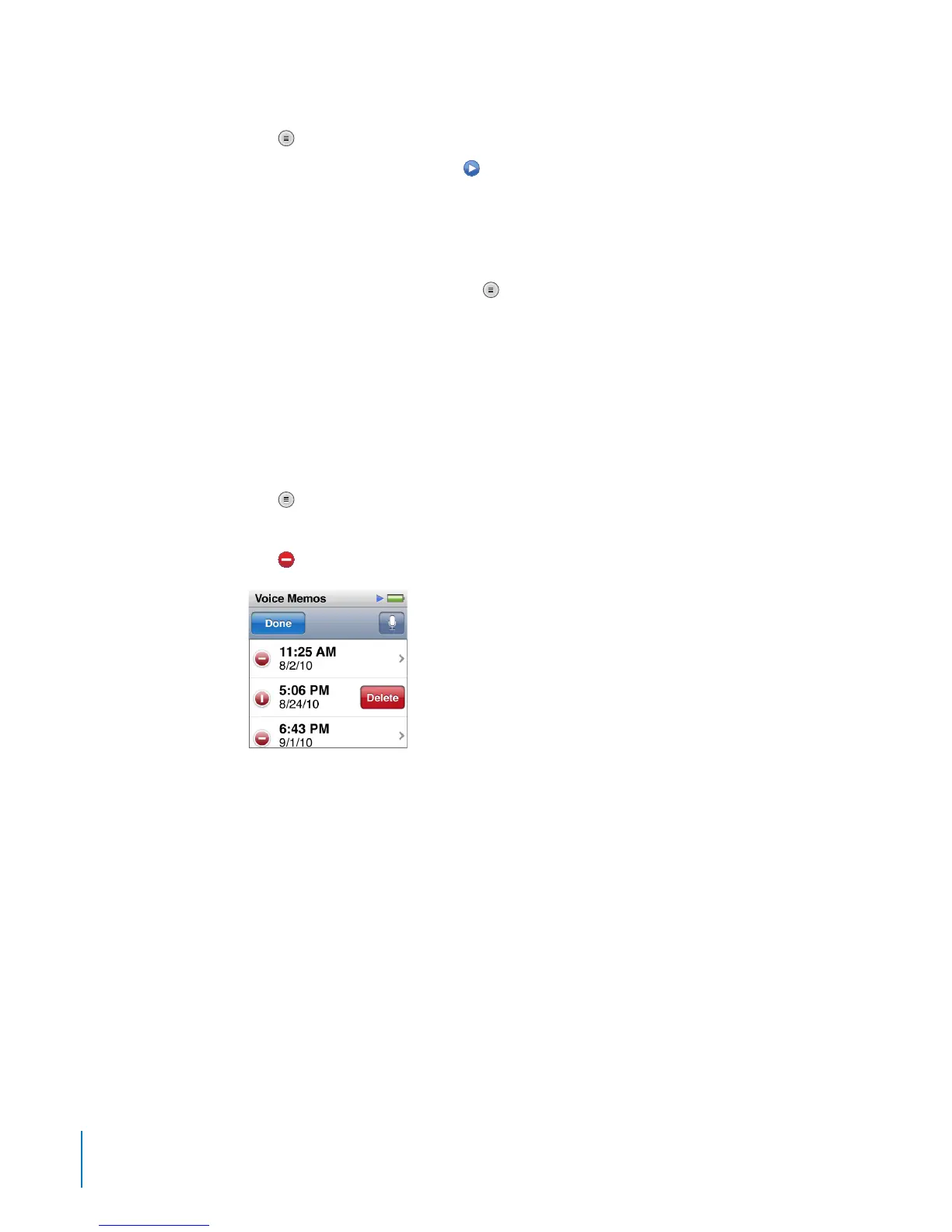
To delete a recording:
1 Tap
on the Voice Memos screen.
2 Tap Edit.
3 Tap
next to the recording, and then tap Delete when it appears.
4 When you nish, tap Done.
To sync voice memos with your computer:
If iPod nano is set to sync songs automatically (see “Automatic Syncing” on page 23),
voice memos on iPod nano are synced to a playlist in iTunes named Voice Memos (and
removed from iPod nano) when you connect iPod nano.
Voice memos are saved as M4A les in a Recordings folder on iPod nano. If you enable
iPod nano for disk use, you can copy voice memos from the folder. For information
about using iPod nano as an external disk, see the following section, “Using iPod nano
as an External Disk.”
56
Chapter 9 Other Features



 To Next Page