Chapter 2 iPod shue Basics 6
Note: Don’t connect iPod shue to a USB port on your keyboard for charging.
The rst time you connect iPod shue to your computer, iTunes helps you set up iPod shue
and sync it with your iTunes library. By default, iTunes automatically syncs songs on iPod shue
when you connect it to your computer. You can sync songs while your battery is charging.
If you connect iPod shue to a dierent computer and iPod shue is set to sync music
automatically, iTunes prompts you before syncing any music. If you click Yes, the songs and
other audio les already on iPod shue are erased and replaced with songs and other audio
les from the new computer iPod shue is connected to. For information about adding music
to iPod shue or using iPod shue with more than one computer, see Chapter 4, Listening to
Music, on page 17.
Disconnecting iPod shue
It’s important not to disconnect iPod shue from your computer while audio les are syncing
or when iPod shue is being used as an external disk. It’s OK to disconnect iPod shue if the
status light isn’t blinking orange, or if you see the “OK to disconnect” message at the top of the
iTunes window.
Important: If you see the “Do not disconnect” message in iTunes or if the status light on
iPod shue is blinking orange, you must rst eject iPod shue before disconnecting it. Failing
to do so may damage les on iPod shue and require you to restore iPod shue in iTunes. For
information about restoring, see Updating and restoring iPod shue software on page 26.
If you enable iPod shue for disk use (see Using iPod shue as an external disk on page 22), you
must always eject iPod shue before disconnecting it.
Eject iPod shue:
m In iTunes, click the Eject button (C) next to iPod shue in the list of devices.
If you’re using a Mac, you can also eject iPod shue by dragging the iPod shue icon on the
desktop to the Trash.
If you’re using a Windows PC, you can also eject iPod shue in My Computer or by clicking the
Safely Remove Hardware icon in the Windows system tray and selecting iPod shue.
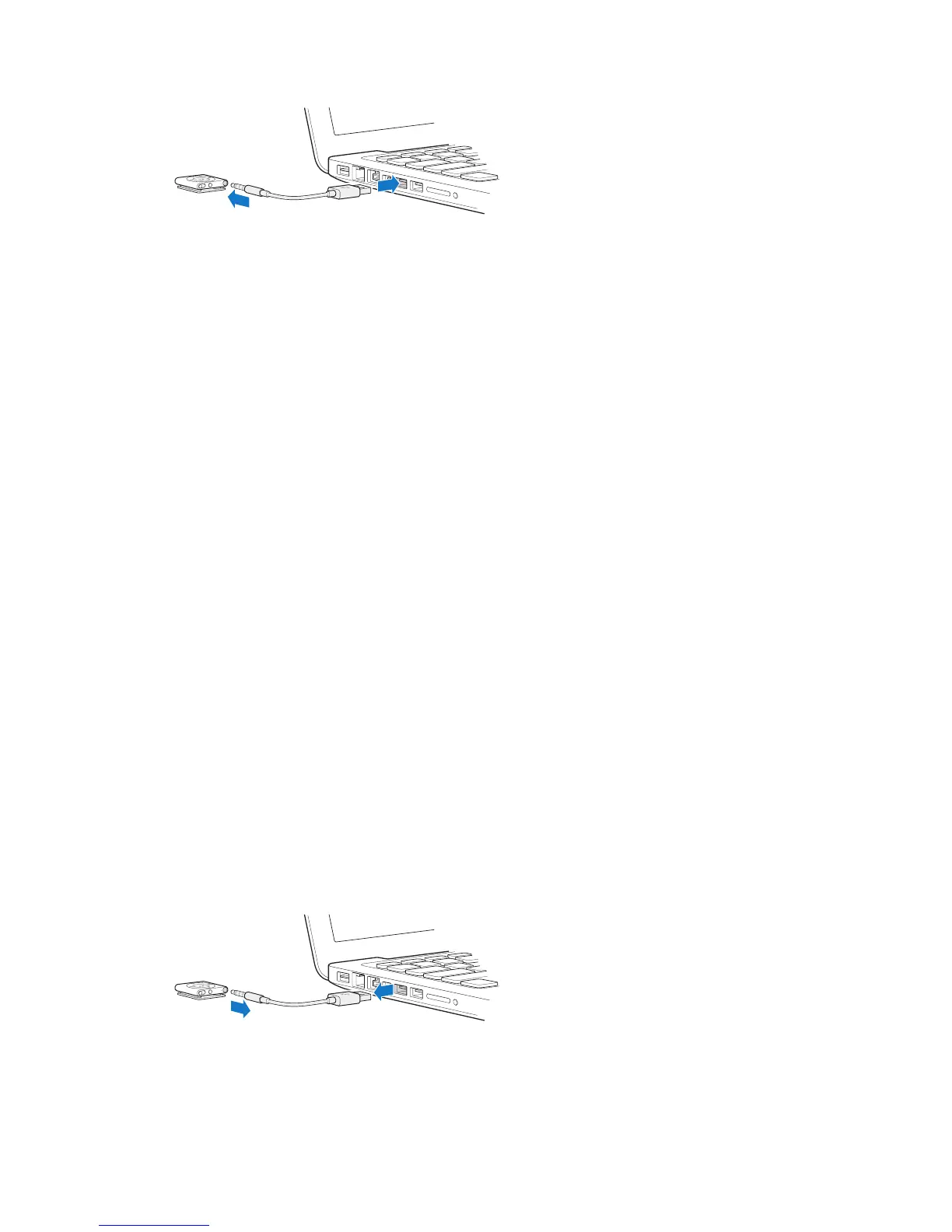
Disconnect iPod shue:
m Disconnect the USB cable from iPod shue and from your computer.



 To Next Page