10
Getting Started with iPod touch:
A guide for using iPod touch and iTunes for teaching and learning
To locate and download resources in iTunes U:
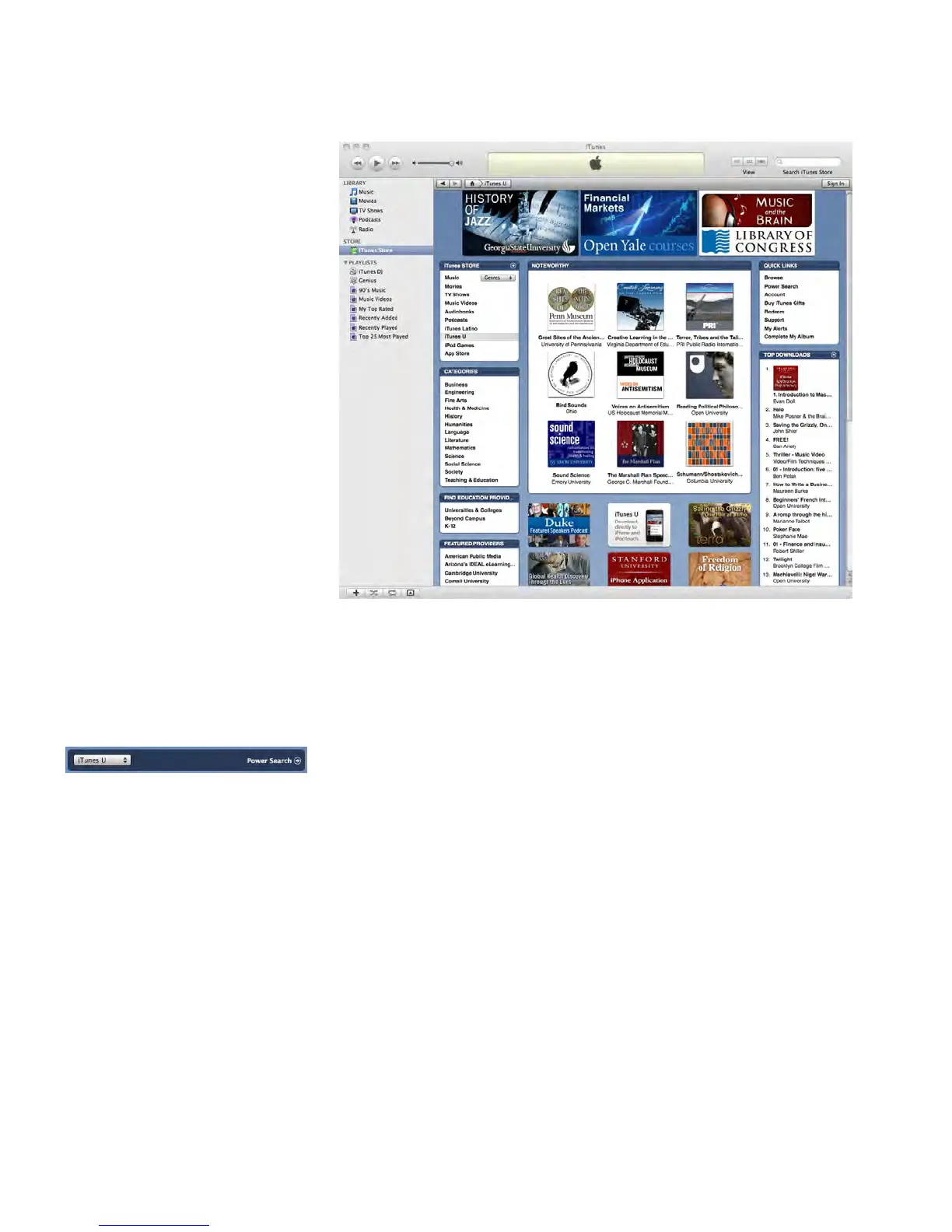
Open iTunes, then click iTunes Store (below Store in the sidebar). 1
Click iTunes U below iTunes Store in the iTunes window. You can view top downloads, 2
browsecontentbycategory,oraccesscontentfromaspeciceducationinstitutionor
Beyond Campus provider.
TosearchforiTunesUitemsonacertaintopic,entertextinthesearcheldinthe3
upper right of the iTunes window. The iTunes Store divides the results into categories.
Choose iTunes U from the pop-up menu in the top right of the iTunes window (to the
left of the Power Search button) to see just the iTunes U items from the search. (If you
have restricted students from using the iTunes Store in Parental Controls, you can still
allow them access to search and download items from iTunes U. See “Restricting Access
with Parental Controls” later in this guide for more information.)
Click an iTunes U title at the top of the window to view more information about it and 4
to see a list of available audio and video tracks. Double-click an item in the list to view
a 30-second preview.
Click Get, Get Movie, or Get Tracks to download the track or tracks you want. If the 5
content is ongoing, click Subscribe to automatically download future tracks for an
iTunes U title. Often transcripts of the audio are available too.
Oncedownloaded,youcanconnectaniPodtouchtoyourMactosyncthenewlesto
the iPod touch. You and your students can view and listen to the content at any time.
See “Resources” later in this guide for links to tutorials and a guided tour about
iTunes U.



 To Next Page