Important: If you’re traveling, iPod touch may not alert you at the correct local time.
To manually set the correct time, see “Date and Time” on page 163.
Calendar
You can change the default calendar using the Default Calendar setting. See
“Calendars” on page 171.
Notes
You can’t assign an event to a read-only calendar.
Events can also be created by tapping a day, date, or time in a Mail message. See
“Using Links and Detected Data” on page 94.
Update an event: Tap Edit and change event information. Tap Done when you’re
nished.
Delete an event: Tap the event, tap Edit, then scroll down and tap Delete Event.
Responding to Meeting Invitations
If you have a Microsoft Exchange account with calendars enabled, or a supported
CalDAV account, you can receive and respond to meeting invitations from people
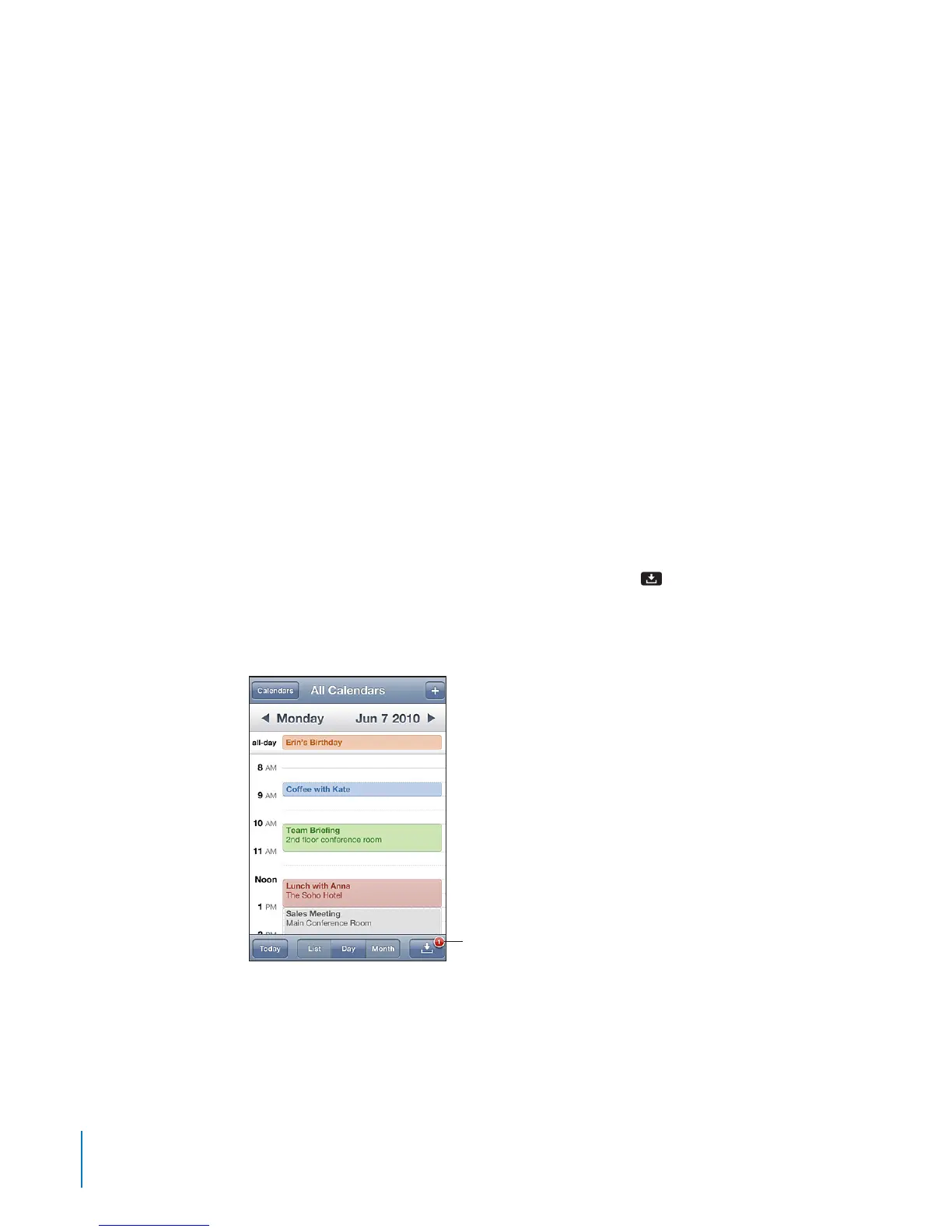
in your organization. When you receive an invitation, the meeting appears in your
calendar with a dotted line around it. The notications
button in the lower-right
corner of the screen shows the total number of new invitations you have, as does the
Calendar icon on the Home screen. To receive and respond to meeting invitations,
iPod touch must join a Wi-Fi network that’s connected to the Internet.
Number of
meeting invitations
108
Chapter 12 Calendar



 To Next Page