Status Icons
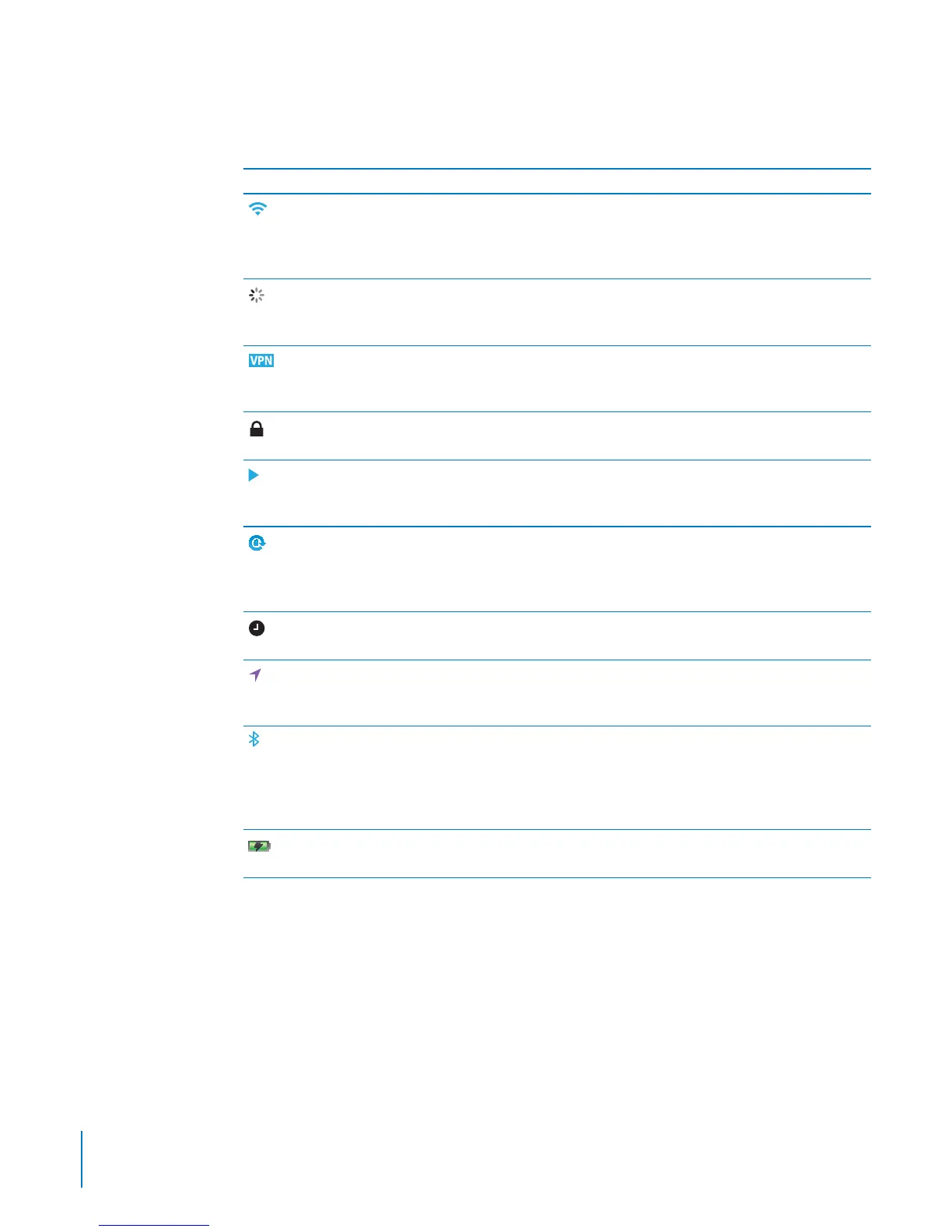
The icons in the status bar at the top of the screen give information about iPod touch:
Status icon What it means
Wi-Fi* Shows that iPod touch is connected to the
Internet over a Wi-Fi network. The more
bars, the stronger the connection. See
“Joining a Wi-Fi Network” on page 19.
Network activity Shows network activity. Some third-party
apps may also use this icon to indicate an
active process.
VPN Shows that you are connected to a
network using VPN. See “Network” on
page 158.
Lock Shows that iPod touch is locked. See “On/
O Sleep/Wake Button.”
Play Shows that a song, audiobook, or podcast
is playing. See “Playing Songs and Other
Audio” on page 54.
Portrait orientation lock Shows that the iPod touch screen is locked
in portrait orientation. See “Viewing in
Portrait or Landscape Orientation” on
page 26.
Alarm Shows that an alarm is set. See “Alarms” on
page 131.
Location services Shows that an app is using location
services. See “Location Services” on
page 159.
Bluetooth* Blue or white icon: Bluetooth is on and a
device, such as a headset, is connected.
Gray icon: Bluetooth is on, but no device
is connected. No icon: Bluetooth is turned
o. See “Bluetooth Devices” on page 40.
Battery Shows battery level or charging status. See
“Charging the Battery” on page 41.
* The use of certain accessories with iPod touch may aect wireless performance.
16
Chapter 1 iPod touch at a Glance



 To Next Page