36 Using iPod
Using the Extra Features of Your iPod
Using iPod as an External Hard Disk
You can use iPod as a hard disk, to store and transfer data files.
To enable iPod as a hard disk:
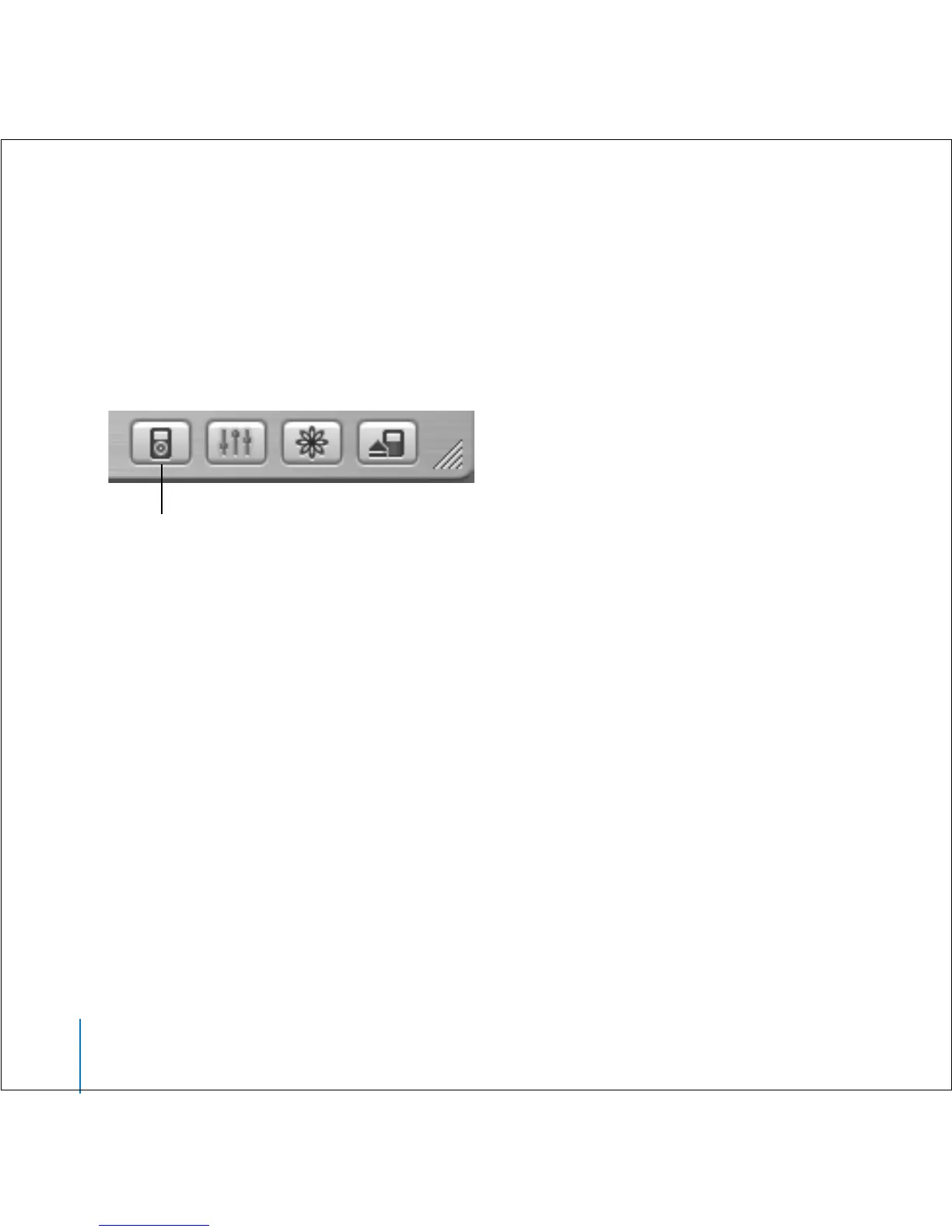
1 In iTunes, select iPod in the Source list and click the Options button.
2 Select “Enable disk use.”
When you use iPod as a hard disk, the iPod disk icon appears on the desktop on the
Mac, or as the next available drive letter in Windows Explorer on a Windows PC.
Note: Selecting “Manually manage songs and playlists” in the Options window also
enables iPod to be used as a hard disk.
Note: To transfer music files to iPod, you must use iTunes. Songs transferred via iTunes
do not appear on iPod in the Macintosh Finder or Windows Explorer. Likewise, if you
copy music files to iPod in the Macintosh Finder or Windows Explorer, you won’t be
able to play them on iPod.
Preventing iTunes From Opening Automatically
If you use iPod primarily as a hard disk, you may want to keep iTunes from opening
automatically when you connect iPod to your computer.
Options button



 To Next Page