12 Chapter 1
Ready, Set Up, Go
Note:
Your MacBook also comes with AirPort Extreme technology for wireless
networking. For information about setting up a wireless connection, in the menu bar,
choose Help > Mac Help, and then search for “AirPort.” See “Getting Answers” on
page 27.
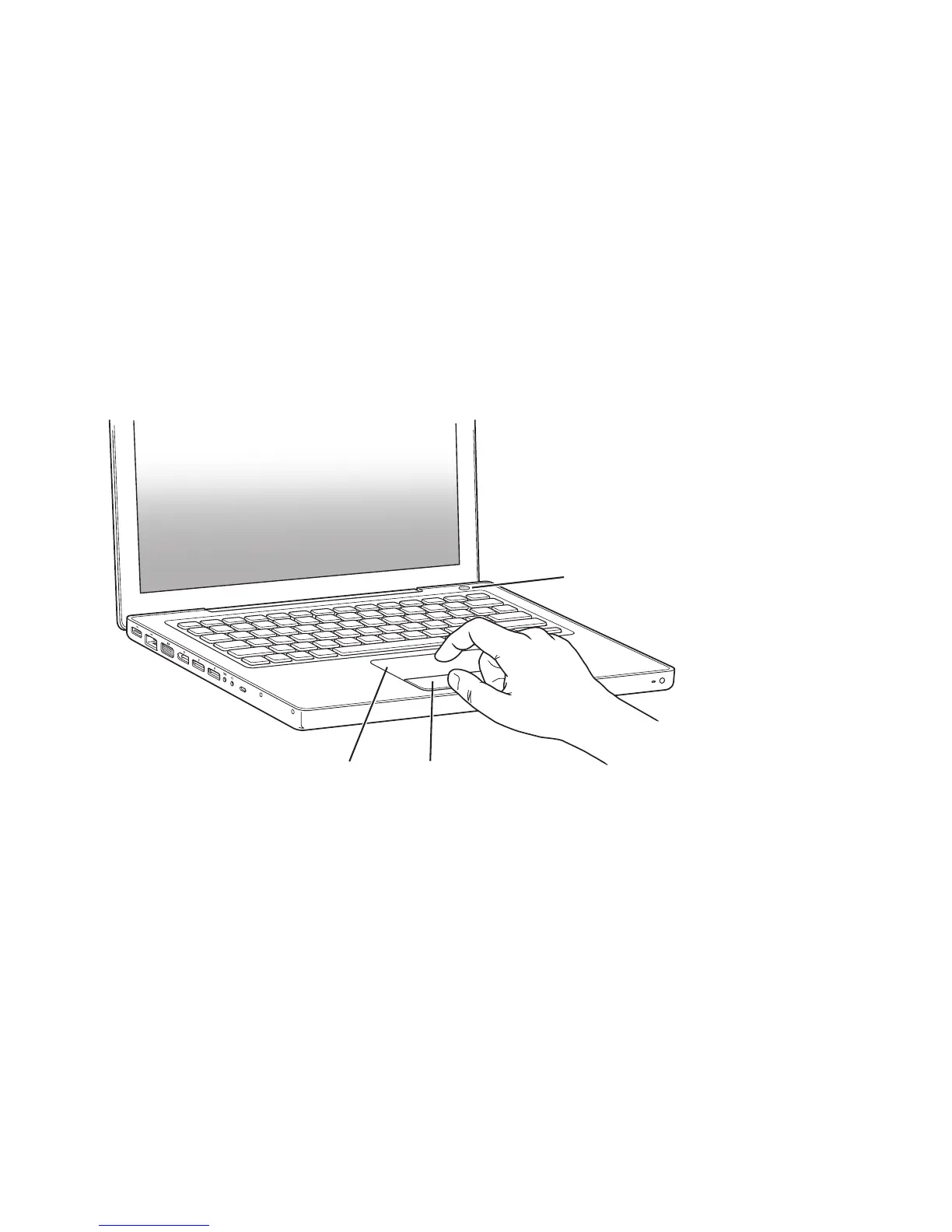
Step 3: Press the power (®
) button briefly to turn on your MacBook.
You hear a tone when you turn on the computer.
It takes the computer a few moments to start up. After it starts up, Setup Assistant
opens automatically.
If your computer doesn’t turn on, see “If your MacBook doesn’t turn on or start up” on
page 44.
Trackpad
Trackpad button
® Power button



 To Next Page