46 Chapter 3 Problem, Meet Solution
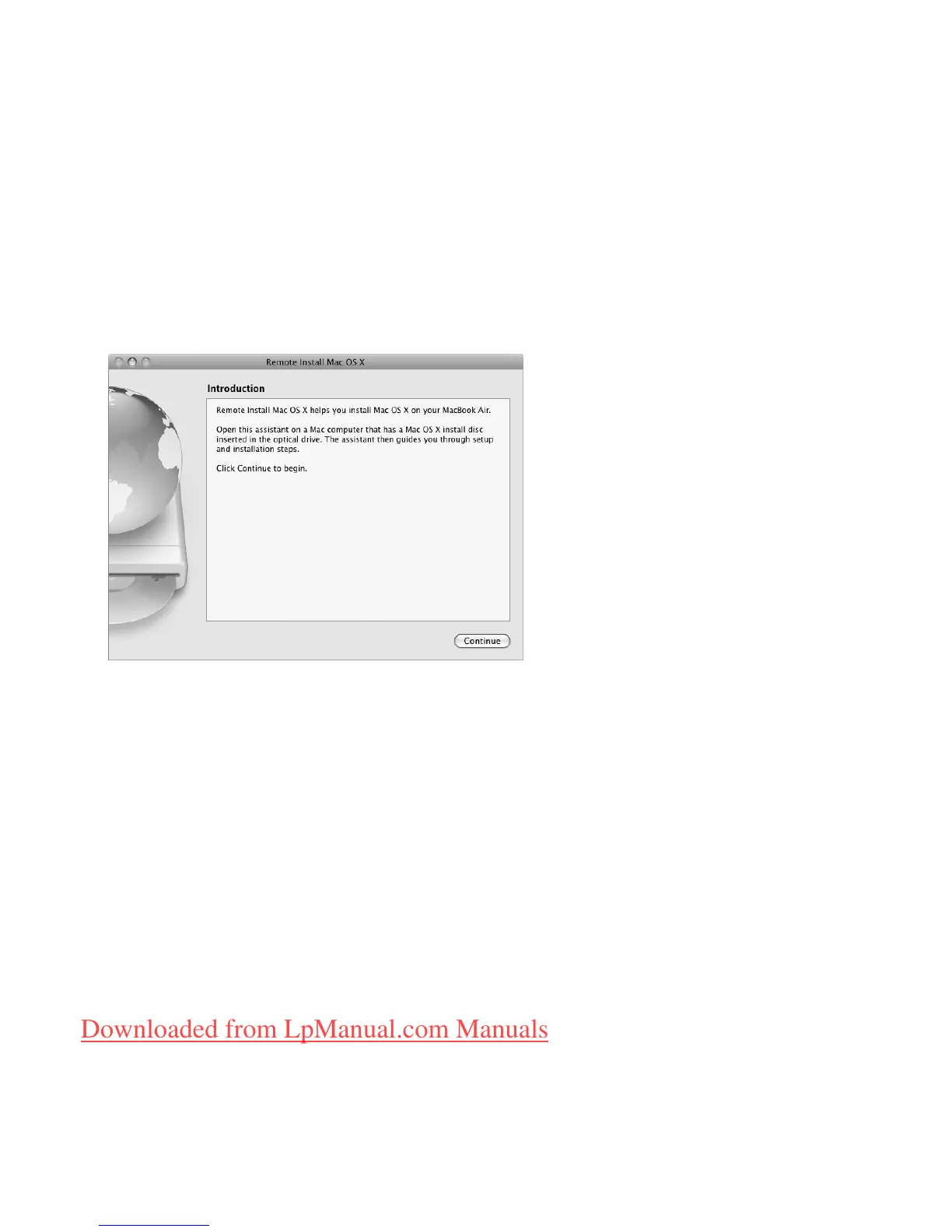
To use Remote Install Mac OS X:
1 Insert the Mac OS X Install Disc 1 into the optical disc drive of the other computer.
2 If the other computer is a Mac, open /Applications/Utilities/Remote Install Mac OS X.
On Windows, choose “Remote Install Mac OS X” from the Install Assistant.
3 Read the introduction and click Continue.
4 Choose the install disc you want to use, and click Continue.
5 Choose a network connection: AirPort, if you are using an AirPort network, or Ethernet,
if the other computer is on an Ethernet network and you have an optional Apple USB
Ethernet Adapter connecting your MacBook Air to the same network. Click Continue.
6 Restart your MacBook Air and hold down the Option key as it starts up, until you see a
list of available startup disks.
7 Click Continue in Remote Install Mac OS X.
Downloaded from LpManual.com Manuals



 To Next Page