40 Chapter 2 Getting to Know Your MacBook Pro
Getting More Information About the Apple Remote
More information about your Apple Remote is available in Mac Help. Choose
Help > Mac Help from the menu bar and search for “Apple Remote.”
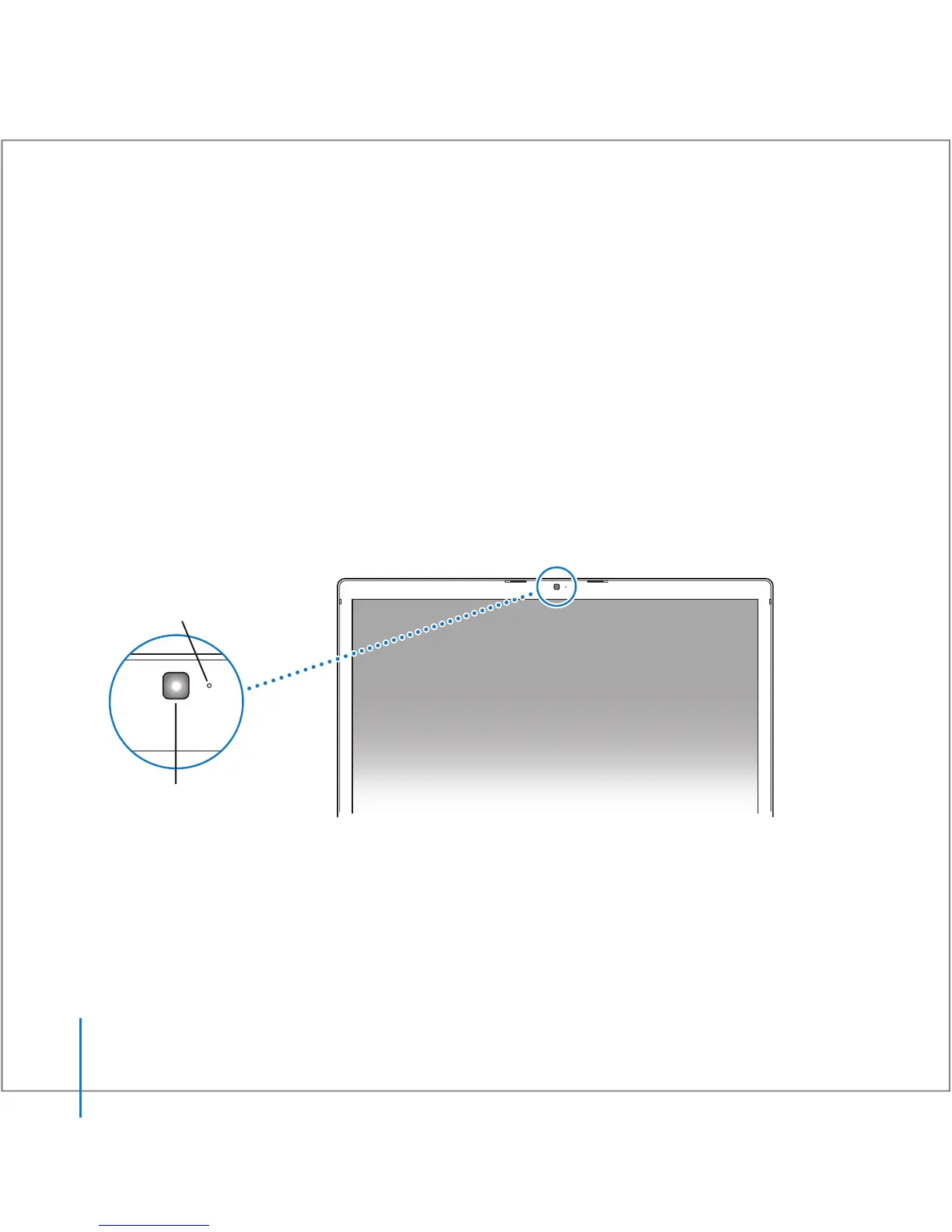
Using the Built-in iSight Camera
With the built-in iSight camera, you can take pictures with Photo Booth or video chat
with other iChat AV users.
Taking Pictures with Photo Booth
Use Photo Booth to take pictures and add fun visual effects such as sepia, black and
white, glow, colored pencil, and more.
To take a picture with Photo Booth:
1 Click the Photo Booth icon in the Dock to open Photo Booth and turn on the built-in
iSight camera.
The glowing indicator light next to the camera tells you it’s on.
iSight camera
Camera
indicator light





 To Next Page