6
English
Battery Indicator
Use Keyboard & Mouse preferences to check the battery charge level. Choose
Apple (
K
) > System Preferences. Click Keyboard & Mouse, then click Bluetooth.
Note:
To conserve battery power, your keyboard and mouse automatically switch to
low-power mode after a few minutes of inactivity. If you’re not planning to use your
keyboard or mouse for an extended period (for example, over a weekend or holiday),
you can turn them off using the switch on the back. If you are not planning to use your
keyboard or mouse for a longer period, you should remove the batteries.
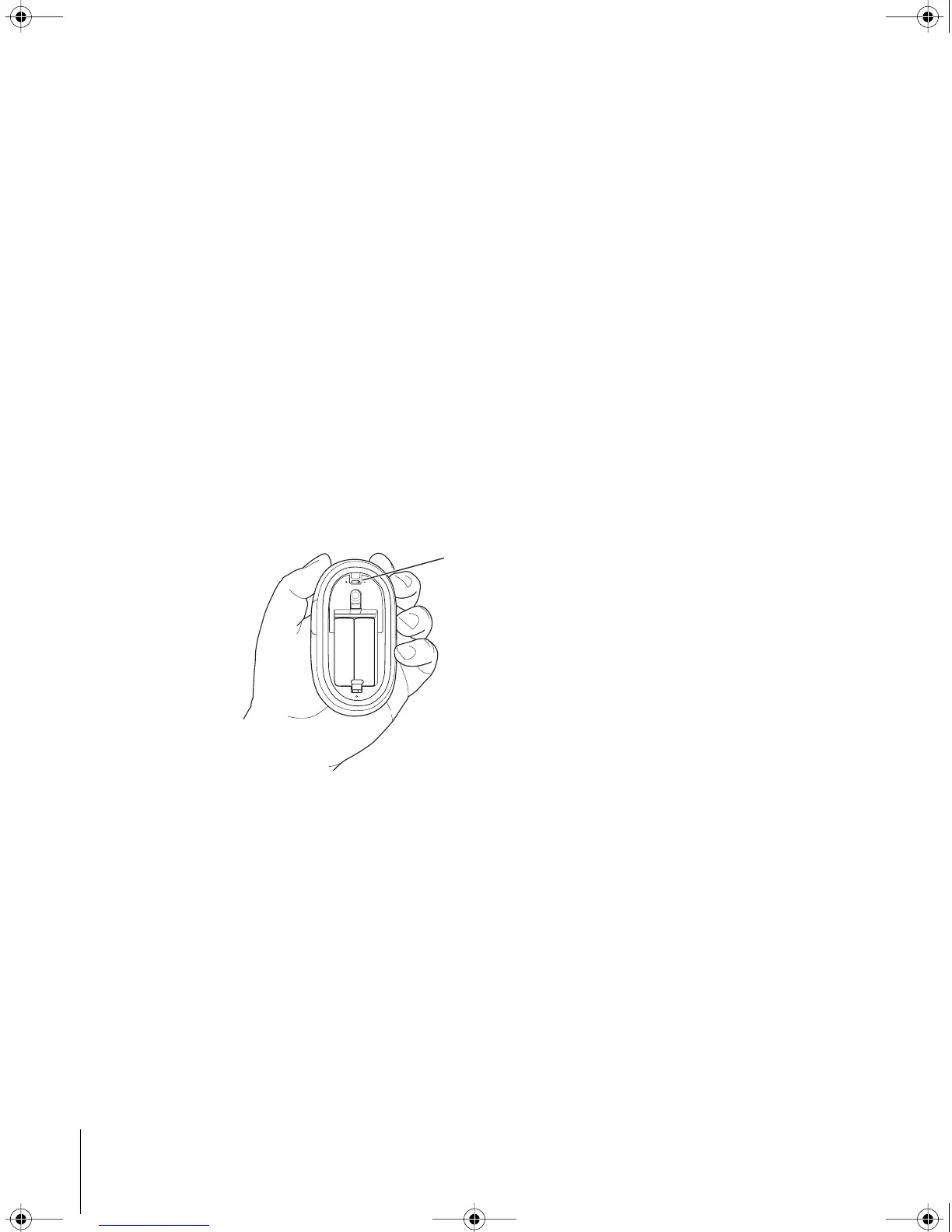
Adjusting Your Mouse
You can adjust the tension or feel of your Apple Wireless Mouse. More tension makes
clicking the mouse feel stiffer; less tension makes clicking the mouse feel easier.
1
Remove the bottom cover of the mouse.
2
Move the switch above the LED to adjust the tension.
•
For more tension, move the switch toward the plus sign.
•
For less tension, move the switch toward the minus sign.
3
Replace the bottom cover.
You can also adjust the tracking speed (how fast the onscreen pointer moves) and the
double-click speed (how fast you have to double-click to select something).
1
Choose Apple (
K
) > System Preferences.
2
Click Keyboard & Mouse, then click Mouse.
3
Adjust the tracking or double-click speed to a speed that’s comfortable for you.
For information about ergonomics, health, and safety, visit the Apple ergonomics
website at www.apple.com/about/ergonomics.
Support Information
For support and troubleshooting information, user discussion boards, and the latest
Apple software downloads, go to www.apple.com/support.
Slide the switch to “
+
” for more
tension, and to “
–
”
for less tension.
LL2382.book Page 6 Friday, April 30, 2004 4:25 PM


 To Next Page
 Loading...