Chapter 3 Basics 21
Multitasking gestures
You can use multitasking gestures on iPad to return to the Home screen, reveal the multitasking
display, or switch to another app.
Return to the Home screen. Pinch four or ve ngers together.
Reveal the multitasking display. Swipe up with four or ve ngers.
Switch apps. Swipe left or right with four or ve ngers.
Turn multitasking gestures on or o. Go to Settings > General > Multitasking Gestures.
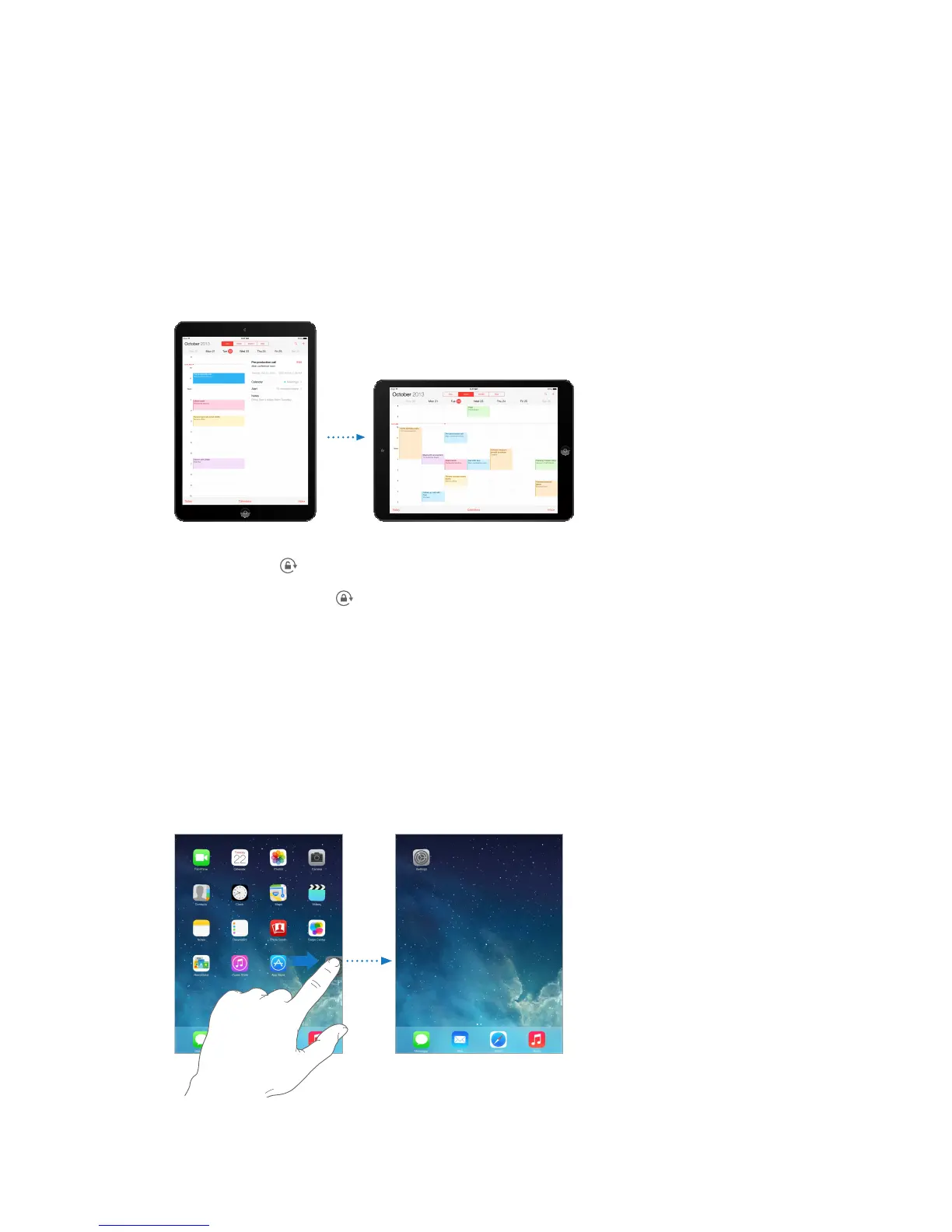
Change the screen orientation
Many apps give you a dierent view when you rotate iPad.
Lock the screen orientation. Swipe up from the bottom edge of the screen to open Control
Center, then tap .
The orientation lock icon appears in the status bar when the screen orientation is locked.
You can also set the Side Switch to lock the screen orientation instead of silencing sound eects
and notications. Go to Settings > General, and under “Use Side Switch to,” tap Lock Rotation.
Customize iPad
Arrange your apps
Arrange apps. Touch and hold any app on the Home screen until it jiggles, then drag apps
around. Drag an app to the edge of the screen to move it to a dierent Home screen, or to the
Dock at the bottom of the screen. Press the Home button to save your arrangement.



 To Next Page