Apple TV User Guide
Star Trek Beyond is available on iTunes.
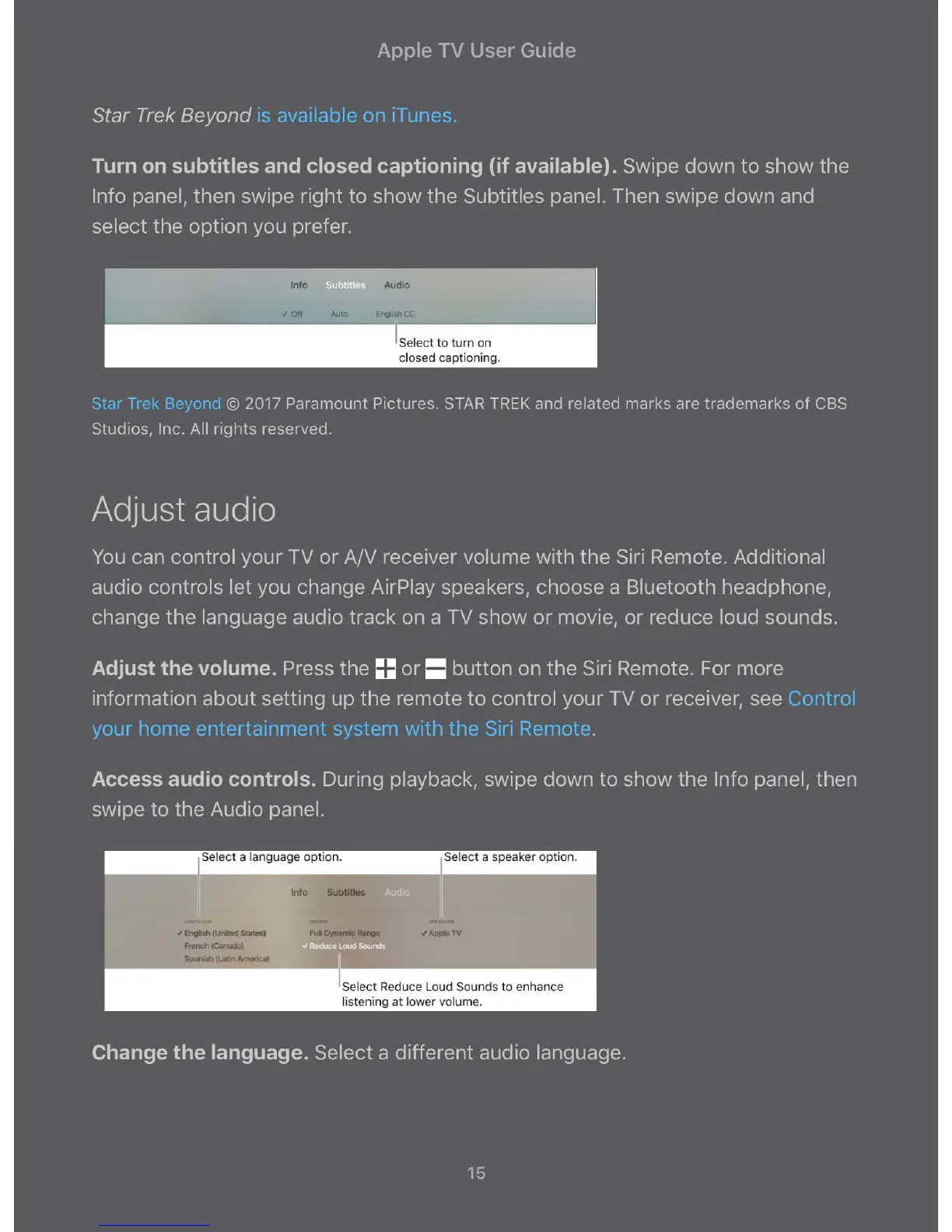
Turn on subtitles and closed captioning (if available}. Swipe down to show the
Info panel, then swipe right to show the Subtitles panel. Then swipe down and
select the option you prefer.
Info
v Off Auto
Audio
English CC
Select to turn on
closed captioning.
Star Trek Beyond © 2017 Paramount Pictures. STAR TREK and related marks are trademarks of CBS
Studios, Inc. All rights reserved.
Adjust audio
You can control your TV or A/V receiver volume with the Siri Remote. Additional
audio controls let you change AirPlay speakers, choose a Bluetooth headphone,
change the language audio track on a TV show or movie, or reduce loud sounds.
Adjust the volume. Press the == or = button on the Siri Remote. For more
information about setting up the remote to control your TV or receiver, see Control
your home entertainment system with the Siri Remote .
Access audio controls. During playback, swipe down to show the Info panel, then
swipe to the Audio panel.
Select a language opt ion. Select a speaker option.
•A.NC M [
" English (United States)
French (Canada)
Spanish (Latin America)
Info Subtitles
NO
Full Dynamic Range ./ Apple TV
"' • I
~
I I I
Select Reduce Loud Sounds to enhance
listening at lower volume.



 To Next Page