Apple TV User Guide
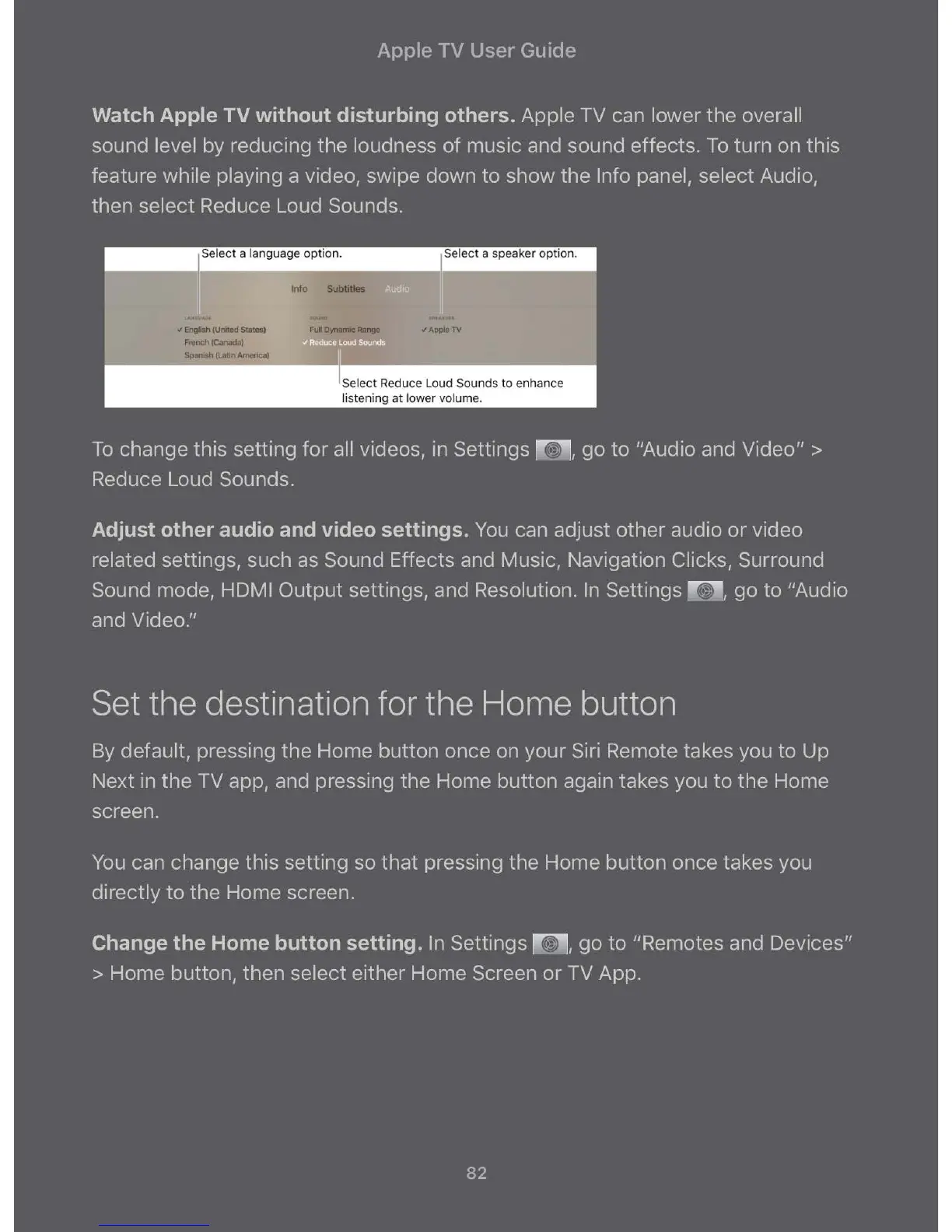
Watch Apple TV without disturbing others.
Apple TV can lower the overall
sound level by reducing the loudness of music and sound effects. To turn on this
feature while playing a video, swipe down to show the Info panel, select Audio,
then select Reduce Loud Sounds.
------ .. ,-s_e_ie_c_t_a_lang_ua_g_e_ o_p_ti_o_n_. -------. ;I Select a speaker option.
1 UICU,Aj ;(
.J Engfish (United States)
French
(Canada)
Spanish (Latin America)
Info Subtitles
S.0UN0
Full Dynamic Range .J Apple TV
"' • I
~
I I I I
I Select Reduce Loud Sounds to enhance
listening at lower volume.
To change this setting for all videos, in Settings R , go to "Audio and Video" >
Reduce Loud Sounds.
Adjust other audio and video settings. You can adjust other audio or video
related settings, such as Sound Effects and Music, Navigation Clicks, Surround
Sound mode, HDMI Output settings, and Resolution. In Settings
R , go to "Audio
and Video."
Set the destination for the Home button
By default, pressing the Home button once on your Siri Remote takes you to Up
Next in the TV app, and pressing the Home button again takes you to the Home
screen.
You can change this setting so that pressing the Home button once takes you
directly to the Home screen.
Change the Home button setting. In Settings R , go to "Remotes and Devices"
> Home button, then select either Home Screen or TV App.
82



 To Next Page