SCHEDULING – Restricting user entry to specific times
You can restrict a user for entry by specific dates or by weekly schedule
SCHEDULE USER FOR WEEKLY ACCESS
-To schedule user for weekly restricted access, the user needs to be added into lock first. Once you have user added, you can
use their User Code to schedule them.
-To schedule the Days of the Week for user, you need to enter the days as numbers in setup:
Mon=1, Tues=2, Wed=3, Thu=4, Fri=5, Sat=6, Sun=7
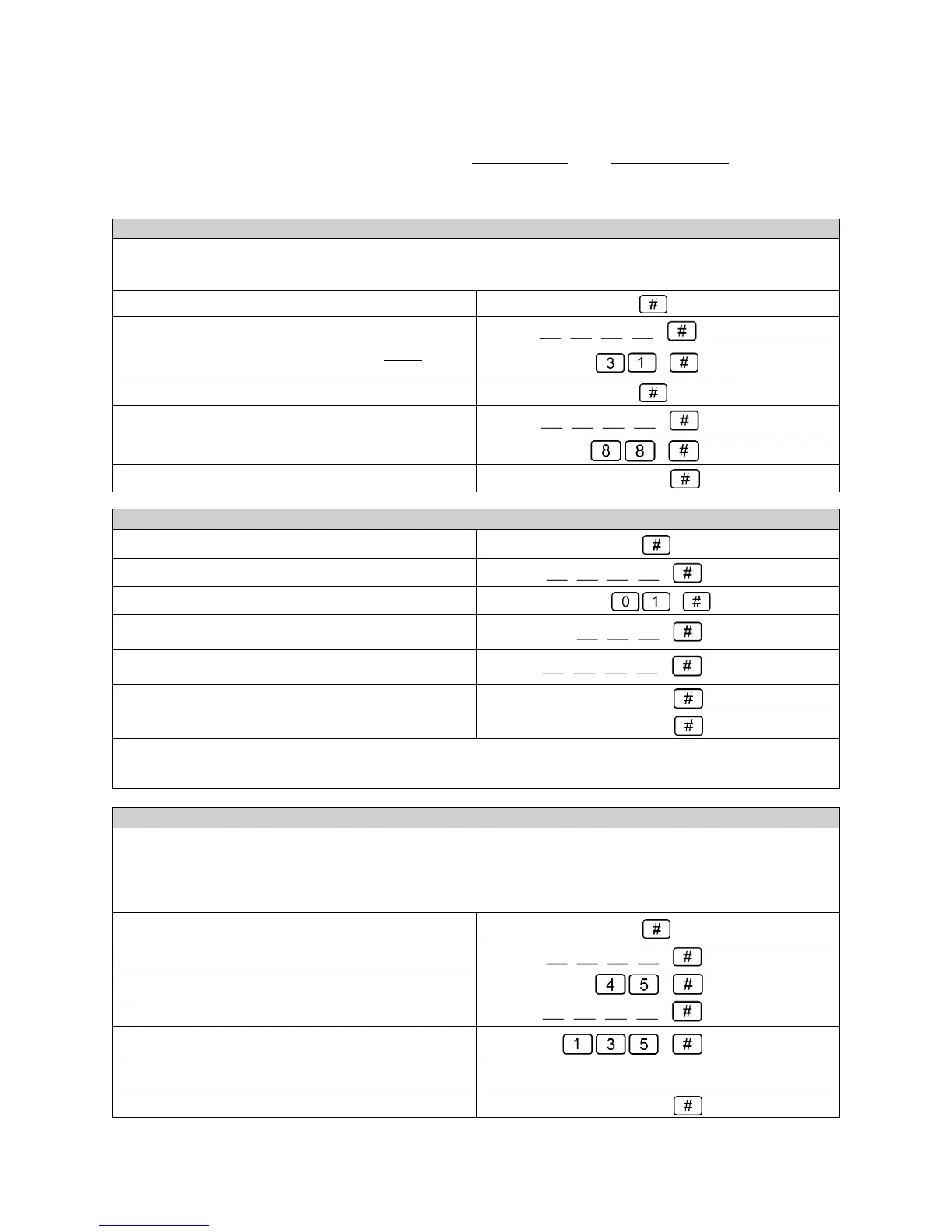
1) Press the # key to start setup
2) Type your Master Code (or the default) and then #
3) To start schedule press 45 and then #
4) Enter the existing User Code for a user already added
5) Select the days of the week for access.
For example, 135 (for Mon, Wed & Fri) and then #
6) Enter the START time for entry HHMM
7) Enter the END time for entry HHMM #
End HHMM Press # again to exit
SET TIME AND DATE ON LOCK
-Time & date must be entered in a certain format. Time format example: 8:30am = 0830 and 5:30pm = 1730 (in 24 hr. time)
-The date & time is entered in format YYMMDDHHMM where YY=Year, MM=Month, DD=Day, HH=Hour, MM=Minute
So Oct 4, 2016 at 5:30PM should be entered as 1610041730
1) Press the # key to start setup
2) Type your Master Code (or the default) and then #
3) By default, Daylight Savings is disabled. To enable
Daylight Savings press 31 and then # (32# would disable)
4) Press the # key to start setup again
5) Type your Master Code (or the default) and then #
6) To start time entry press 88 and then #
7) Enter your current time and date YYMMDDHHMM #
ADD CODE USER WITH TIME RESTRICTION BY SPECIFIC DATE & TIME
1) Press the # key to start setup
2) Type your Master Code (or the default) and then #
3) To add a user press 01 and then #
4) Enter the Index No. (user ID) for the new user (001-200)
and then #
5) Choose and enter your User Code (4 to 8 digits long) and
then #
6) Enter the START date/time for entry YYMMDDHHMM #
7) Enter the END date/time for entry YYMMDDHHMM #
End YYMMDDHHMM Press # again to exit
-User can only unlock door during the time between the Start and End times entered.
-You can restrict card users in the same process as above, just wave card in step 5 instead of entering user code.


 To Previous Page
 Loading...