63
1. During installation, we recommend that you allow all authoris-
ations that you are requested, including running the app in the
background.
2. Depending on your mobile phone model, we also recommend
checking setting authorisations in the app management in your
phone, especially location tracking.
3. Before pairing, activate Bluetooth (make sure it is visible for all
devices for an unlimited time) and GPS in your phone. Do not pair
the smart watch using the Bluetooth menu of your phone.
4. Open the Da Fit app. It is recommended that you create an
account.
5. The smartwatch should be as close as possible to the phone
during pairing.
6. By tapping on the watch icon on the bottom bar in the app, you
can pair the smartwatch by scanning the smartwatch’s QR code
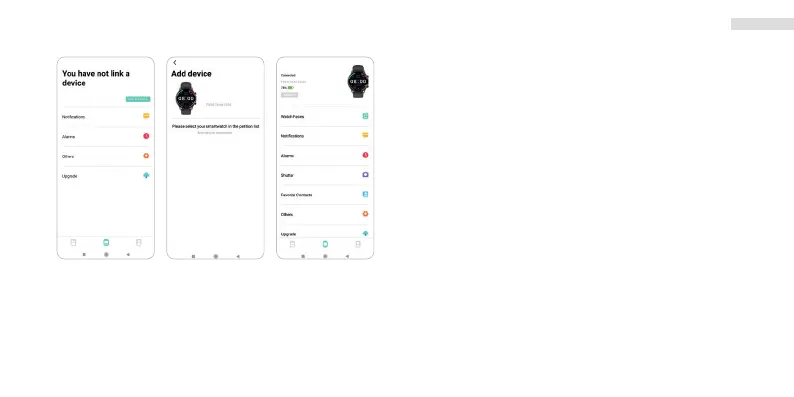
(see “Quick set-up” - icon i) (Fig. 6) or manually (Fig. 1).
7. When pairing manually, tap on your device in the scanned devi-
ces shown. (Fig. 2)
8. Once the devices have been paired, set the required smartwatch
functions in the app. (Fig. 3)
9. To enable more precise measurements, it is recommended that
you fill in your personal profile in the app.
The images here depict the Android OS. The appearance in iOS may differ.
fig. 1 fig. 2 fig. 3
ARMODD Ro4
ARMODD Ro4
EN


 To Next Page