APPS MENUAPPS MENU
If you’ve pressed the Apps button, or nd yourself
on the Apps home menu, it’s easy to get back into
the Arvig WiFi TV app—just press the TiVo button.
GOOGLE ASSISTANTGOOGLE ASSISTANT
If you press the Voice Search button for the Google Assistant, your program will pause
and a bar will appear at the bottom of the screen waiting for your command. Either speak
your request or press the Back button to close the feature and resume your program.
Customer must subscribe to an Arvig WiFi TV plan and purchase the EVO FORCE 1 STB to see Pluto TV channels in the WiFi TV on-screen guide.
Channel and program names can be seen and selected in the guide, but episode and series details may be limited. The free Pluto TV content is
curated from an external source and does not respond to the same features that Arvig paid programming does; programs cannot be paused,
restarted, replayed or recorded. Some programming may not be suitable or appropriate for all audiences. Based on Arvig service area; some
restrictions apply. Product details, channel lineups, pricing and availability subject to change without notice. ©Arvig 2024 Item12
888.99.ARVIG | arvig.com/WiFiTV
WIFI TV BASICSWIFI TV BASICS
Controlling Your TV
• If paired successfully during setup, the EVO FORCE 1 remote control will control
turning your TV on and o.
• The remote will also control the volume and mute on your television.
Changing the Channel
• To move up or down one channel on live TV, press up or down on the remote’s Ch
(Channel Control) button or the Controller button.
• To input a specic channel number, use the Numbers 0-9 buttons.
Important buttons
• The TiVo button gives you access to the WiFi TV menus, Recently Watched and the
settings menu. Settings is where you set parental controls, manage proles and adjust
device settings.
• The Guide button will instantly launch the Arvig WiFi TV on-screen guide.
• The DVR button launches your Recorded and Scheduled DVR content menu.
Pressing any of the important buttons above will quickly return you to WiFi TV from other apps.
• On live TV, the OK button displays the program menu. Here, you’ll nd the options
to: Restart (if available), Record, Go Live, Pause or Play, view the program Details and
control the Audio/Subtitles (CC). To exit these menus, press the Back button.
• Pause, rewind and fast forward most live shows and your video recordings using the
Controller button. Press left to rewind, right to fast forward (if available), and up and
down to toggle between the program menu and progress bar. Press the OK button
to play and pause the program. To return to live TV, press the TiVo button and select
another option.
ACCESS TO MORE CHANNELS AND CONTENTACCESS TO MORE CHANNELS AND CONTENT
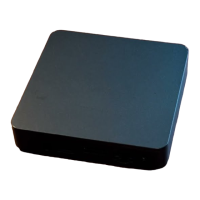
The EVO FORCE 1 STB comes with the most popular entertainment apps installed,
including Arvig WiFi TV, or add your own favorites from Google Play. (Account required.)
Almost 100 free specialty channels have been added into the WiFi TV guide from Pluto TV
on this device. Selecting one of these channels in the guide will launch the Pluto TV app.
• Press the OK button to access Pluto TV’s on-screen guide and menus.
• Press the TiVo button to easily return to Arvig WiFi TV.
Voice or typed searches display results from all installed apps—pick one and watch.
Subscription-based apps require an account to view content.
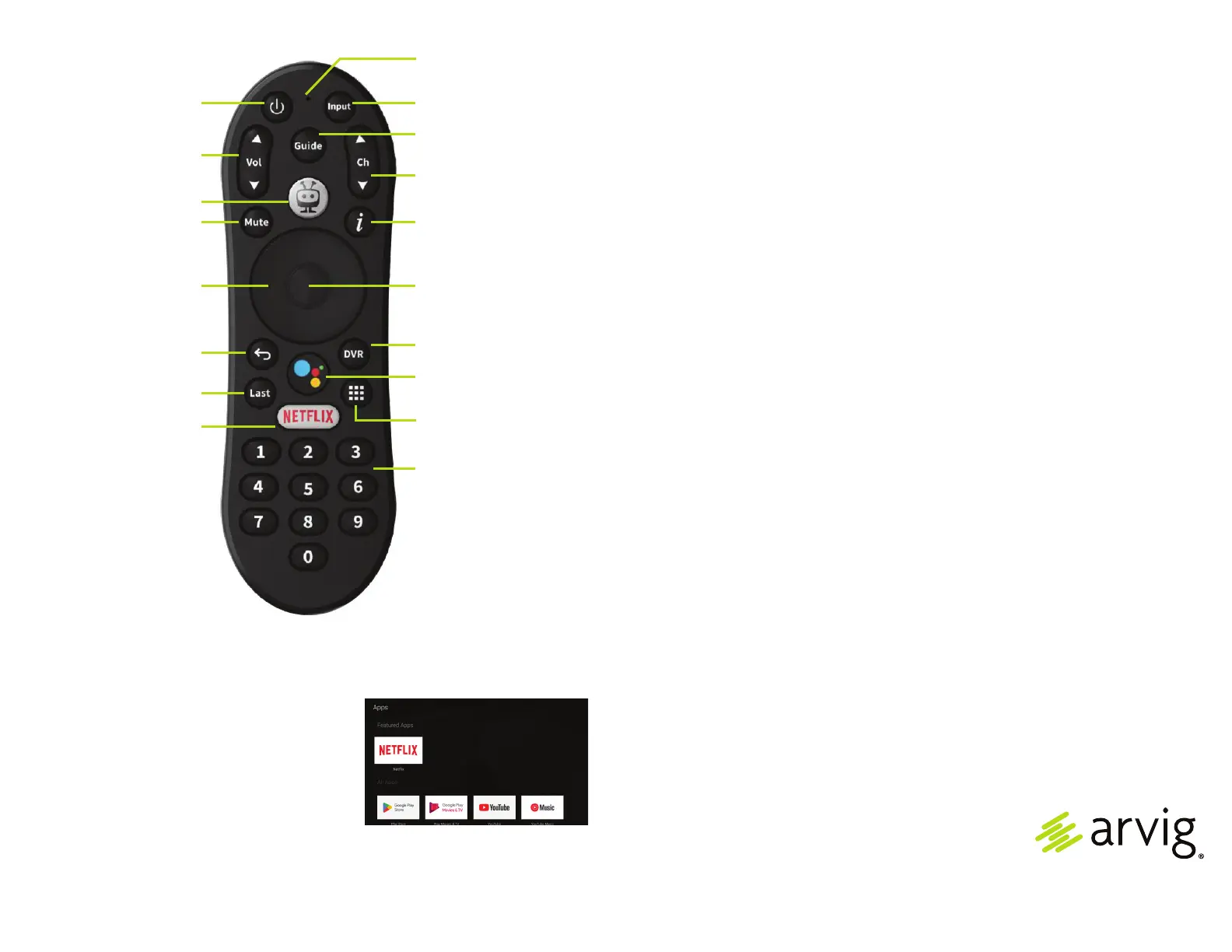
EVO FORCE 1 REMOTE CONTROLEVO FORCE 1 REMOTE CONTROL
The buttons on this remote are universal in function, however, the options available
within the Arvig app may be dierent than in other apps. Your remote may vary.
POWER turns the TV
on or o.
VOL controls the volume
on your TV.
TIVO takes you to the
main menu.
MUTE turns the sound
on or o.
CONTROLLER navigates
up, down, left and right
to move your cursor in
those directions.
BACK opens the main
menu or returns to the
previous screen.
LAST goes to the channel
you last viewed.
NETFLIX launches the
Netix app.
MICROPHONE for
Voice Search.
INPUT selects the input for
your TV.
GUIDE takes you to the
on-screen Guide.
CH changes the channels
up and down.
“i” shows more info about
what you’re watching.
OK, in the center of the
Controller button, accepts
the current selection.
DVR lets you schedule and
access your recordings.
VOICE SEARCH nds
your shows.
APPS takes you to all
your apps.
NUMBERS 09 enters
specic channel numbers
or Parental Control PIN.


 To Previous Page
 Loading...