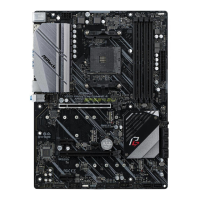
The EFI update SOP
(X570 board with Pinnacle Ridge or Picasso processor)
Step1
1. EFI bootable USB disk
(To create an EFI bootable disk, please unzip the EFI.zip and place the entire EFI folder into your USB disk root directo-
ry) Download the EFI.zip from the following link:
https://download.asrock.com/TSD/Desktop/RBU/EFI.zip
2. BIOS update package
Download the BIOS update package from the following link: X570_Steel_Legend
https://download.asrock.com/TSD/Desktop/VBU/X570_Steel_Legend.zip
Extract the X570_Steel_Legend.zip and place the entire folder
X570_Steel_Legend into EFI bootable disk.
Step2
Remove all storage devices from your system
Step3
Insert the EFI bootable disk to a USB port.
Step4
Boot the system and press F11 key to enter the boot menu.
Step5
Select the EFI USB drive and press the Enter key to boot into your USB drive.
Step6
Change the root to your USB drive by typing the following command:
Fs0:
※The following example is only for X570 Steel Legend. If your board is not X570 Steel Legend,
please replace the model name in step 1 and step 7 with the corresponding model name below.
*For X570 Phantom Gaming-ITX/TB3, the link will be:
https://download.asrock.com/TSD/Desktop/VBU/ X570_Phantom_Gaming-ITX_TB3.zip
*For X570 Phantom Gaming-ITX/TB3, the file will be:
X570_Phantom_Gaming-ITX_TB3.zip
*For X570 Phantom Gaming-ITX/TB3,
the command will be: cd X570_Phantom_Gaming-ITX_TB3
Step7
Go into the X570_Steel_Legend folder by typing the following command:
cd X570_Steel_Legend
Step8
Update the BIOS by typing the command:
BIOSUPDATE.nsh
Requirements:
Update steps:
Model Name
X570_Extreme4
X570_Extreme4_WiFi_ax
X570_Phantom_Gaming4
X570_Phantom_Gaming4_WiFi_ax
X570_Phantom_Gaming4S
X570_Phantom_Gaming-ITX_TB3
X570_Pro4
X570_Steel_Legend
X570_Steel_Legend_WiFi_ax
X570M_Pro4


 To Previous Page
 Loading...