V9.7 01/05/20 UD0011 Page 51 of 177
This Document is uncontrolled when printed unless over stamped “CONTROLLED DOCUMENT"
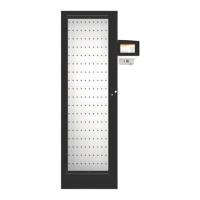
3. The system door will open and you will be presented with a screen similar to the following:
- Green symbols with a tick show items that the user has access to.
- Red symbols with a line indicate that the user does NOT have access to the item. This symbol is also
used when an item is returned to the wrong position.
- Red symbols with a question mark indicate that the item has become undetectable.
- Grey symbols with a yellow tick show that you have removed the item from the system.
- Grey symbols with a grey cross indicate that another user has the item out of the system.
- Grey symbols mean no item is assigned to the slot.
- Single arrow – scroll through pages of position numbers using this button. The display will show a
maximum of 60 positions on each page.
- Double arrow (systems with extensions only) – pressing this button will scroll through all available
cabinets/doors. The cabinet door number is displayed between the arrows on the left of the screen.
- (Systems with extension cabinets only) – pressing the Doors button will return you to the Door
Selection screen.
- Pressing the Help button will present you with a screen that has instructions on how to
remove/return keys.
- Pressing the Lookup button will allow you to select an item and view its description. Also, it will
allow you to view the user who last used item, or who currently has the item out of the system.
4. Press the button on the touch screen of the item you wish to remove.
5. You will hear a beep.
6. Wait for the “click” (unlocking item).
7. Remove the iFob.


 To Next Page
 Loading...