2-4
Chapter 2: Getting started
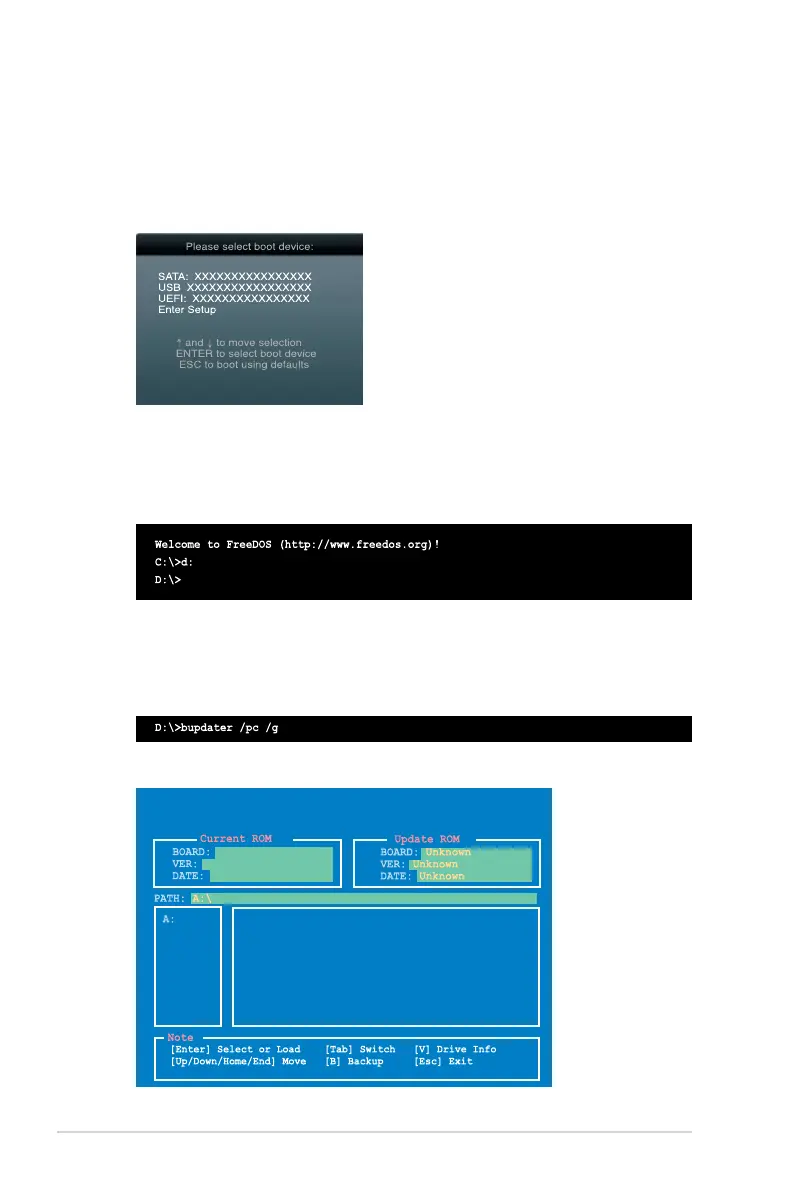
Booting the system to a DOS environment
1. Insert the USB ash drive with the latest BIOS le and BIOS Updater to the USB port.
2. Boot your computer. When the ASUS Logo appears, press <F8> to show the
BIOS
Boot Device Select Menu. Insert the support DVD into the optical drive and select the
optical drive as the boot device.
3. When the Make Disk menu appears, select the FreeDOS command prompt item by
pressing the item number.
4. At the FreeDOS prompt, type d: and press <Enter> to switch the disk from Drive C
(optical drive) to Drive D (USB ash drive).
Updating the BIOS le
To update the BIOS le using BIOS Updater:
1. At the FreeDOS prompt, type
bupdater /pc /g and press <Enter>.
2. The BIOS Updater screen appears as below.
Q87M-E
0208
Q87M-E-ASUS-0214.CAP 8194 2013-03-20 15:25:48
03/20/2013
ASUSTek BIOS Updater for DOS V1.30


 To Next Page