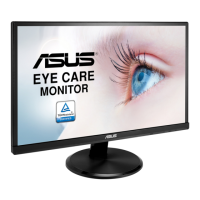
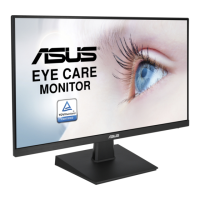
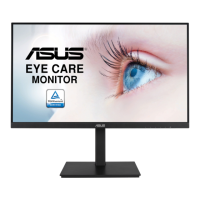
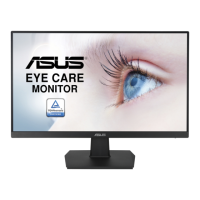
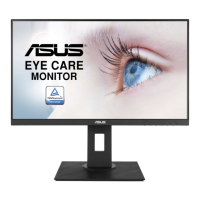
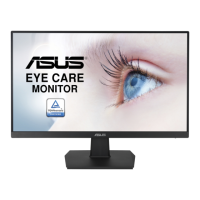
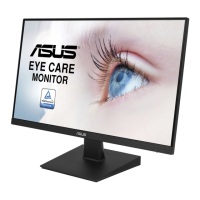
This document is a user guide for the ASUS VA229HR LCD Monitor, designed to provide users with comprehensive information on its setup, operation, and maintenance. The monitor offers a widescreen display with features aimed at enhancing the viewing experience, including crisp, broad, and bright visuals.
Function Description
The ASUS VA229HR LCD Monitor is a display device primarily used for connecting to computers and other video sources to output visual information. It supports both VGA and HDMI input signals, making it compatible with a wide range of devices. The monitor features an On-Screen Display (OSD) menu that allows users to reconfigure various settings to optimize their viewing experience.
Key functions accessible through the OSD include:
- Splendid: This feature offers eight preset display modes (Standard, sRGB, Scenery, Theater, Game, Night View, Reading, and Darkroom) tailored for different content types and ambient lighting conditions. Each mode has a Reset option, allowing users to revert to default settings or maintain their customized preferences.
- Blue Light Filter: This function allows users to adjust the energy level of blue light emitted from the LED backlight, with levels ranging from 0 (no change) to 4 (maximum reduction). This is particularly useful for reducing eye strain during prolonged use, especially in low-light environments.
- Color Adjustment: Users can fine-tune various color parameters such as Brightness, Contrast, Saturation, Color Temperature (Cool, Normal, Warm, and User modes), and Skin Tone (Reddish, Natural, and Yellowish). The User Mode allows for individual adjustment of Red, Green, and Blue color components.
- Image Adjustment: This section provides controls for image sharpness, response time (Trace Free), aspect ratio (Full, 4:3, Overscan), Vividpixel technology for enhanced visuals, and ASCR (ASUS Smart Contrast Ratio) for dynamic contrast. For VGA input, additional adjustments for Position (H-Position, V-Position), Focus (Phase, Clock), and Auto Adjust are available to optimize image clarity and alignment.
- Sound Settings: The monitor includes sound adjustment features such as Volume control, Mute function, and Source selection for audio input (Line In or HDMI).
- Input Select: A dedicated hotkey allows users to quickly switch between VGA and HDMI input signals.
- System Setup: This comprehensive menu provides access to various system configurations, including Splendid Demo Mode, GamePlus, QuickFit, ECO Mode, OSD Setup (Timeout, DDC/CI, Transparency), Language selection, Key Lock, and Information display. It also includes options for Power Indicator control, Power Key Lock, and an All Reset function to restore factory default settings.
Usage Features
The ASUS VA229HR monitor is designed for ease of use and flexibility.
- Assembly: The monitor base is easily attached to the arm by screwing it tightly, ensuring a stable setup. It is recommended to cover the table surface with a soft cloth during assembly to prevent damage.
- Adjustability: The monitor offers tilt adjustment, allowing users to change the screen angle from -5° to 20° for optimal viewing comfort. When adjusting the angle, users should hold the stand to prevent the monitor from falling.
- VESA Wall Mount Compatibility: The monitor's stand is detachable, making it compatible with VESA wall mounts (100 x 100 mm). This provides flexibility for users who prefer to mount their monitor on a wall or an alternative stand. Detaching the arm/stand involves loosening a screw at the bottom of the base or directly removing screws that secure the stand to the monitor. A UL Listed Wall Mount Bracket with specific weight/load and screw size requirements is recommended for safe mounting.
- OSD Navigation: The OSD menu is intuitive, with dedicated buttons for MENU, AUTO, and navigation (- and +). The MENU button activates the OSD and selects highlighted functions, while the - and + buttons are used for navigation and adjusting settings. The AUTO button exits the OSD menu and can also activate the Auto Adjustment function for VGA input.
- Key Lock Function: The - button can be pressed for over five seconds to enable or disable the key lock function, preventing accidental changes to settings.
- GamePlus: This feature provides a toolkit for gamers, including an Aimpoint function (crosshair) and a Timer, which can be useful in First Person Shooter (FPS) games and other gaming scenarios.
- QuickFit: This exclusive ASUS feature offers three patterns: Grid, Paper size, and Photo size. The Grid pattern helps designers and users organize content and layout, while the Paper and Photo size patterns allow photographers and other users to view and edit their images in real size on the screen.
- ECO Mode: This mode helps in power saving, contributing to energy efficiency.
- Multi-language Support: The OSD menu supports multiple languages, including English, French, German, Spanish, Italian, Dutch, Russian, Traditional Chinese, Simplified Chinese, Japanese, Persian, Thai, Indonesian, Poland, Turkey, Portugal, Czech, Croatia, Hungary, Romania, and Korean, making it accessible to a diverse user base.
Maintenance Features
Proper care and cleaning are essential for maintaining the monitor's performance and longevity.
- Safety Precautions: Users are advised to read all documentation before setup. To prevent fire or shock hazards, the monitor should never be exposed to rain or moisture, and the cabinet should not be opened due to dangerous high voltages inside. If the power supply is broken, a qualified service technician or retailer should be contacted. All cables must be correctly connected and undamaged. Ventilation slots should not be blocked, and the monitor should not be placed near radiators or heat sources without proper ventilation. The monitor should be operated from the specified power source, and appropriate power plugs should be used. Overloading power strips and extension cords should be avoided. The monitor should be protected from dust, humidity, and extreme temperatures, placed on a stable surface, and unplugged during lightning storms or extended periods of non-use. Objects or liquids should never be pushed into the monitor cabinet. Only UL listed computers with appropriate configured receptacles (100~240V AC) should be used. The socket-outlet should be easily accessible. For technical problems, a qualified service technician or retailer should be contacted.
- Cleaning Instructions: Before lifting or repositioning the monitor, it is best to disconnect cables and the power cord. When lifting, users should grasp the edges of the monitor, not the stand or cord. For cleaning, the monitor should be turned off and unplugged. The surface should be cleaned with a lint-free, non-abrasive cloth. Stubborn stains can be removed with a cloth dampened with a mild cleaner. Cleaners containing alcohol or acetone should be avoided; instead, a cleaner specifically intended for LCDs should be used. Cleaners should never be sprayed directly on the screen to prevent dripping inside the monitor and potential electric shock.
- Normal Monitor Symptoms: Users should be aware that some symptoms are normal for LCD monitors. Screen flickering may occur initially due to fluorescent light; turning the power switch off and on again usually resolves this. Slightly uneven brightness may be observed depending on the desktop pattern. Afterimages may remain if the same image is displayed for hours, but the screen will recover slowly, or the power switch can be turned off for several hours. If the screen becomes black, flashes, or stops working, users should contact their dealer or service center and avoid attempting repairs themselves.
- Troubleshooting (FAQ): The user guide includes a troubleshooting section to help users resolve common issues such as the power LED not turning on, the power LED lighting amber with no screen image, the screen image being too light or dark, the image not being centered or sized properly, image bouncing or wave patterns, color defects, and blurry or fuzzy images. Possible solutions are provided for each problem, guiding users through checks and adjustments via the OSD menu.

 Need help?
 General

 To Next Page