The ATEAGO S1 is a cleaning robot designed for various environments, offering automated cleaning and navigation capabilities. This document provides a comprehensive overview of its functions, technical specifications, usage, and maintenance.
Function Description
The ATEAGO S1 is primarily a cleaning robot equipped with features for autonomous navigation, obstacle avoidance, and cleaning tasks. It utilizes a combination of lidar, infrared sensors, and a 2.3d camera for environmental perception and mapping. The robot supports both manual and automatic charging, and its cleaning functions include vacuuming, mopping, and disinfection. It can be programmed to clean specific areas, avoid certain zones, and follow predefined routes. The robot's software allows for map building, editing, and task management through an Android-based interface.
Important Technical Specifications
Product Specifications:
- Product Size: Length 684mm * Width 500mm * Height 600mm
- Product Weight: 80kg (with packaging)
- Product Color: White
- Product Material: 3D printed parts
- Environmental Requirements: Storage temperature: -15°C ~ 55°C; Working temperature: 0°C ~ +50°C; Humidity (RH): 10% ~ 90%
Android Specifications:
- Operating System: Android 5.1
- Language Support: Chinese
- Processor Type: RK3128
- RAM/LPDDR3: 1G
- Built-in NAND Flash: 8GB
- USB Debug Port: Micro USB interface
- Display Screen: 7 inch, IPS screen (16:9) resolution 1024x600
- External I/O Port: 1 USB 2.0 (MICROUSB), RJ45 network port
- Speaker: 4Ω/3W Mono speaker
Wireless Technology:
- Support Dual Frequency: 2.4&5G
- WIFI: 802.11b/g/n non-domain network cable office
- AP6255: 11ac 5.15GHz-5.825GHz
ROS Navigation Specifications:
- Operating System: LINUX
- Lidar: Laser wavelength 905 nm, working area 270°
- Single Axis Gyroscope Sensor: Yaw angle measurement
- Hard Disk: 32G high-speed solid state drive
- Motor Driven: 6.5 inch hub motor
- Infrared Sensor: Communicate with charging piles within 1 meter
- 512AN_HMW Module Intel WIFI: Support dual frequency 2.4&5G, WIFI&BT4.1 802.11b/g/n wireless LAN, 11ac 5.15GHz-5.825GHz
- Moving Speed: Min 0.1 m/s, max 0.5 m/s
- Navigation Board: Intel Core I5 motherboard
- Remote Function: Support remote navigation status monitoring, remote online update navigation system
Light Tube:
Water Tank:
Power System:
- 24V Rectifier: LPS-425-40A24U DC24V output power 48W rectifier
- Motor: Vacuum cleaner, solenoid water valve switch, suction pump motor, roller motor
- Charging Method: Automatic recharge, DC direct charge
- Adapter: Enter: AC110-240V.50-60HZ; Output: DC43.2V-5A
- Robot Input Power: 42V--5A
- Battery: 25AH lithium iron phosphate, 38.4V/960W
- Charging Pile Parameters: Overcurrent protection, intelligent power off, output rated voltage: 43.2VDC, output rated current: 5A
- Charging Time: 5.5-6 hours
- Battery Life: 4-6 hours
Usage Features
The ATEAGO S1 is designed for ease of use with a clear boot-up process and intuitive charging methods.
Boot-up:
To power on the robot, locate the power button on the base 11 at the back of the robot. Press it once to turn it on, and then press and hold the power button for 3 seconds to turn it off. For shutdown, press and hold the power button for 3 seconds; the display will turn off first, then the motor will be powered off, and finally the chassis light will go out.
Charging:
The robot supports both automatic and direct charging.
- Automatic Charging: The robot automatically detects power levels and charges when below a set threshold. This requires a good map to mark the point of the charging pile.
- Direct Charging: Plug the power adapter cable into the power supply on the back of the robot. The green light on the charging pile indicates it is ready to charge.
- Charging Pile Placement: The charging pile must be selected within the map and placed against a wall. Obstacles within 2 meters in front of the charging pile and within 1.5 meters on both sides should be avoided. The charging pile should also be placed to avoid moisture, dripping, and high-temperature environments. When multiple charging piles are used, the spacing should be at least 1.5 meters.
Navigation:
The robot's navigation system allows for comprehensive mapping and task management.
- Network Settings: Connect the robot to a Wi-Fi network. The router network segment cannot be 192.168.10.x. Open the [Settings]-[WLAN] on the Android screen and connect to Wi-Fi. Then, open the Ftp application and enter the provided interface to send Wi-Fi information to ROS.
- Build Mode: The robot scans the actual environment to build a map. The viewing angle of the Lidar is 270°, and the scanning range is 20 meters. Users can control the mapping process using keyboard arrow keys.
- Mapping: After entering the webpage, select "Navigation Mode" and then "Laser Mapping." The machine rotates to clean surrounding feature points and then scans. The robot can be controlled to go after one rotation. Pay attention to gaps during walking. Slowly rotate the machine 90° facing the gap to clean feature points, then turn back to continue scanning. Open areas can follow U-shaped or straight-line routes. If the laser does not match the terrain, stop and wait for the laser to match the terrain before pushing the robot to build the map. If there is a mismatch, stop and wait for the laser to match the current terrain. If the map is clean without ghosting and matches the actual terrain, and there is no obvious dislocation, the "composition complete" message will appear. If there is any dislocation, wait for a period, and the algorithm will correct it. If the correction is not successful in 10 minutes, consider rebuilding the map.
- Edit Clean Area: Use polygons to draw the areas that need to be cleaned. This allows for measuring distances and defining specific cleaning zones.
- Virtual Wall: Restrict the active area of the robot. This mode allows users to zoom, pan, and rotate the map. Press "ctrl+left mouse button" to select a rectangular area, and the virtual wall in this area will be cleared. Users can draw irregular terrain (draw a curve) or straight lines. Save the drawn virtual wall or clear all virtual walls.
- Glass Walls/Tables: The laser can penetrate glass, so when drawing virtual walls, pay attention to the virtual wall outside the glass. The minimum passing distance of the machine is 1.5m.
- Important Note: The main function of the virtual wall is to prevent the robot from traveling to specific areas. Some areas that cannot be scanned by laser (glass walls, tables, chairs, steps, transparent and fragile objects) require manual virtual wall creation.
- Modify Map: Correct errors in the scanned map. The map editing function can be used to edit the map appropriately if it has changed after the scan or is too different from the actual environment. Users can save map modifications, clear drawn polygons, and select different map area types from a drop-down menu.
- Blank Area: Remove noise (such as noise left by pedestrians walking on the map and temporary obstacles) during the scanning process.
- Obstacle Area: Some real fixed obstacles may not be scanned very clearly when building the map, so it is necessary to draw obstacles artificially on the map (obstacles drawn must match the obstacles that can be swept by the real laser).
- Unknown Area: Frequently changing feature points need to be drawn into unknown areas (e.g., areas where robots will not walk outside the glass wall).
- Position: Provide reachable target points for business layer applications. Users can drag on the map to get the coordinates of the specified location for calibration, get the current position of the robot for calibration, and click on the right side to pop up the toolbar.
- Map Management: Edit map names, apply maps, export maps to the computer, delete maps, and mouse over to show a preview map or the original image. The map will not be applied immediately after uploading.
- Upgrade: Apply or delete new/old versions of the software.
- Debug: Adjust the travel speed of the machine (unit: m/s).
Performing Cleaning Tasks:
Before using this function, deploy the map according to the previous steps. Open the "Clean Robot" APP on the Android screen and enter the following interface:
- Click the machine number to enter the "System Settings" interface.
- Click to enter the "disinfection plan setting" interface.
- Click to start manual cleaning mode.
System Settings:
- Starting Up: Whether to start the application automatically when booting up.
- Minimum Autocharge: When the power is lower than the set value, trigger the machine to automatically recharge.
- Task Power: When the machine triggers "automatic charging" during the execution of a task, the machine will return to charging. When the set "task power" is reached, the machine will continue to perform unfinished tasks.
- Maintenance Mileage: A prompt box will pop up when the machine reaches the set maintenance mileage.
- Application Version: The APP version currently in use.
Disinfection Plan Setting:
- Plan Name: Give the plan a name.
- Work Completed: After the work is completed, go back to the charging station or the maintenance station (the maintenance station refers to the cleaning point of the machine trash can).
- Start Time: The start time of the plan.
- Speed: Driving speed.
- Vacuum Gear: Vacuum cleaner gear adjustment.
- Area Selection: Click to select the area to be cleaned.
Hand Clean:
Start cleaning by clicking "Start cleaning" to pop up a cleaning area selection box, select the area to be cleaned, and click OK to start cleaning. To return to charging, click on 'Return to Charge' and the machine will immediately return to the charging station for charging.
Maintenance Features
Regular maintenance is crucial for the longevity and optimal performance of the ATEAGO S1.
Cleaning the Water Tank and Dust Box:
- Opening Method: Stand in front of the machine on the right-hand side. There is a handle to pull the upper cover of the machine, and it will open automatically.
- Removal: The vacuum box and water tank should be cleaned regularly. When the machine reaches the set mileage, the status will be reported.
- Water Tank: Twist the lid with the straw to lift the water tank.
- Vacuum Box: Open the buckle on the lid, then take out the cloth bag in the vacuum box and clean it.
Removing the Mopping Module:
When removing the mopping module, be sure to press the emergency stop switch, and then take out the mopping module. First, open the cover of the mopping module, then pull the buckle, and pull out the mopping module box. Take out the sponge inside the box and clean it, then move the mopping module box. Clean it with a brush, finally wring the sponge dry, and put it back.
General Precautions:
- This document provides machine-related deployment procedures and precautions. Follow the instructions in the document to avoid abnormal situations when using the machine in the future.
- Do not use in places with stairs or drops.
- Do not use in a large amount of stagnant water and similar environments.
- Do not use on uneven and sloped roads.
- There should not be a lot of black marble and black reflective cabinets at a height of 27 cm.
- Do not travel on the ground with high friction: thicker and softer carpets.
- There should be no densely placed thin-legged chairs in the travel area.
- Do not use in an environment above 50°C and below 0°C.
- There are a lot of transparent glass and thin-legged tables and chairs, which can be used depending on the construction of the map and the test situation.
- Cleaning Precautions: Do not wipe with a wet towel to avoid water ingress!
- Laser Precautions: Do not block the laser with objects.
- Emergency Stop Switch: The emergency stop switch can only be rotated to the right, do not rotate to the left.

 Need help?
 General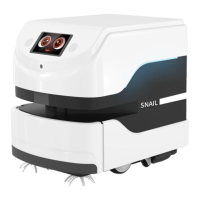

 To Next Page