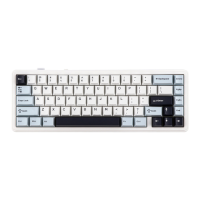
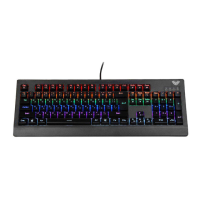
Capslock indicator
Functions and Indicators
RGB light/power indicator
USB receiver
Mode switch 2.4G/Wired/BT
Type-c
Product features
NIJM indicator
Stylish design with Gasket construction and a fine, soft and flexible feel
Keycaps and mechanical switches are pluggable
4000mAh•2 large-capacity lithium battery can be recharged, with power switch,
environmental protection and energy saving, saving worry and money, effectively
extending battery ife
FN+M key combination to switch between 15 RGB light effects
With the drive with music rhythm RGB lighting effect, there are 5 lighting effect
modes to choose from under this lighting effect.
Cooperate with the drive keys with custom functions and macro definitions.
Humanized design of the keyboard, adding a series of commonly used shortcut
Specifications
•Connection: Type-C wired & 2 4G wireless & BT
• With Gasket construction
• Number Of keys: 99 keys
• Pluggable mechanical switch
• RGB switchable lighting effects
• Lithium battery: rechargeable lithium battery 4000mAh*2
• Charging voltage/current: DC 5V/ S 830mA
• Rated voltage: DC 3_7V
• Battery ife: 53 hours (default lighting effect)
400 hours (with backlight and side lights off)
• 63 (L) X146 78 (W) 57 (H) ±05mrn
• Weight: 1183g
• Operating system: WIN XP7/8110/Andr0id/lOS/MAC
Description of shortcut keys (you have to switch to the corresponding mode
in the upper left corner to be able to long press on the code)
Combination
Function
Combination
Function
Combination
Function
Combination
Function
Combination
Function
Combination
Function
Combination
Function
ESC
restore the
default
3
os
Brightness-
Shift-R
Switchin RGB
ambien?oliiht
barm e
Ctrl-R
Cycle through
RGB ambient
light bar speeds
o
PAUSE
2.4G
Android
Lighting
mode switch
Speed
w
W Indows
TAB
Colour switching
Speed+
SwitchingRGB SwitchRGB
ambientlightba ambientlightba
colours
DEL
INS
to power mode
p RTSC
2
Mac
Brightness+
WIN
Lock WIN
Ait-R
h{nCeesSsofthe
ambient
Ii ht bar
SCRLK
FN+Q=Android system (Q button red light flashes for 3s), F area single press function
and F area FN combination function
Key
Single press
Combination
Key
Single press
Combination
Screen
brightness
previous
Screen
brightness*
Play/Pause
Co nvert
window
Next song
Return to
Desktop
Mute
Brightness
VOI ume
Brig htness+
F12
Volume+
FN+W=Windows system (W key red light flashes for 3s), F area single press function
and F area FN combination function
Key
Single press
Combination
Key
Single press
Combination
homepage
previous
emarl
play/pause
Convert
window
Next song
Open
Brightness
Explorer
Mute Volume
rig
F 12
F12
Volume+
FN+E=Mac system (E button red light flashes for 3s), F zone single press function
and F zone FN combination function
Key
Single press
Combination
Key
Single press
Combination
Screen
brightness
previous
F2
Screen
brightness+
Play,'Pause
Convert
Window
Next song
Return to
Desktop
Mute
Brightness-
Volume
Brightness•
F12
Volume*
F 12
FN+R=IOS system (R key red light flashes for 3s), F-zone single press function and
F-zone FN combination function
Single press
Combination
Single press
Combination
Screen
brightness,
prewous
Screen
brightness*
Play\Pause
Return to
arig htness-
Next song
Desktop
Mute Volume
Brightness*
F 12
Volume*
F 12
Operating instructions
2 4G mode: the upper left switch is dial ed to 2.4G mode, the cyan light of the
key blinks s OWY,and then press FN+'—key for 3 seconds to enter the code
pairing state, then plug in the receiver to finish the code pairing, the cyan light of
the key is on for 2s, the 2 4G connection is successful The factory default has
been pairing code
BT Mode: Top eft switch toggle to Bluetooth mode BLE5 0/BLE3 0 (device name
AULA-F99 3.0/AULA-F99 5.0), can connect 3 devices:
FN+I=BT 1, the blue indicator light under the key is flashing fast, back to the
connection is flashing s owy, the blue light is on for 2s when connected
FN+2=BT 2, the blue indicator light under the key is fast flashing, back to
connect slow flashing, connect to blue light 2s
FN+3=BT 3, the blue light under the key is flashing fast, back to connect the
slow flash, connect the blue light 2s.
Wired mode: Top left switch to centre position = wired mode, white light on "4"
button lights up for 2s
Fn+Esc long press for three seconds = Restore default. The original connected
BT device save will not be cleared
FN+Shift-R=Switch light bar light mode, FN+/? = switch light bar colour; FN+AIt-R
= ight bar brightness cycle, FN+Ctrl-R = light bar speed cycle
Fn+t=Brightness+ Fn+ I—Brightness-
FN+Q=Android, FN+W=Windows, FN+E=Mac, FN+R=IOS
Fn+Tab=Toggle light effect colour.
Fn+WIN-L=LockJopen left WIN window key (Lock WIN indicator light is always on
when locking WIN, under WIN system)
After switch'ng to Mac/IOS system, WIN-LJALT•L position is swapped (without
locking WIN)
FN+B=RGB ambient light bar can show keyboard power level, charging
streaming light display. Full long bright green, 5 lights each green light indicates
20% battery Low battery all red indication


 To Next Page
 Need help?

 General