13
USB / SD
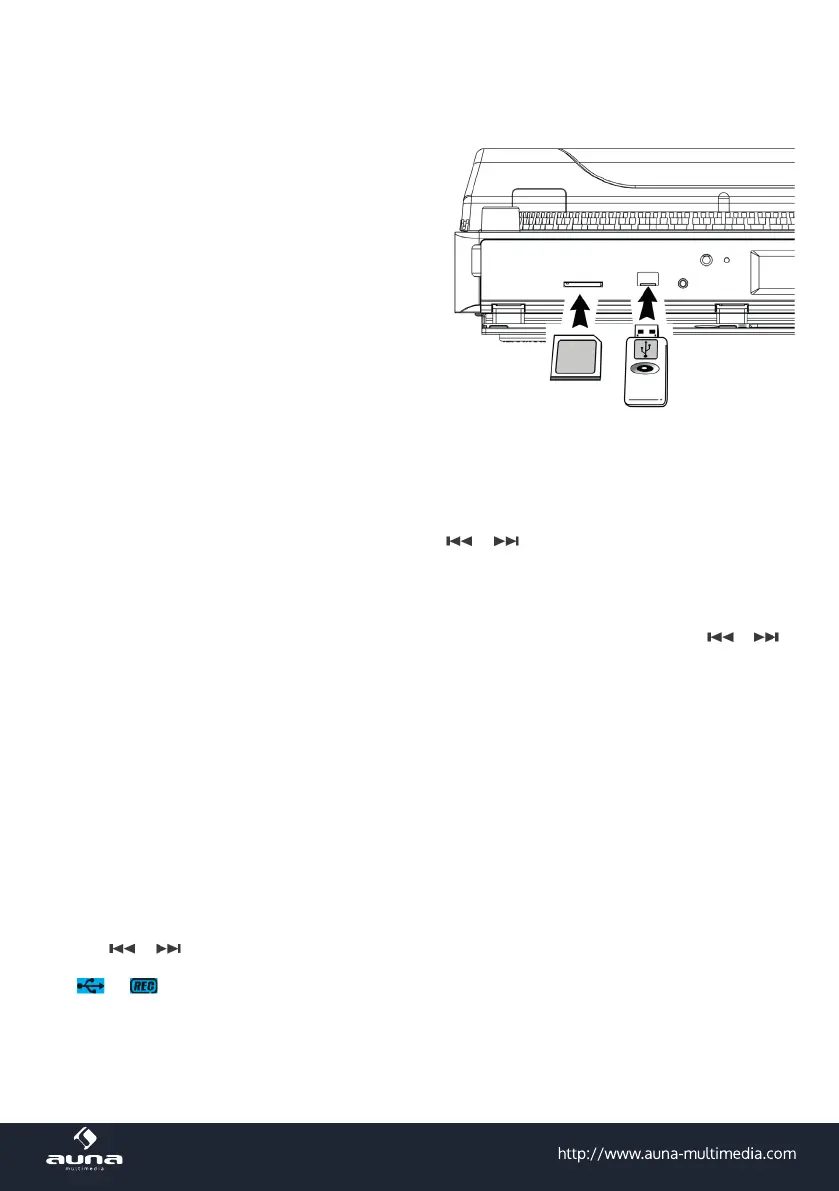
• Insert a USB/SD drive into the appropriate socket.
• Press USB/SD (repeatedly, if both are inserted),
to select the desired mode.
• Use the convenient buttons (Play/Pause/Stop /
Next/Previous) to navigate through your music
library.
• Press FOLDER UP to select the next folder (if
applicable)
• Repeatedly press REPEAT/RANDOM for
• REPEAT 1
• REPEAT ALL
• REPEAT FOLDER
• RANDOM (play all tracks in randomized order)
• REP OFF (normal play mode))
• Programmed play:
In SD/USB mode, press STOP, then PROG (19). Use / to select desired tracks, each of which
you conrm (add to playlist) by pressing PROG. You can add up to 32 tracks. Press Play/Pause to start
playback. Press Stop to end playback and delete the list.
• Search
In stop mode, press FIND on the RC. Titles will be displayed in alphanumerical order. Use / to
scroll. Press FIND once more, to expand the search function to the folder layer.
Please note: If an MP3 track has no ID3 tag assigned, the display shows "NOFILE".
Encoding: Vinyl -> MP3
You can use the TT-992E to digitalize your vinyl records to MP3. You need a USB or SD drive with some space
left (2GB min. recommended).
Please note: The recording speed is 1:1. On the target drive, a folder "AUDIO" will be generated, where your
recorded MP3 les will be stored in. The default recording format is MP3 (128kbps, sampling rate 44.1kHz).
• Press PHONO to activate the turntable deck.
• Use / to choose the target drive (USB or SD).
• Play a track (or the whole record). Press REC before the track starts.
•
& will be displayed, indicating the recording progress.
• To interrupt the recording process, press REC; to stop recording, press and hold REC until the display
stops ashing and PHONO is displayed.


 To Next Page