Tutorial video
Po
w
e
r
on
y
o
ur
ATKe
y
.
Ca
r
d
.
LED
#
1
Bl
u
e
ON
.
P
r
e
ss
t
he
s
ide
b
utt
on
3
t
ime
s
q
u
ickl
y
.
LED
#
2
tur
n
s
WHITE
.
To
u
ch
t
he
s
en
s
o
r
in
a
ci
r
c
u
la
r
mo
t
ion
,
LED
#
2
w
ill
change
f
r
om
s
lo
w
l
y
fla
s
hing
t
o
fa
st
e
r
fla
s
hing
.
LED
G
r
een
ON
,
en
r
ollmen
t
i
s
comple
t
e
.
1
.
2
.
3
.
4
.
5
.
6
.
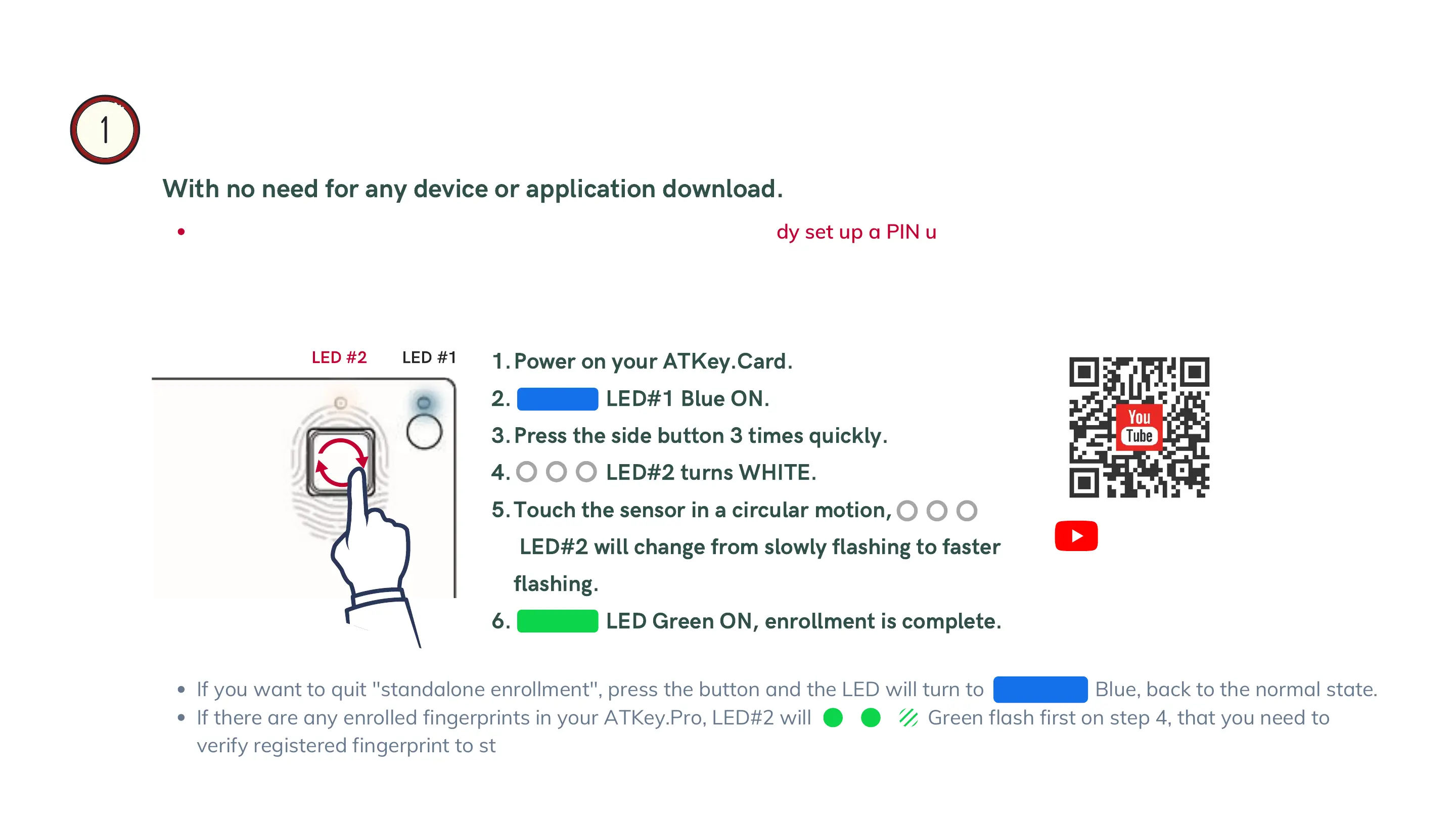
If you want to quit "standalone enrollment", press the button and the LED will turn to Blue, back to the normal state.
If there are any enrolled fingerprints in your ATKey.Pro, LED#2 will Green flash first on step 4, that you need to
verify registered fingerprint to start enrolling new finger.
Please enroll a fingerprint at the same place If you have already set up a PIN using any previous method.
You can enroll your fingerprint directly using this method only if you have not yet set up a PIN or you want
to add more fingerprints.
Enroll Fingerprints through Standalone Enrollment
Wi
t
h
no
need
fo
r
an
y
de
v
ice
o
r
applica
t
ion
do
w
nload
.
LED
#
1
LED
#
2



 To Next Page