136
3.8 Snapshot the Screen
Taking a quick capture of current display screen and save in *.jpg format to external USB pen
drive.
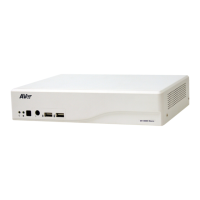
1. Plug in the USB pen drive to USB port of NVR/DVR unit.
2. In preview mode, Click the snapshot icon ( ) and the snapshot dialog box is appeared.
3. User can rename the File name by using virtual keyboard.
4. Click OK button to save the captured image file to USB pen drive.
5. The captured screen is looks like the figure below. There have date and time shown on the
screen snapshot file.


 To Next Page
 Loading...