Printing Labels 4-1
PRINTING LABELS
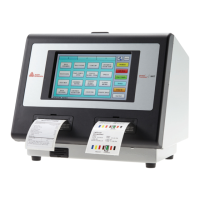
This chapter describes how to print freshness and Use First labels and batches of labels.
Printing Freshness Labels
1. Turn on the printer.
2. Enter your Employee ID, if prompted.
3. Press the product button of the label to print.
4. Select the number of labels to print and press (Enter). To print a single label, press
(Enter).
Note: If you have a dual printer, your System Administrator can enable
the Backup Printer selection option. Select the number of labels to
print, then select the printer (left or right), and then press
(Enter).
Labels print for the selected product.
6B
s
Single Printer Dual Printer



 To Next Page
 Loading...