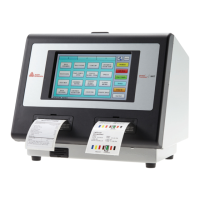
Checking the Stock Registration
If you Calibrate Stock, there is no need to calibrate the sensor.
1. Load the supply for non-peel mode as shown below.
2. Select Stock Registration from the Printer Diagnostics window.
3.
Select the sensor to calibrate (either Black Mark or On-Demand). The black mark sensor is
used with black mark supplies (supplies with rectangular marks on the back side of the liner
or on the supply). The on-demand sensor is for peeled supplies.
4. For black mark supplies longer than 4.0 inches, make sure supplies are loaded with a black
mark slightly below the sensor as shown below. This feeds the least amount of labels during
the calibration process.
Black mark on supply slightly
below sensor with enough label
to feed through printer.
Black Mark Sensor
5.
Close the supply cover, then touch Calibrate Sensor to calibrate the black mark sensor.
The printer feeds supply until it detects a black mark to calibrate the sensor. When the
calibration is successful, a message appears: “Black Mark stock sensor calibration
successful.” Touch OK.
Using Printer Diagnostics 6-5



 To Next Page
 Loading...