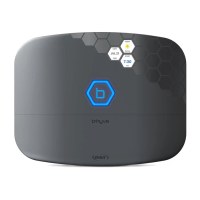
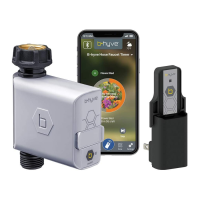
This document outlines the features and operation of the Orbit B-hyve WiFi Sprinkler Timer, a smart irrigation device designed to manage landscape watering efficiently and conserve water. The timer can be controlled both directly from its interface and remotely via a smart device application, offering flexibility for users with or without Wi-Fi access.
Function Description
The Orbit B-hyve WiFi Sprinkler Timer is a smart irrigation controller that connects to your home's Wi-Fi network, allowing for remote management of your sprinkler system. It leverages local weather data and user-defined landscape inputs to optimize watering schedules, ensuring plants receive the appropriate amount of water while minimizing waste. The timer supports multiple watering programs (A, B, C, and Smart) to accommodate different plant needs within a landscape, such as lawns, flowerbeds, and gardens. In "Smart" mode, the timer automatically adjusts watering based on real-time weather conditions and site-specific information.
Usage Features
The timer offers a comprehensive set of features for programming and manual operation:
- Dual Control Interface: Users can program and adjust the timer either through its physical interface (dial and buttons) or via the B-hyve app on a smart device (phone or computer). Changes made on one interface are reflected on the other, ensuring consistent control.
- Wi-Fi Connectivity: The timer connects to Wi-Fi, enabling smart watering features and remote control. The Wi-Fi icon on the LCD indicates connection status: graduated blinking for pairing mode, blinking for no connection, solid for connected to Wi-Fi but not Orbit servers, and solid with an exclamation point for communication with Orbit servers.
- Installation: Installation involves selecting a location with good Wi-Fi signal and away from direct sunlight, mounting the timer using provided screws and anchors, and connecting valve wires. Each valve wire connects to a "Common" (COM) terminal and a numbered terminal, with only one wire per terminal.
- Pairing with Smart Device: After plugging in, the timer automatically enters pairing mode (indicated by a blinking Wi-Fi icon). Users install the B-hyve app, create an account, connect their smart device to the timer's temporary Wi-Fi network (Orbit_SmartHome_XXXX), and then select their home Wi-Fi network and enter the password. A solid Wi-Fi icon on the timer confirms a successful connection.
- Re-pairing and Deleting: To re-pair, turn the dial to "Off" and press the reset button on the back of the swing panel. To delete the timer from the app, go to settings and deauthorize it.
- Timer Controls (Physical Interface):
- Dial: Used to scroll up/down, left/right through menus, dates, and times. Pressing the dial confirms a selection, deselects, or skips a running station.
- Center Button: Scrolls up/down, left/right, and pushes to make a selection.
- BACK Button: Returns to the main menu or twice to "AUTO" mode.
- CLEAR Button: Clears a setting, cancels Rain Delay, cancels a running program, or cancels a manual watering cycle.
- PROG ABC Button: Toggles between programs (A, B, C, and Smart) for setting up or modifying start times, run times, how often, and budget. It also activates or deactivates programs; active programs (A, B, C, or Phone icon for Smart) will illuminate on the LCD.
- RAIN DELAY Button: Pauses all watering for 1 to 32 days. Repeated presses or dial turns adjust the delay duration.
- Programming Features (via Dial/Buttons):
- AUTO/OFF: The timer should be in "AUTO" during irrigation seasons and "OFF" during non-irrigation periods. The dial automatically reverts to "AUTO" after about 20 seconds if left in another position (except "OFF").
- DATE/TIME: If connected to Wi-Fi, date and time are set automatically. Otherwise, they can be set manually by turning the dial to "DATE/TIME," selecting year, month, day, and time, and confirming each selection.
- START TIME: Sets the time the first zone begins watering for a program. Only one start time is needed per program, appearing as "1ST." Additional start times can be added to prevent runoff.
- RUN TIME: Sets the watering duration for each individual zone. Users select the desired zone (flashing number) and then the duration.
- HOW OFTEN: Determines watering frequency (days of the week, or interval like ODD/EVEN days). Users select desired days or an interval and the number of days between waterings.
- BUDGET: Adjusts all run times in a program by a percentage (e.g., 100% to 150%). This is useful for seasonal adjustments without changing individual zone run times.
- Manual Operation: Used to test zones or run extra cycles.
- Water All Zones: Turn the dial to "MANUAL," press the dial when "ALL" is displayed, set a duration, and press the dial to start.
- Water Specific Program (A, B, or C): Turn the dial to "MANUAL," rotate the dial until the desired program is showing, and press the dial to start.
- Water Specific Zone: Turn the dial to "MANUAL," rotate past programs until "STATION" and a number appear, press the dial, select the desired zone, set a duration, and press the dial to start. Multiple zones can be programmed this way.
- LCD Display: Provides visual feedback on status (Wi-Fi signal, fault, water budgeting, rain drop, no AC, battery), current time, program status, next start time, and watering details.
Maintenance Features
- Battery Compartment: Houses a battery that maintains time and date settings during power loss. Program data is stored in non-volatile memory and is not lost. A low battery indicator appears on the LCD.
- Troubleshooting & Support: The B-hyve app includes help screens and videos for Wi-Fi connections, programming, smart watering, and other general questions. Detailed instructions and troubleshooting information are available at bhyve.orbitonline.com. Technical support is available via phone (1-800-488-6156 or 1-801-299-5555).
- Weather Resistant Cover: Protects the internal components from environmental elements.
- Reset Button: Located on the swing door panel, used for re-pairing the device.
The Orbit B-hyve WiFi Sprinkler Timer is designed for ease of use, offering both advanced smart features and straightforward manual controls to cater to various user preferences and needs.

 Need help?
 General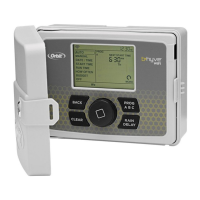

 To Next Page