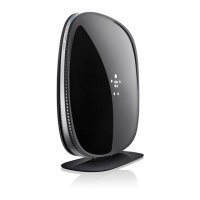
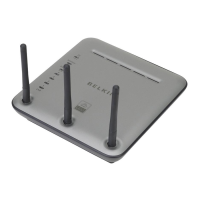
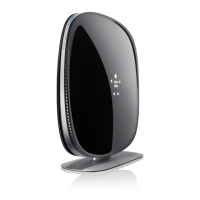
Verify that your modem is connected to the Router by checking the lights on
the TOP of the Router. The green light labeled “WAN” should be ON if your
modem is connected correctly to the Router. If it is not, recheck
Verify that your computer is connected properly to the Router by checking the
lights labeled “LAN 1,2,3,4”. The light which corresponds to the numbered
port connected to your computer should be ON, if your computer is connected
properly. If it is not, recheck your connections.
Step 2: Set your Computer’s Network Settings to Work with a
See the section in this User Manual called “Manually Configuring Network
Settings” for directions.
Step 3: Confi guring the Router Using the Web-Based
Using your Internet browser, you can access the Router’s Web-Based Ad-
vanced User Interface. In your browser, type “192.168.2.1” (do not type in
anything else such as “http://” or “www”). Then press the “Enter” key.
Step 2: Set your Computer’s Network Settings to Work with a
Step 3: Confi guring the Router Using the Web-Based



 To Next Page
 Loading...