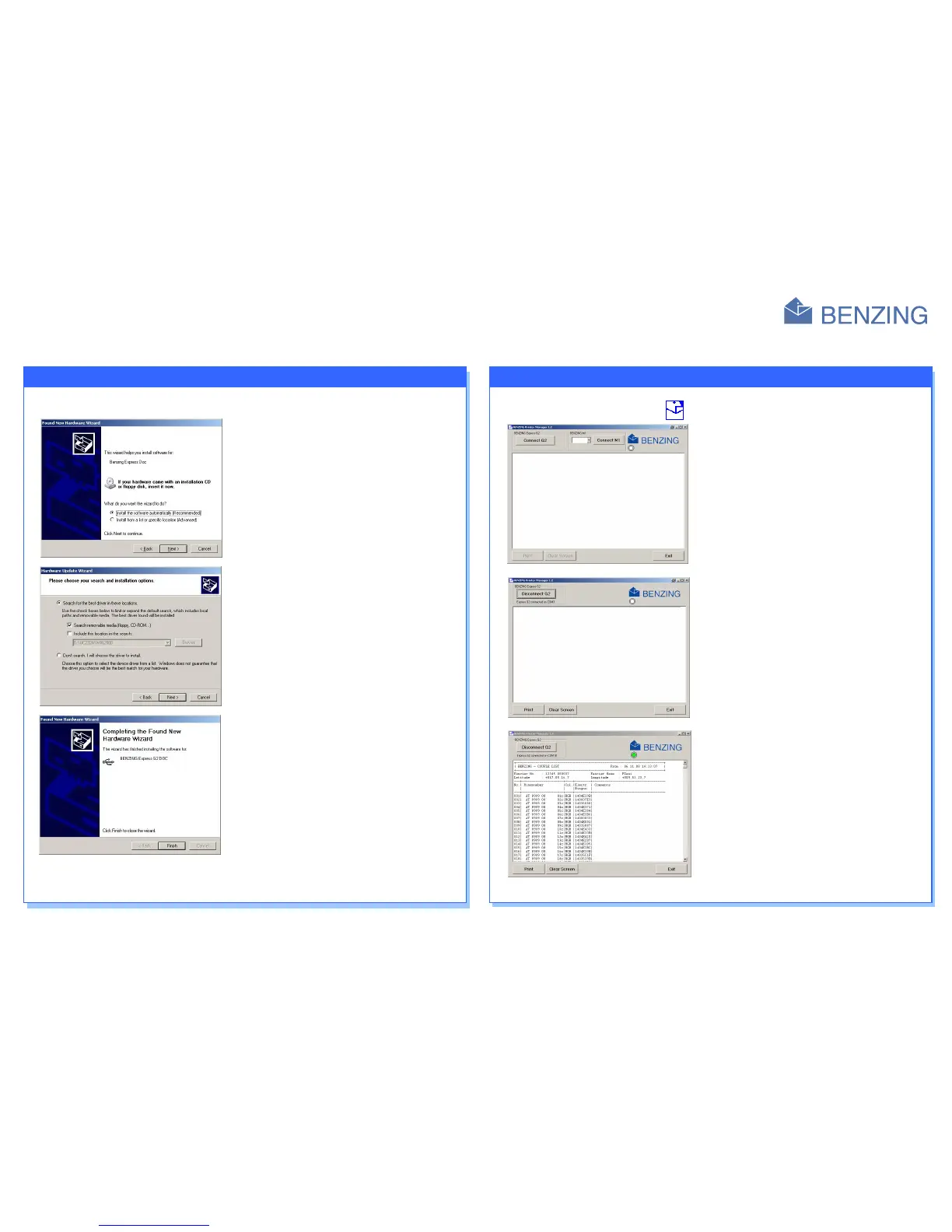
1. If the BENZING Express G2 DOC is connected the first time to the PC, at window appears automatically in order to install the USB-driver.
2. Mark the first option “Install the software automatically (Recommended)“
and click on “Next >”
3. First of all insert the driver CD into the CD-drive. Continue the installation by
clicking on “Next >” and the computer is searching the USB-driver on the
CD and installs it.
4. In order to complete the installation, click on “Finish”. Therefore the USB-
driver is now installed on the PC.
5. After the installation of the USB-driver, a window appears again in order to install the “USB Serial Port“. This installation must be also accomplished.
After the installation of the drivers, the Software “BENZING Printer Manager“ can register/identify the BENZING Express G2 automatically. The
installation is done by the same procedure as for the USB-driver
The installation window is started automatically by inserting the CD. Choose the installation for the Software “BENZING Printer Manager”. The program
can be started through a double-click on the program symbol after the installation of the program.
The main window of the Software appears on the monitor.
1. First of all connect the BENZING Express G2 via the USB-Connection cable
to the PC (see PC communication on the front of the document). In order to
make a connection to the BENZING Express G2, click on “Connect G2“.
2. Go into the fancier menu of the BENZING Express G2 by pressing the left
and right button together for 3 seconds. Choose the menu 5 “Print” and the
respective list (“Couple list” or “Arrival list”) which you want to print. Thus
the selected list is transported/transmitted to the PC and displayed in the
window of the BENZING Printer Manager.
3. By the use of the button “Print“ the list is printed resp. deleted by the use of
the button “Clear Screen”
4. Use the button “Exit“ for quitting the program.



 To Previous Page
 Loading...