14 15
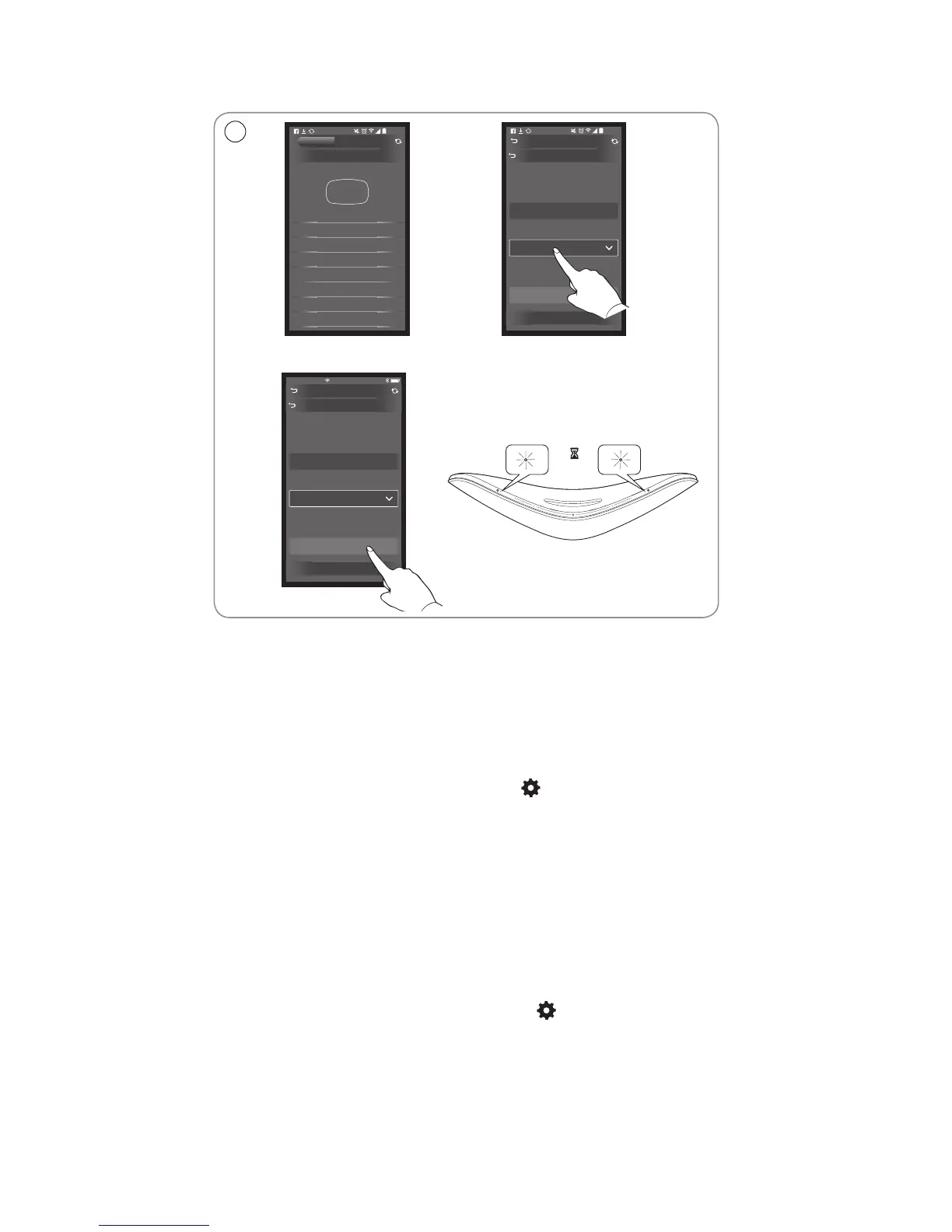
EN Select the ‘NETWORK’ menu. Select your home network from
the ‘Network name (SSID)’ dropdown list. Enter the network
password if required. Then press ‘APPLY CHANGES’ and
close the app. The network indicator flashes orange and then
becomes solid white, indicating the BeoPlay A6 is connected
to your network. If you need to reconfigure the network,
press the network setup button [ ], in the connector well,
and wait for the network indicator to flash orange.
DA Vælg menuen "NETWORK". Vælg dit hjemmenetværk på
rullelisten "Network name (SSID)". Indtast adgangskoden
til netværket, hvis du bliver bedt om det. Tryk derefter på
"APPLY CHANGES", og luk appen. Netværksindikatoren
blinker orange og lyser derefter konstant hvidt, hvilket
indikerer, at BeoPlay A6 er forbundet til dit netværk. Hvis du
får brug for at genkonfigurere netværket, skal du trykke på
knappen til netværkskonfiguration [ ] i tilslutningsbrønden
og derefter vente på, at netværksindikatoren begynder at
blinke orange.
ABOUT
NETWORK
UPDATE PRODUCT SOFTWARE
YOUR CONTENT
REMOTE CONTROLS
BLUETOOTH
SOUND
WELCOME
11:11
PRODUCT VIEW
>
>
>
>
>
>
>
NETWORK
Please select the wireless network you would like
to connect to, then enter your password to set up
your product.
Product name
Network name (SSID)
Password
BeoPlay A6_xxxxxxxx
Home Network
APPLY CHANGES
SHOW ADVANCED SETTINGS
11:11
11:11No SIM
NETWORK
Please select the wireless network you would like
to connect to, then enter your password to set up
your product.
Product name
Network name (SSID)
Password
BeoPlay A6_xxxxxxxx
Home Network
APPLY CHANGES
SHOW ADVANCED SETTINGS
... Setup using Android/iOS < 7.0
2


 To Next Page
 Loading...