6 7
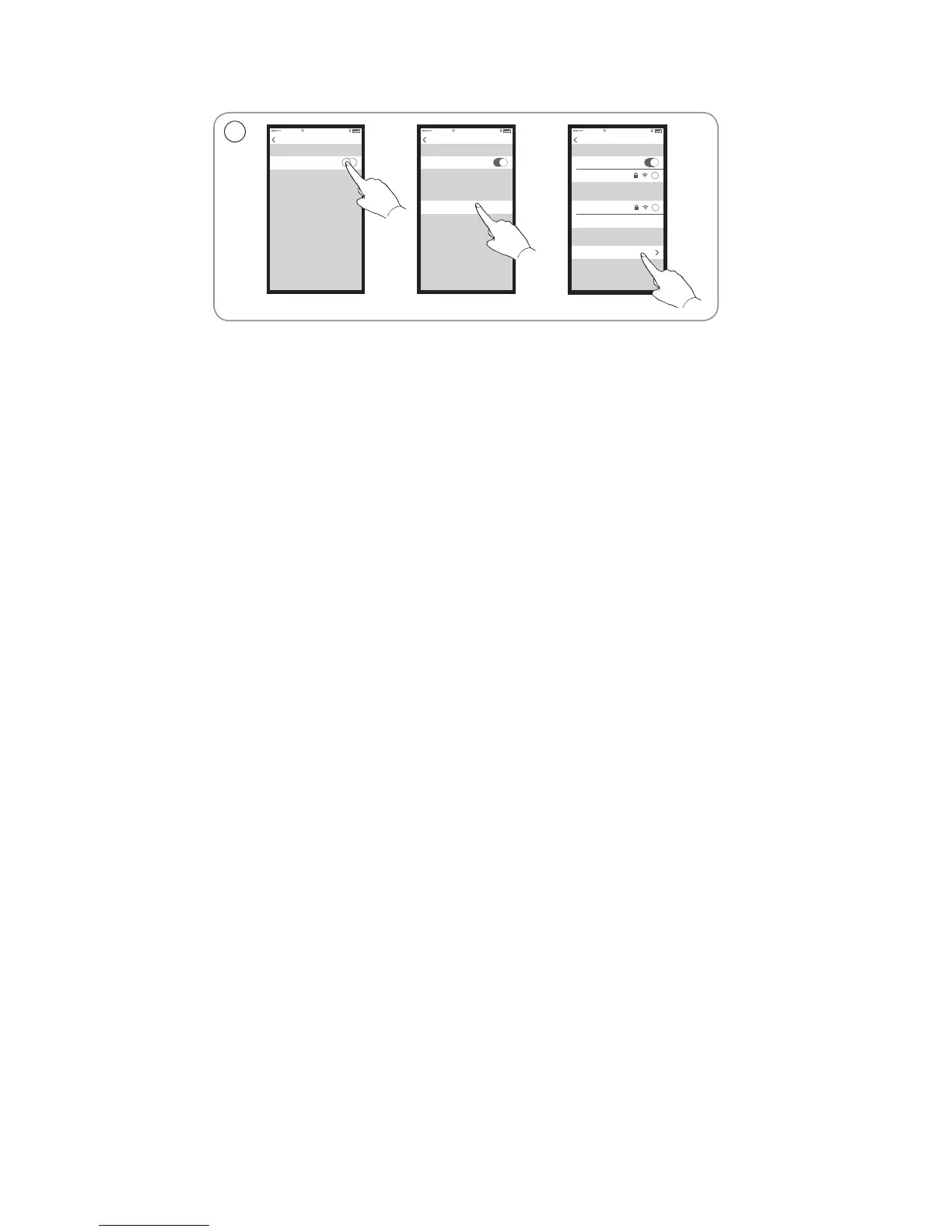
EN On your iOS device, select ‘Settings’ > ‘Wi-Fi’. Make sure you
are connected to your home network. In the menu, select ‘SET
UP NEW AIRPLAY SPEAKER’ > ‘BeoPlay A6_xxxxxxxx’.
DA Vælg "Indstillinger" > "Wi-Fi". Sørg for, at du har forbindelse til
dit hjemmenetværk. Vælg "SET UP NEW AIRPLAY SPEAKER"
> "BeoPlay A6_xxxxxxxx" i menuen.
DE Wählen Sie auf Ihrem iOS-Gerät "Settings" > "Wi-Fi".
Vergewissern Sie sich, dass das Gerät mit Ihrem Heimnetzwerk
verbunden ist. Wählen Sie im Menü "SET UP NEW AIRPLAY
SPEAKER" > "BeoPlay A6_xxxxxxxx".
ES En su dispositivo iOS, seleccione ‘Configuración’ > ‘Wi-Fi’.
Asegúrese de estar conectado a la red doméstica. En el menú,
seleccione ‘SET UP NEW AIRPLAY SPEAKER’ > ‘BeoPlay A6_
xxxxxxxx’.
FR Sur votre appareil iOS, sélectionnez ‘Settings’ > ‘Wi-Fi’.
Assurez-vous que vous êtes connecté à votre réseau
domestique. Dans le menu, sélectionnez ‘SET UP NEW
AIRPLAY SPEAKER’ > ‘BeoPlay A6_xxxxxxxx’.
IT Sul dispositivo iOS, selezionare 'Settings' > 'Wi-Fi'. Accertarsi
di essere collegati alla rete locale. Nel menu, selezionare
'SET UP NEW AIRPLAY SPEAKER' > 'BeoPlay A6_xxxxxxxx'.
JA
お 使 い の iOS デ バイスから、「
Settings
」
>
「
Wi-Fi
」を開き
ます。
iOS
デバイスがホーム
ネットワークに接続されている
ことを確認してください。メニューから、「
SET UP NEW
AIRPLAY SPEAKER
」
>
「
BeoPlay A6_xxxxxxxx
」を 選 択 し ま す 。
Setup using iOS
≥
7.0 ...
Wi-Fi
Wi-Fi
Settings
11:11
Wi-Fi
Wi-Fi
Settings
11:11
Home network
CHOOSE A NETWORK
Wi-Fi
Wi-Fi
Settings
11:11
Home Network
i
Office
CHOOSE A NETWORK
i
Other
BeoPlay A6_xxxxxxxx
SET UP NEW AIRPLAY SPEAKER
1


 To Next Page
 Loading...